Entries
How do entries work?
Lucky Draw Plus is simply an engine to pick a random item from a list. The items in the list are called entries.
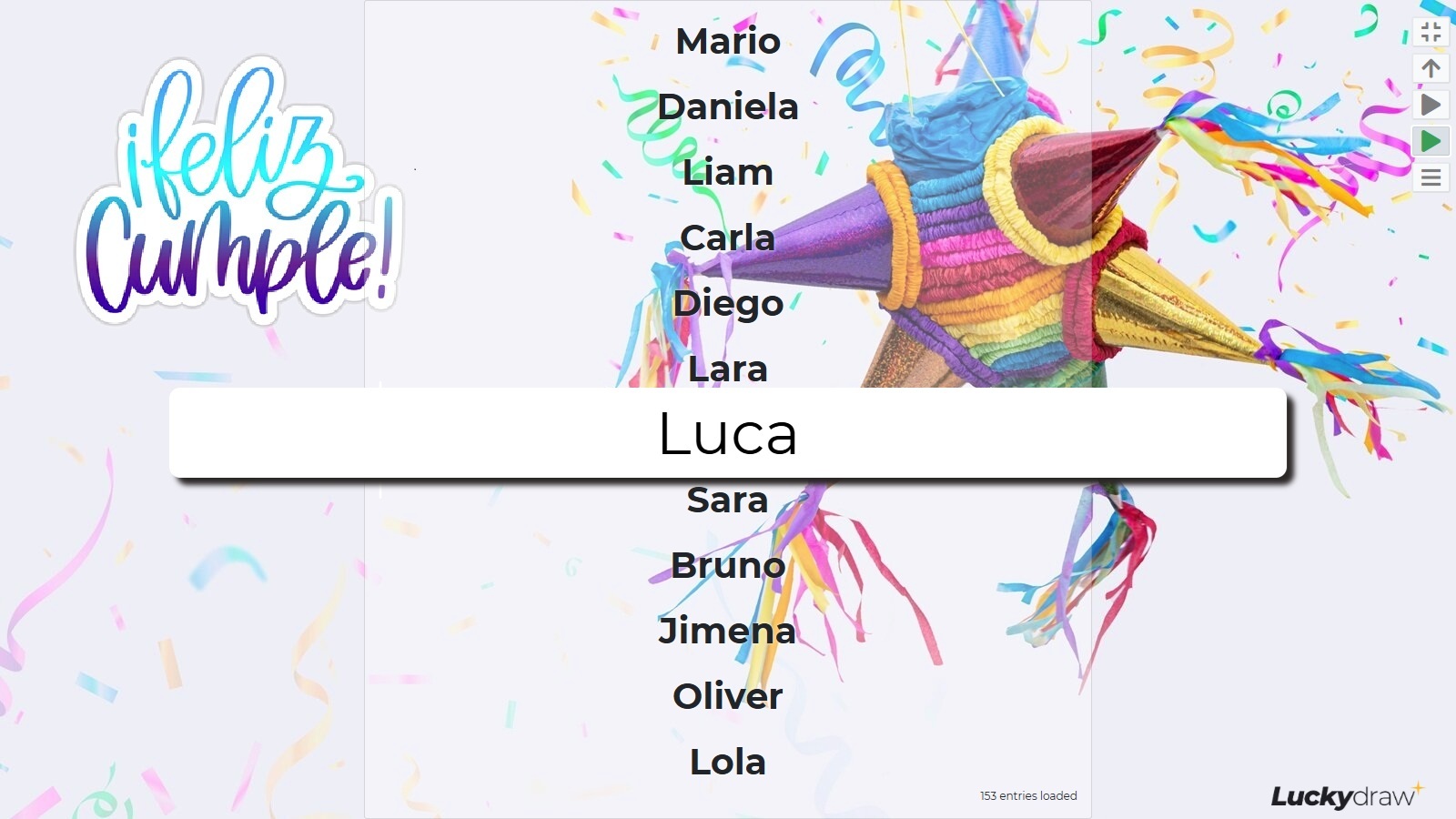
Usually, entries represent people, and you are planning to pick the winning person.
However your entries can also be
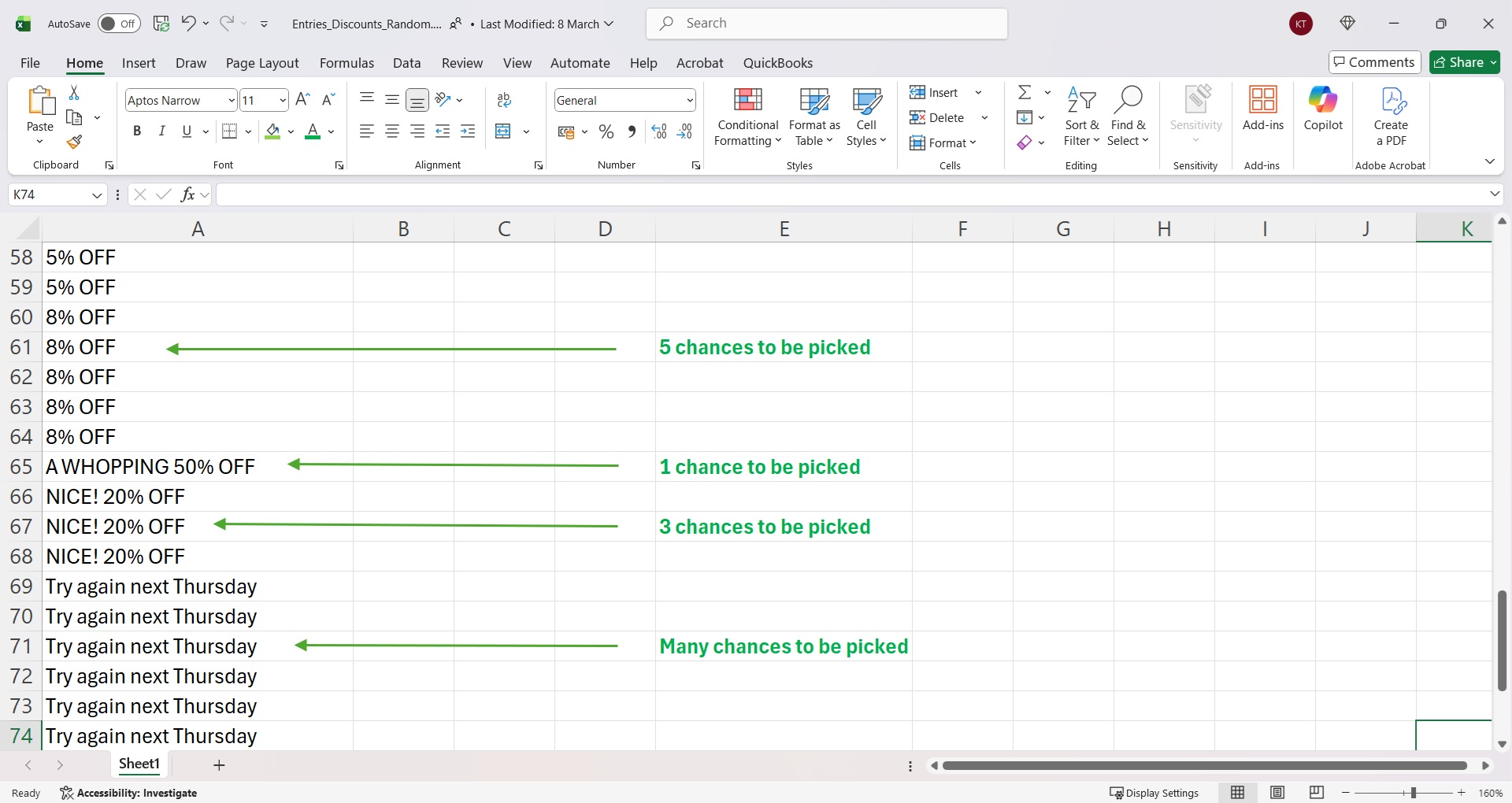
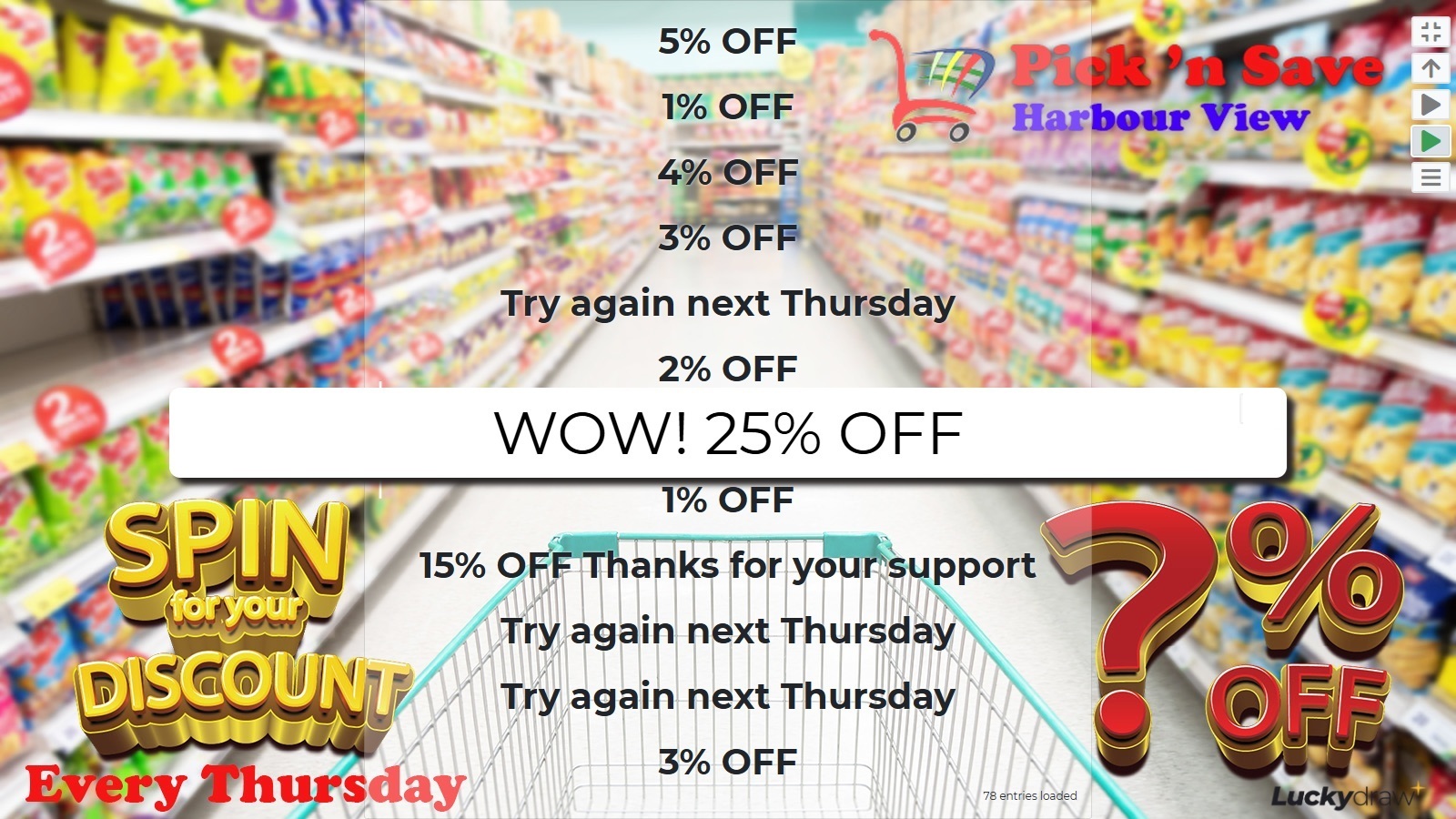
prizes or discounts (let your customers pick their own prize)
questions or topics (let your students pick their own question to answer)
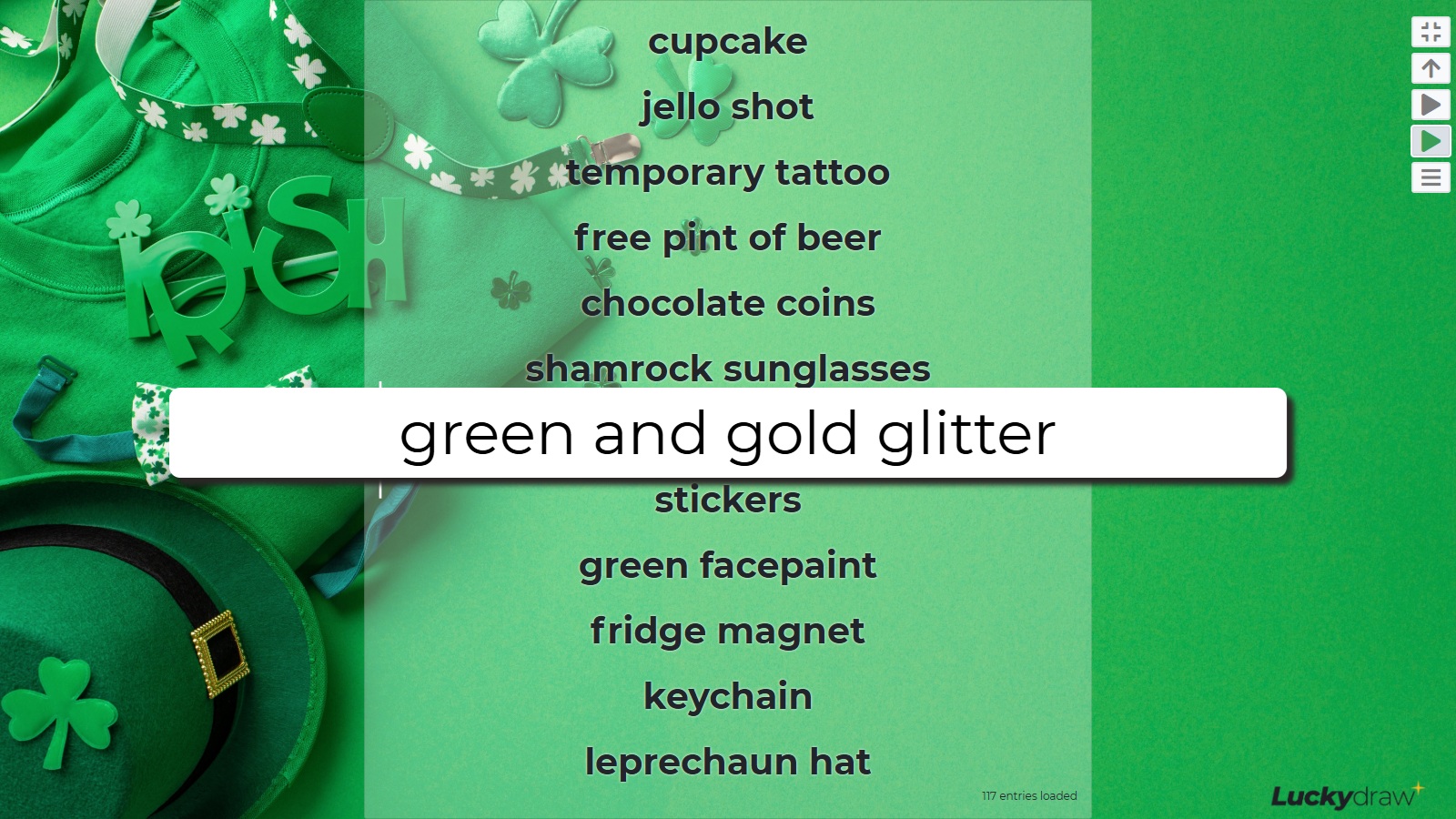
anything you like!
See also What is Lucky Draw Plus? for more ideas on what you can use Lucky Draw Plus for.
|
|
|
Overview
You will load your list of entries, and when you click Draw, Lucky Draw Plus will scroll through your list of entries and pick one entry as the winner.
Your entries can be numbers, names, email addresses, user handles - any text in any language that you choose.
You need to create a file with your entries in it, either a spreadsheet, CSV or text file.
This section will guide you in creating your entries file.
There are also various settings that control how entries behave in your draw which are detailed below.
How to collect entries
You may already have your entries in a list, or in a system from which you can export a file.
For example:
Your entries are your staff members - you can export the list from your HR system
Your entries are customers who made purchases in a certain time period - you can export the list from your sales system
You can also use Lucky Draw Plus to collect online entries - you will create an entry form, then generate and share a QR code that your users can scan to enter themselves into your draw online.
See also Online entries for more details.
Load entries
If you do not yet have entries loaded, Lucky Draw Plus will prompt you to load entries before you are able to draw.
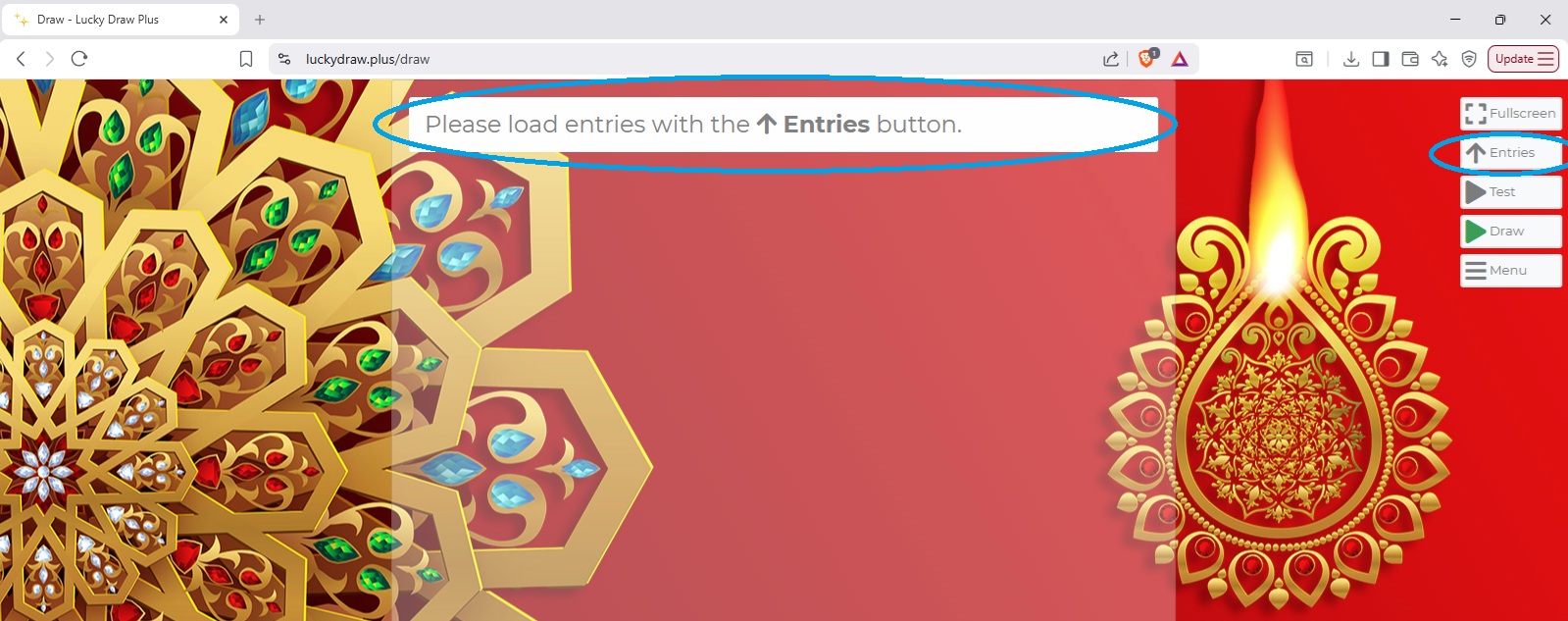
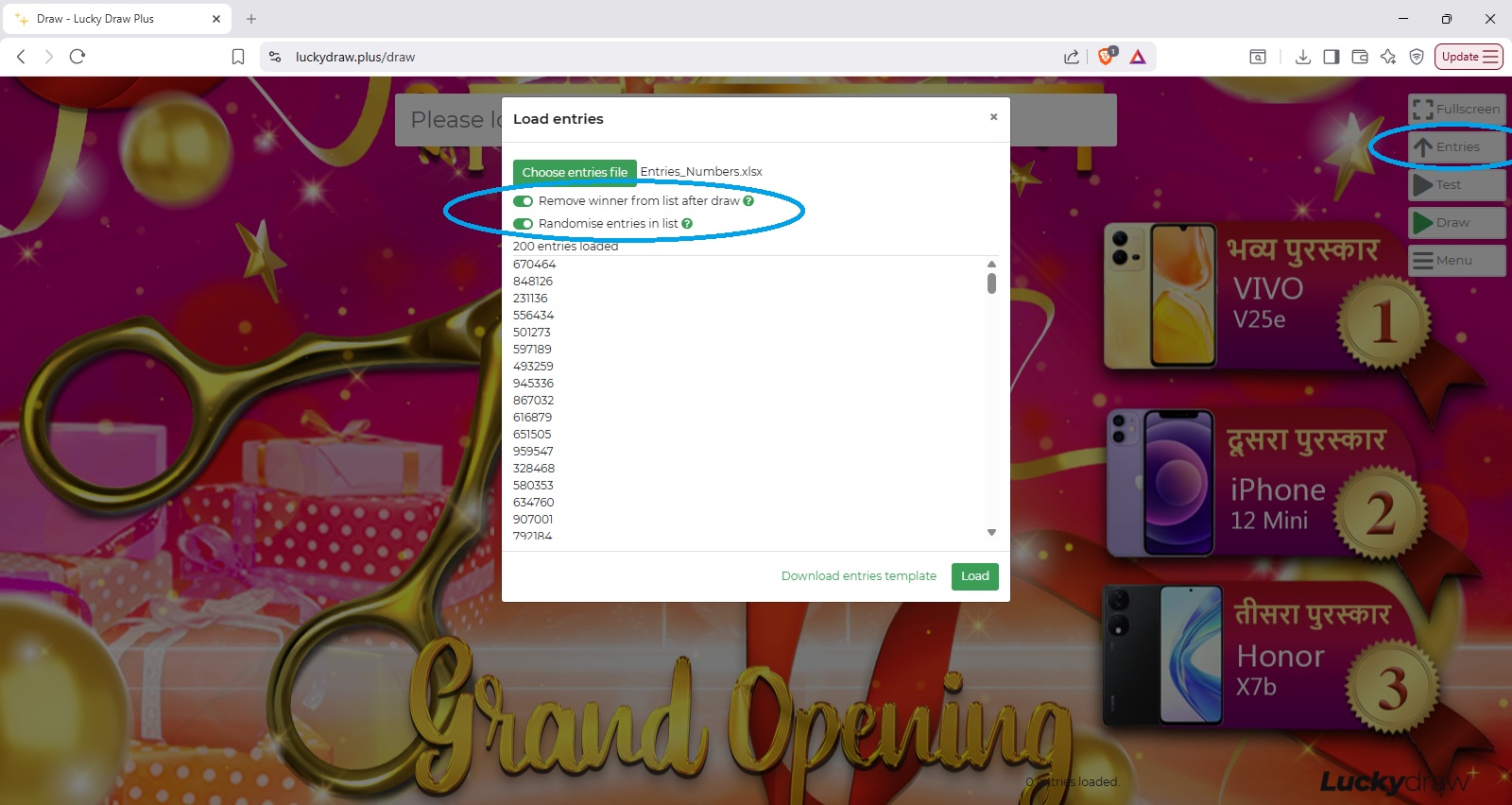
Click the Entries button to open the Load entries dialogue.
You can now choose to load either
Random test entries
Your entries file
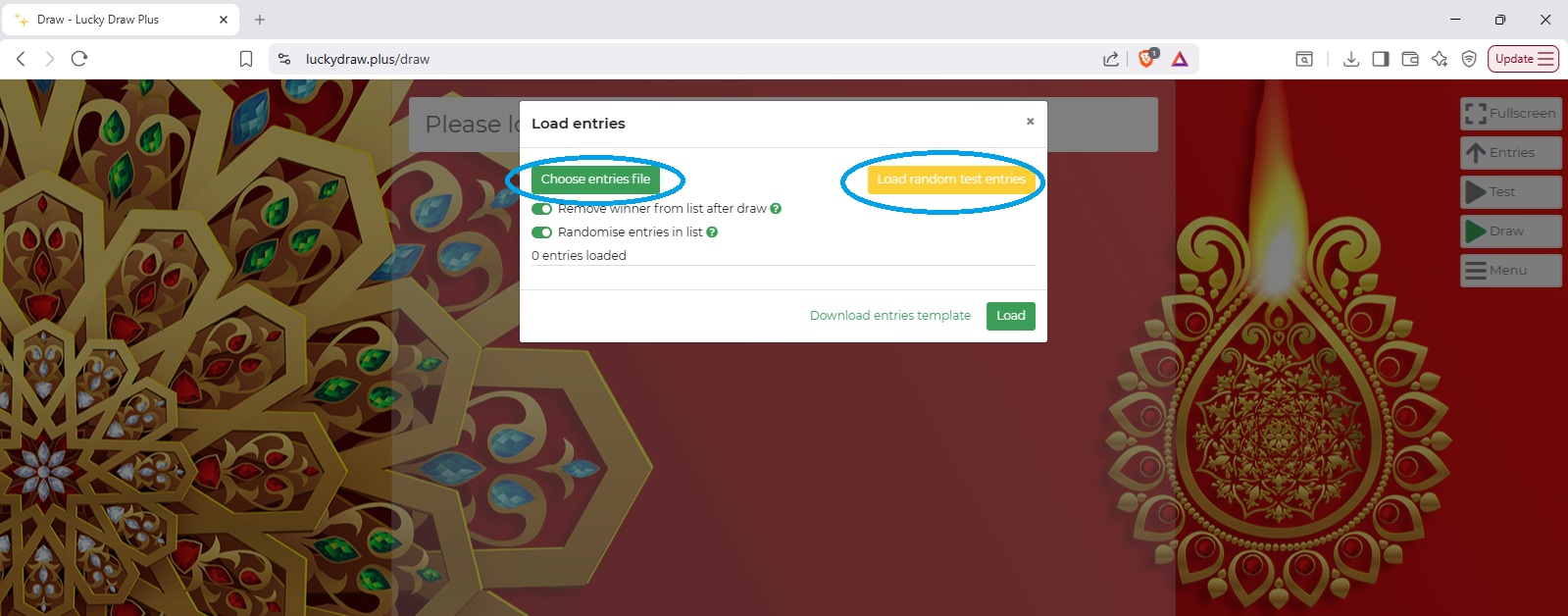
You can override the default entries settings for this draw session, setting them to on or off:
Remove winner from list after draw - on/off
Randomise entries - on/off
See also Entries settings
See also What is a draw session?
Click Load once you are done.
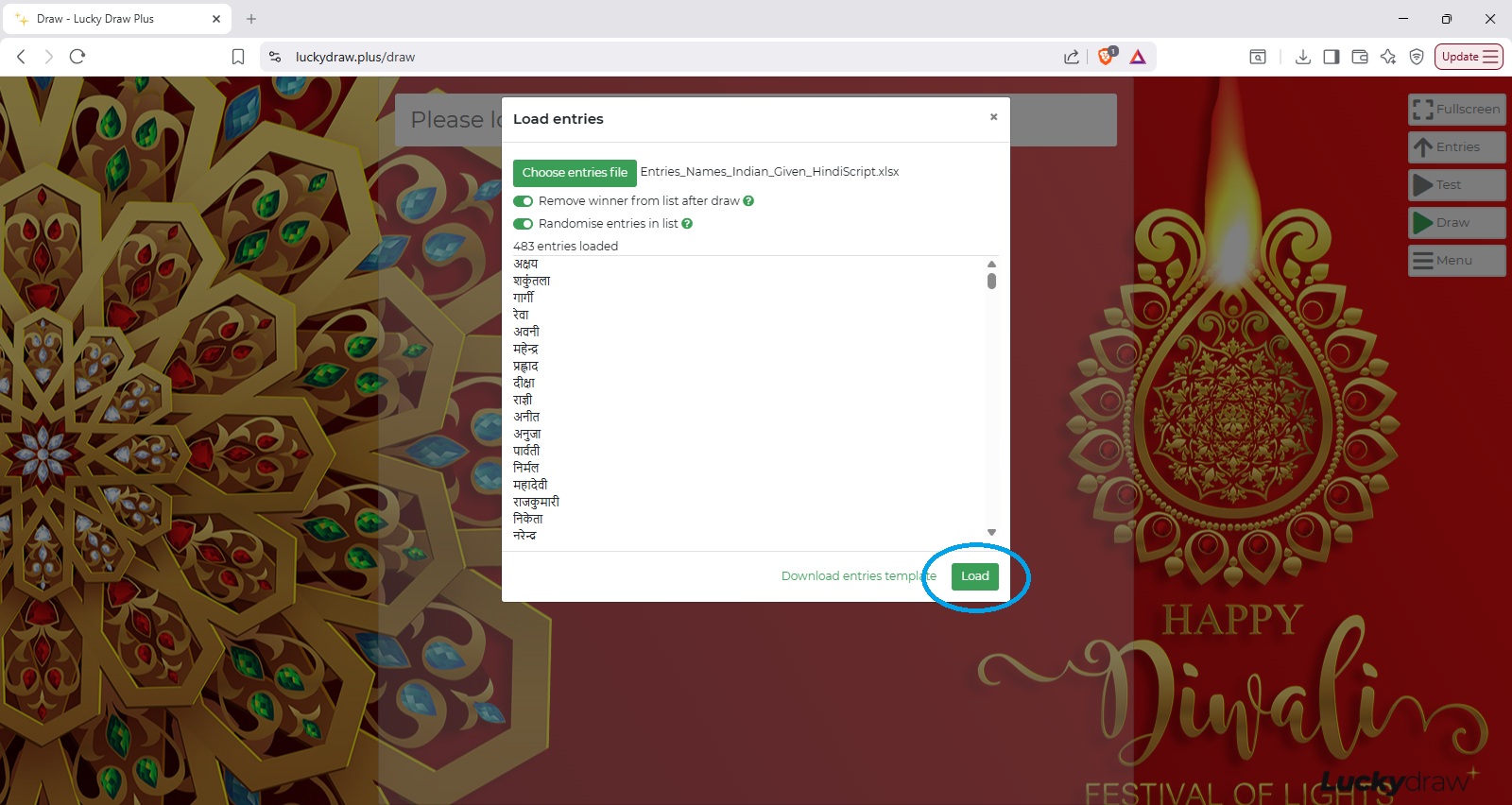
You will know that your entries are loaded by the Ready to Draw… message at the top of the screen.
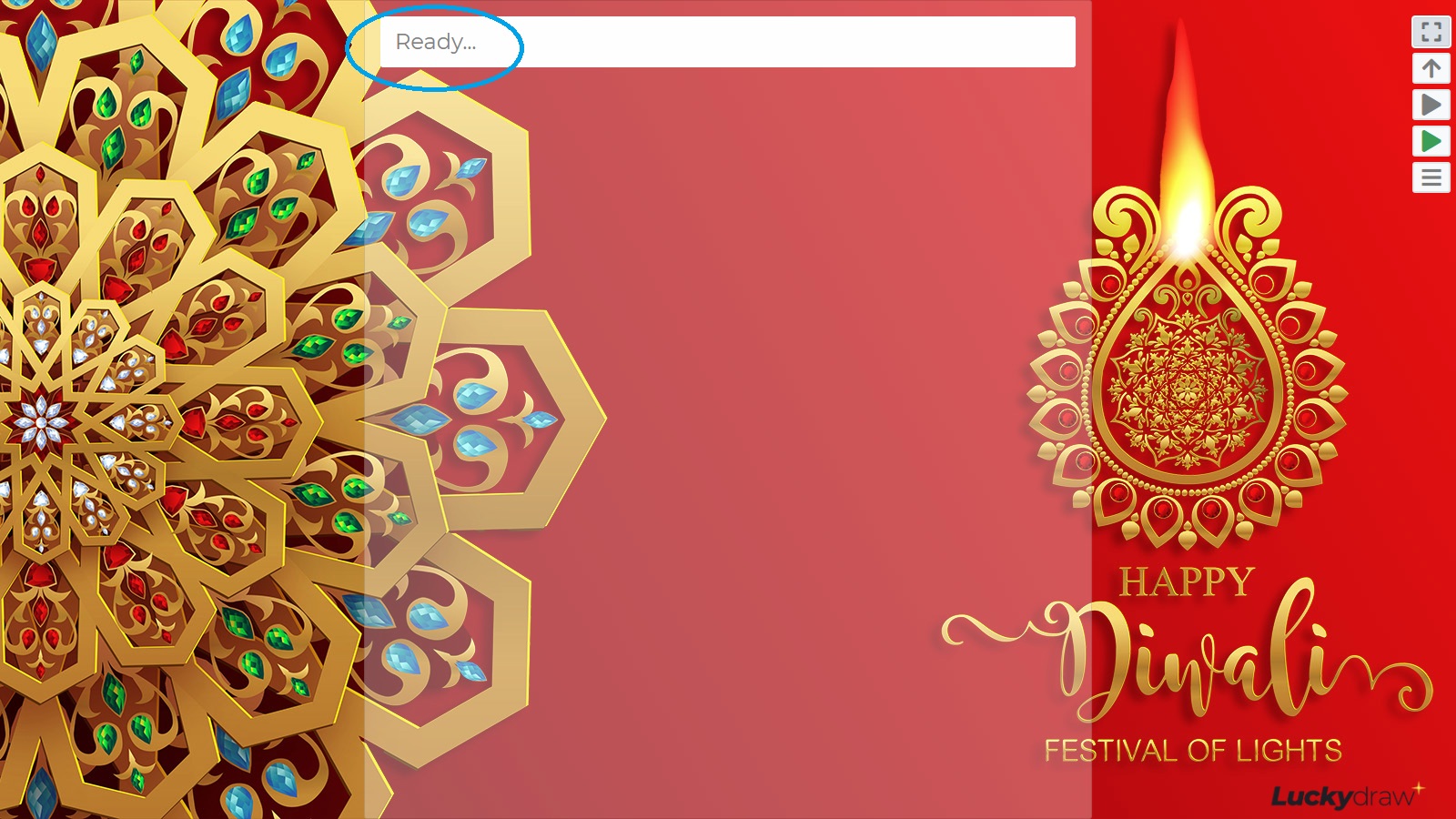
You are now ready to Draw.
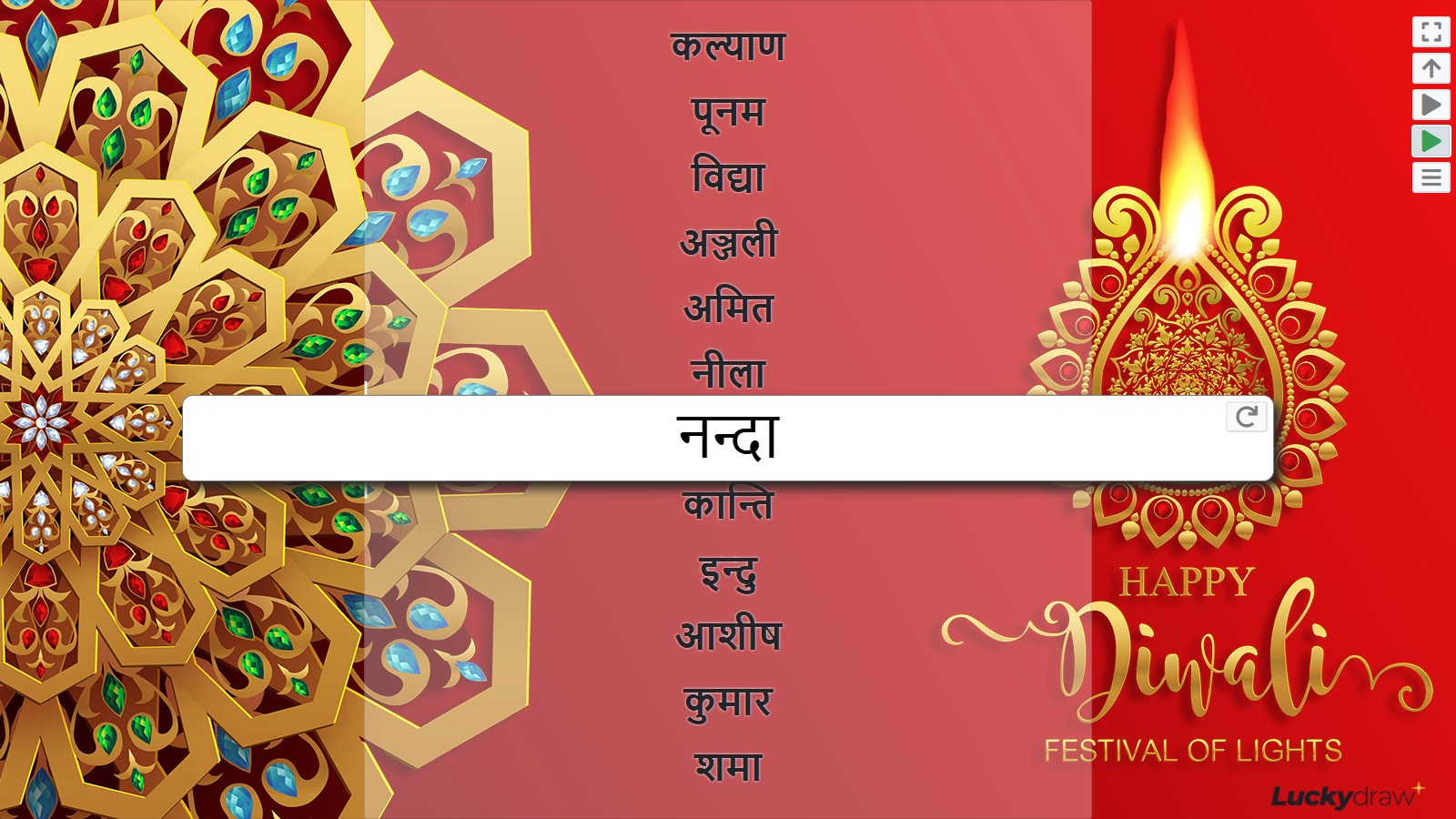
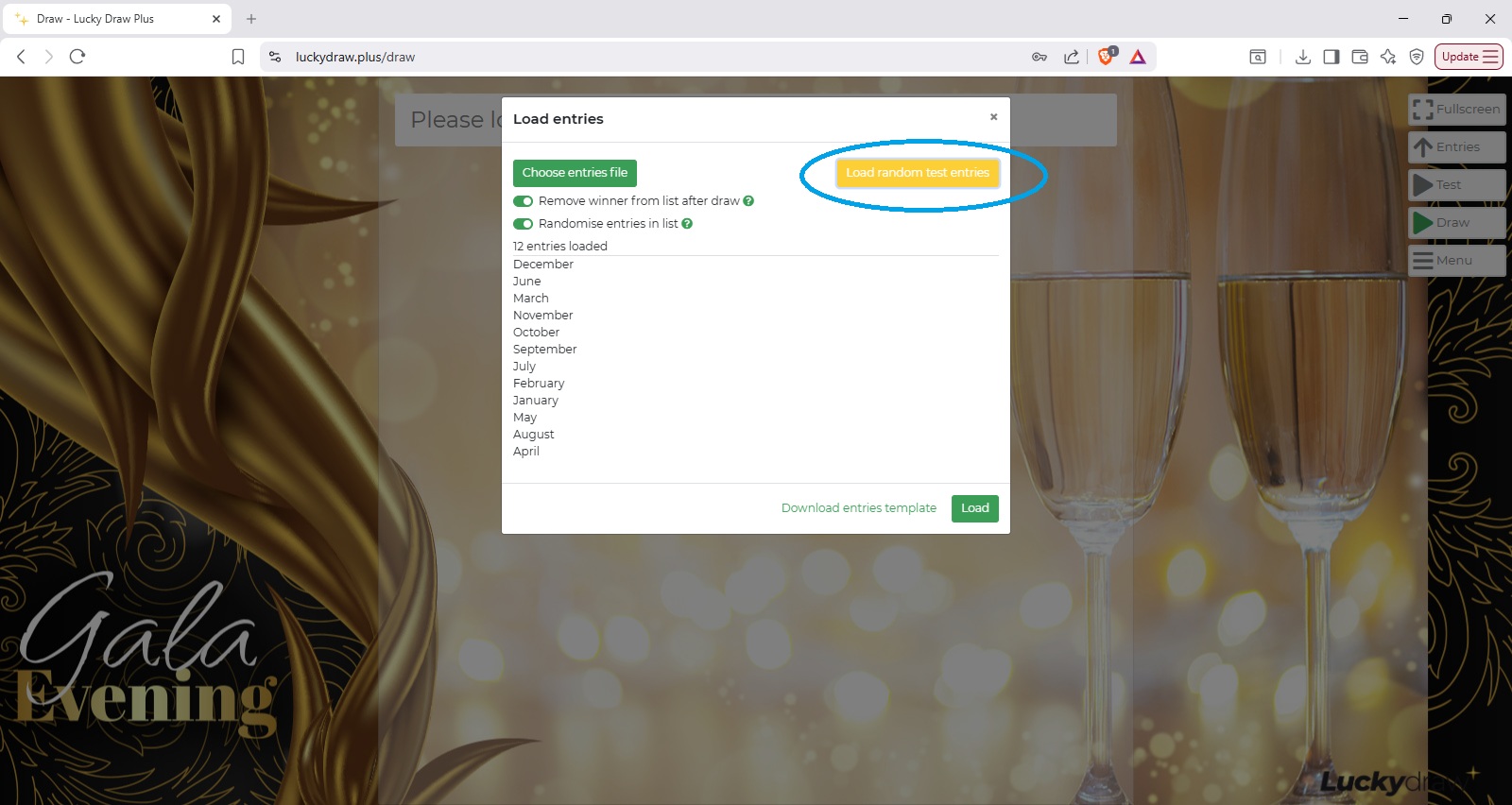
Random test entries
Use the Load random test entries button to quickly load random test entries if you are testing various draw settings such as sound effects or winner animations - this is quicker than loading your own file each time.
You will get a new list of entries each time you click the button.

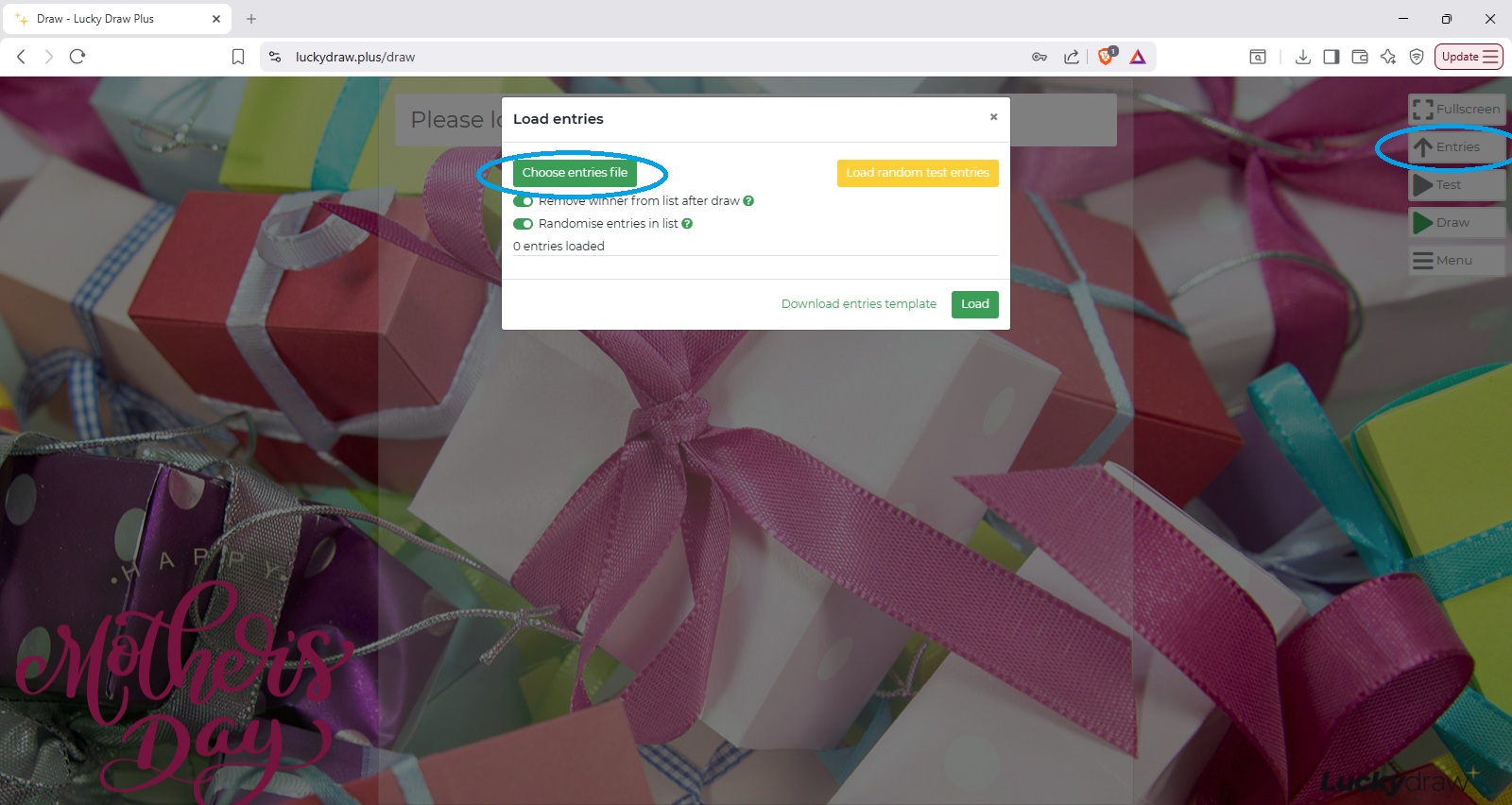
Load entries from file
Click the Choose entries file button and browse for your entries file.
We do not store your entries in our database or upload them to our server, except for the winner of each draw for your Results list and Winner certificates.
See also Draw results
Entries files
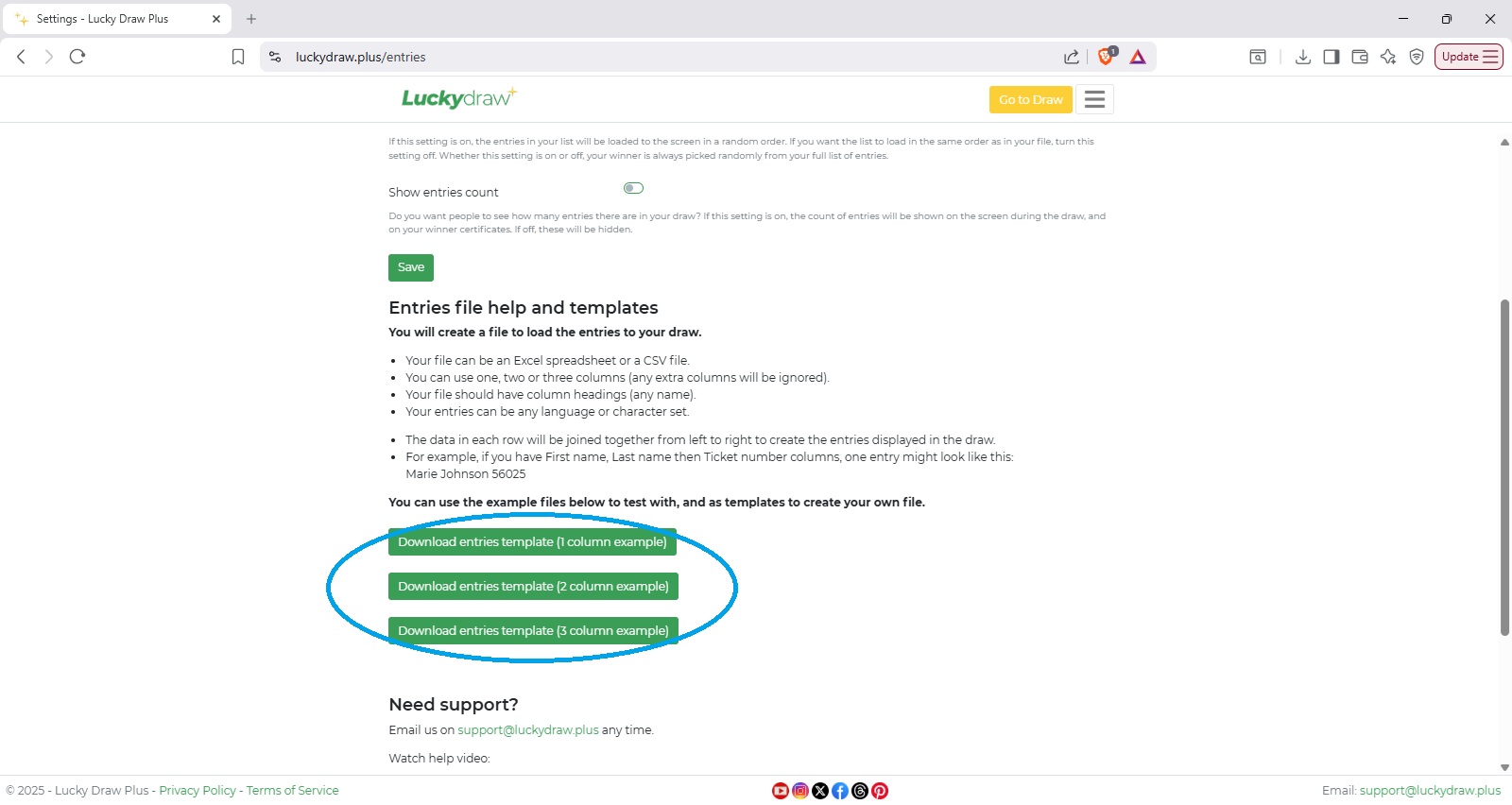
Download entries templates
Here are three entries file templates you can download, depending on how many columns you want to use for your entries:
You can use these files to test with temporarily, or edit them to create your own file.
You can also download these entries templates on the the Settings | Entries page.
Click on the Entries file help and templates button to expand, then download your preferred template.
Create your own entries file
You will create a file to load the entries to your draw.
Your file can be an Excel spreadsheet or a CSV file.
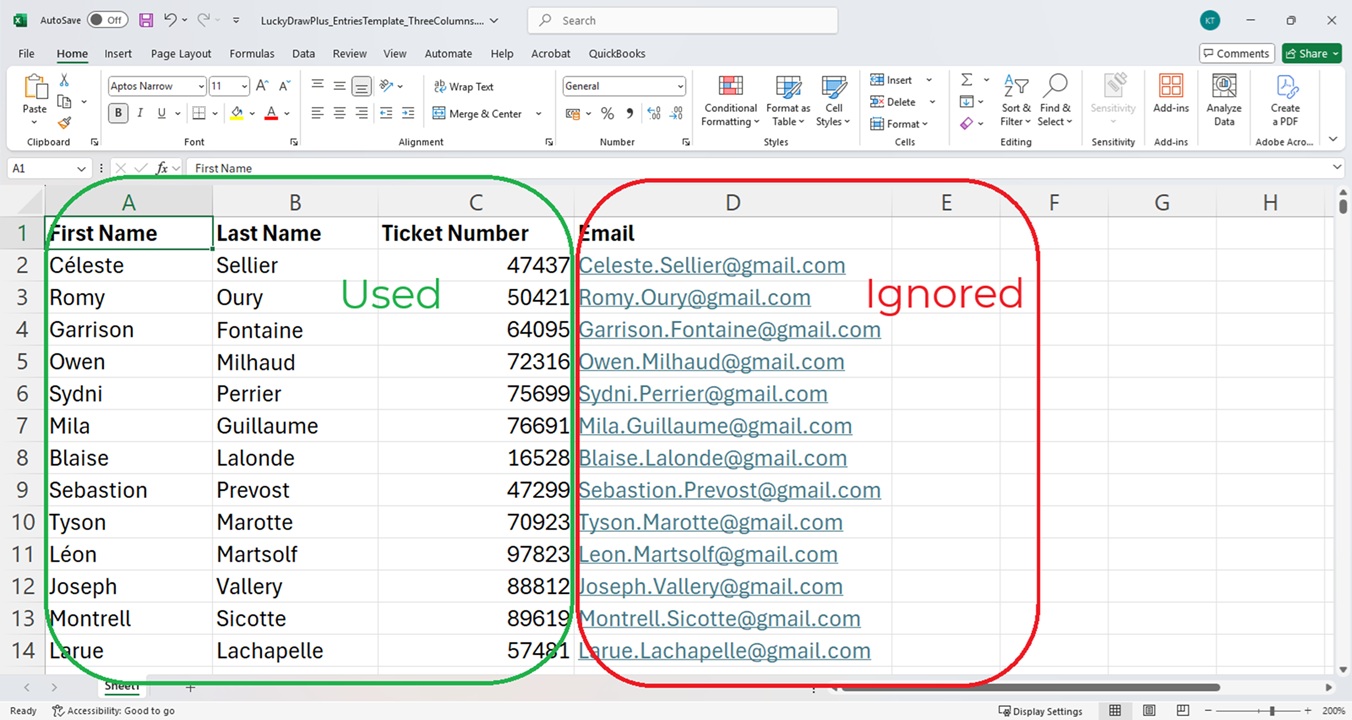
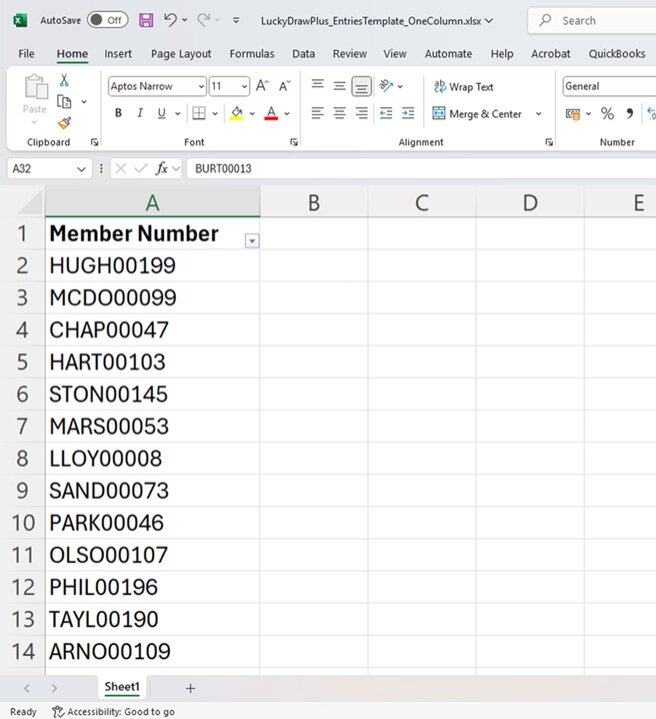
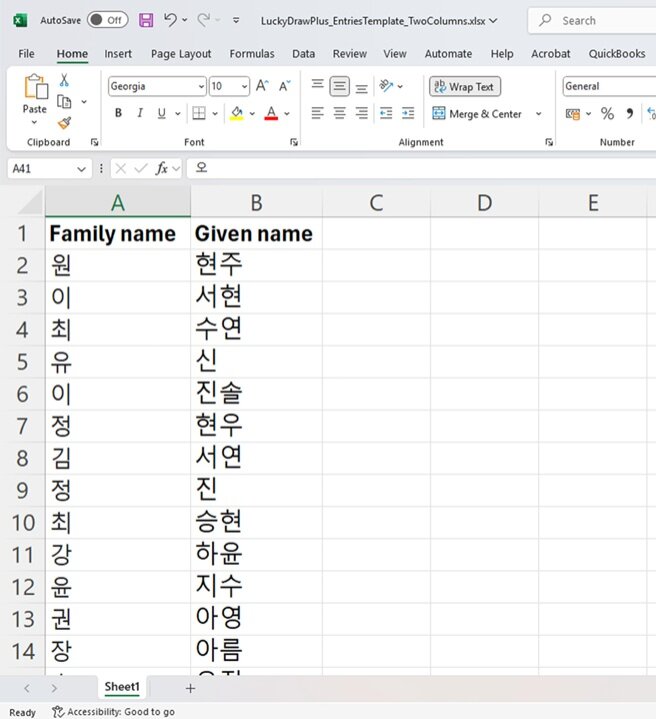
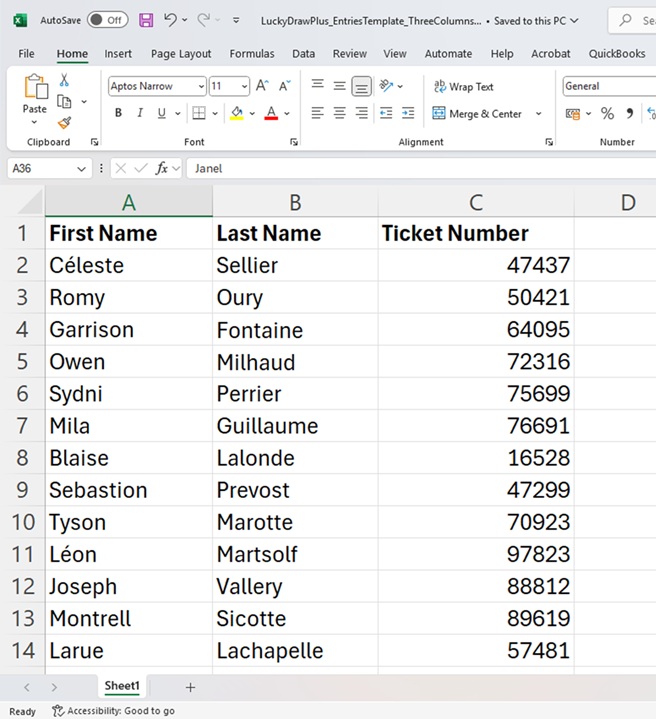
You can use one, two or three columns (any extra columns will be ignored).
Your file should have column headings (any name).
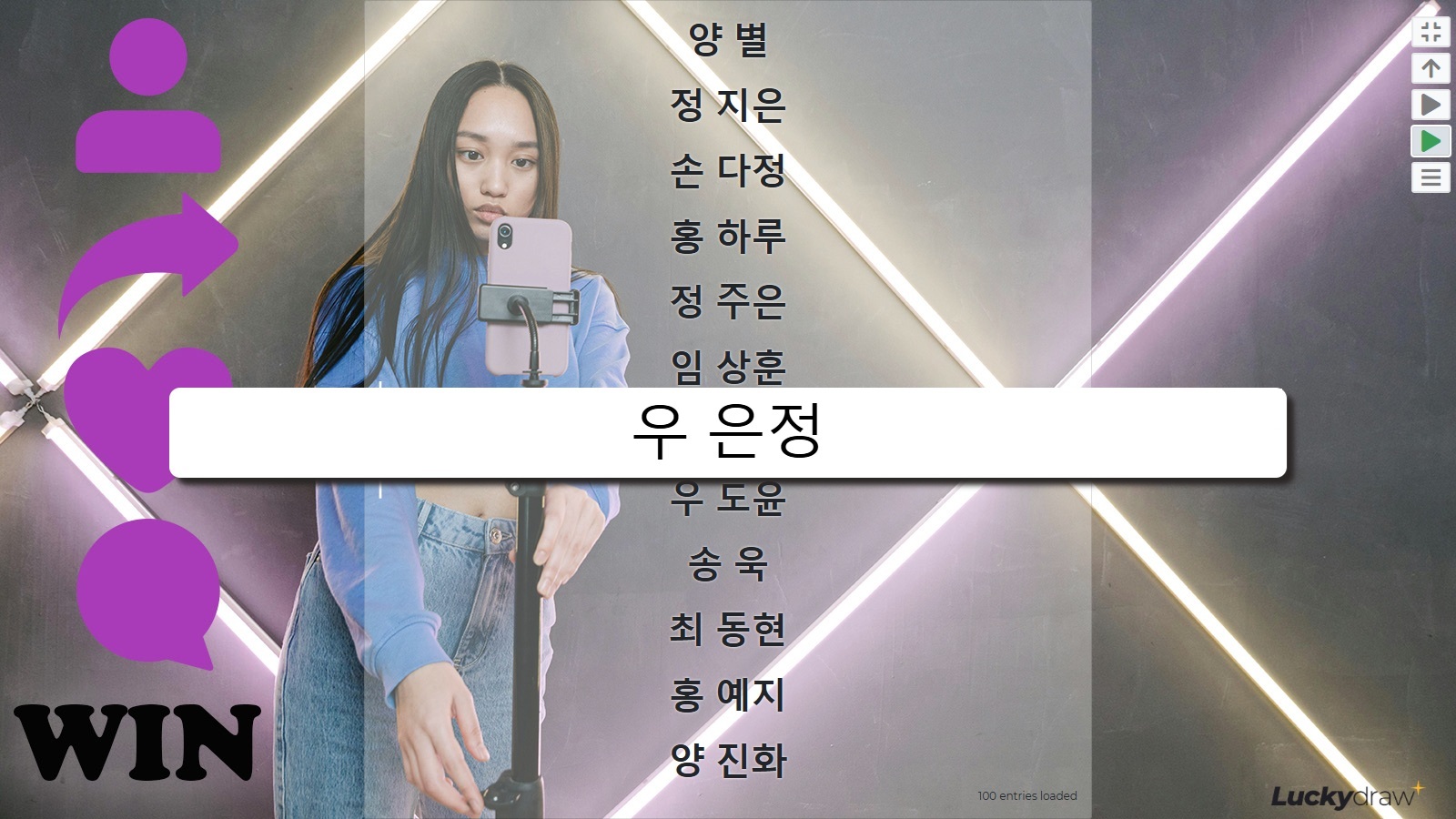
Your entries can be any language or character set.
|
|
|
|
|
|
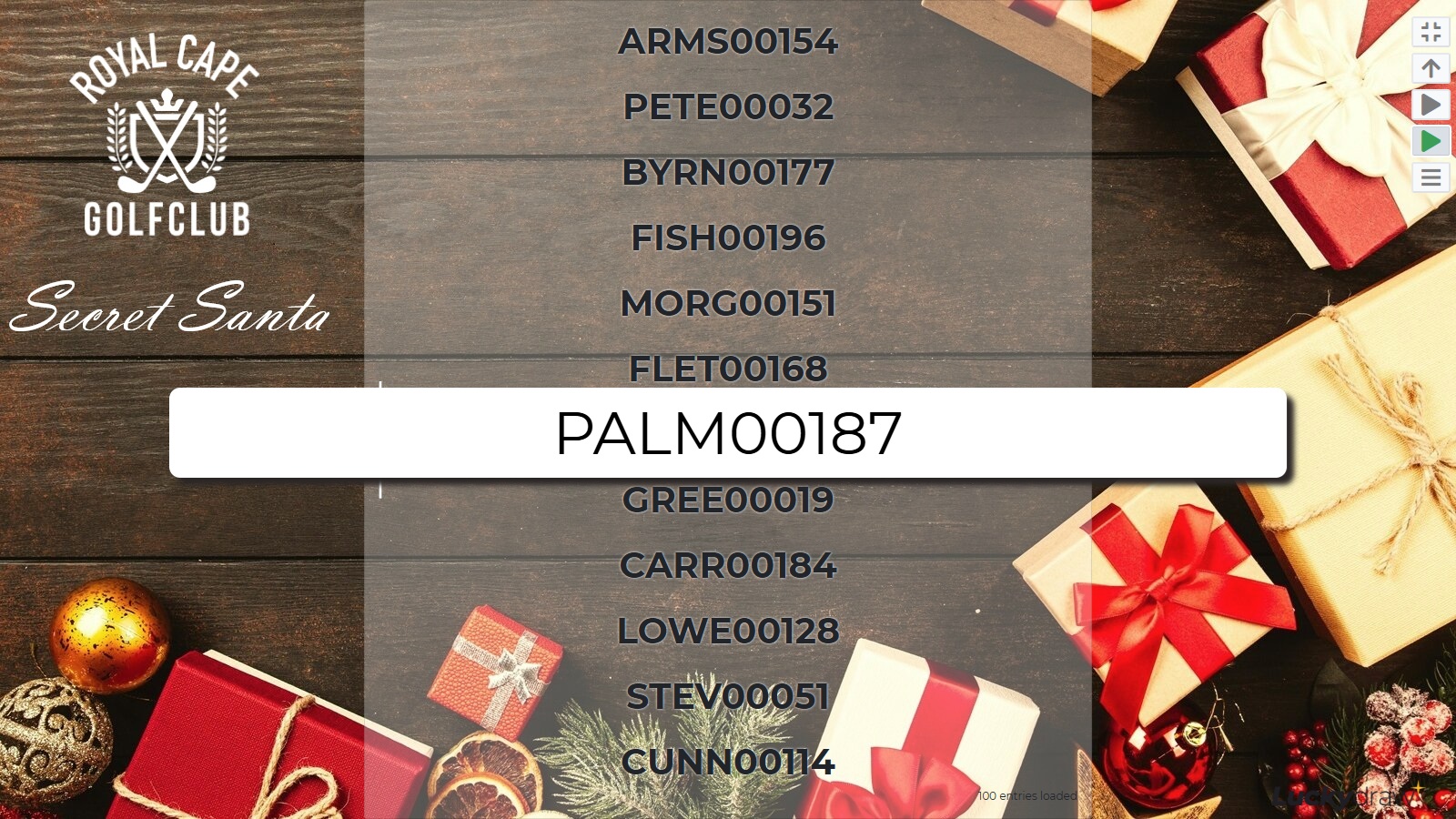
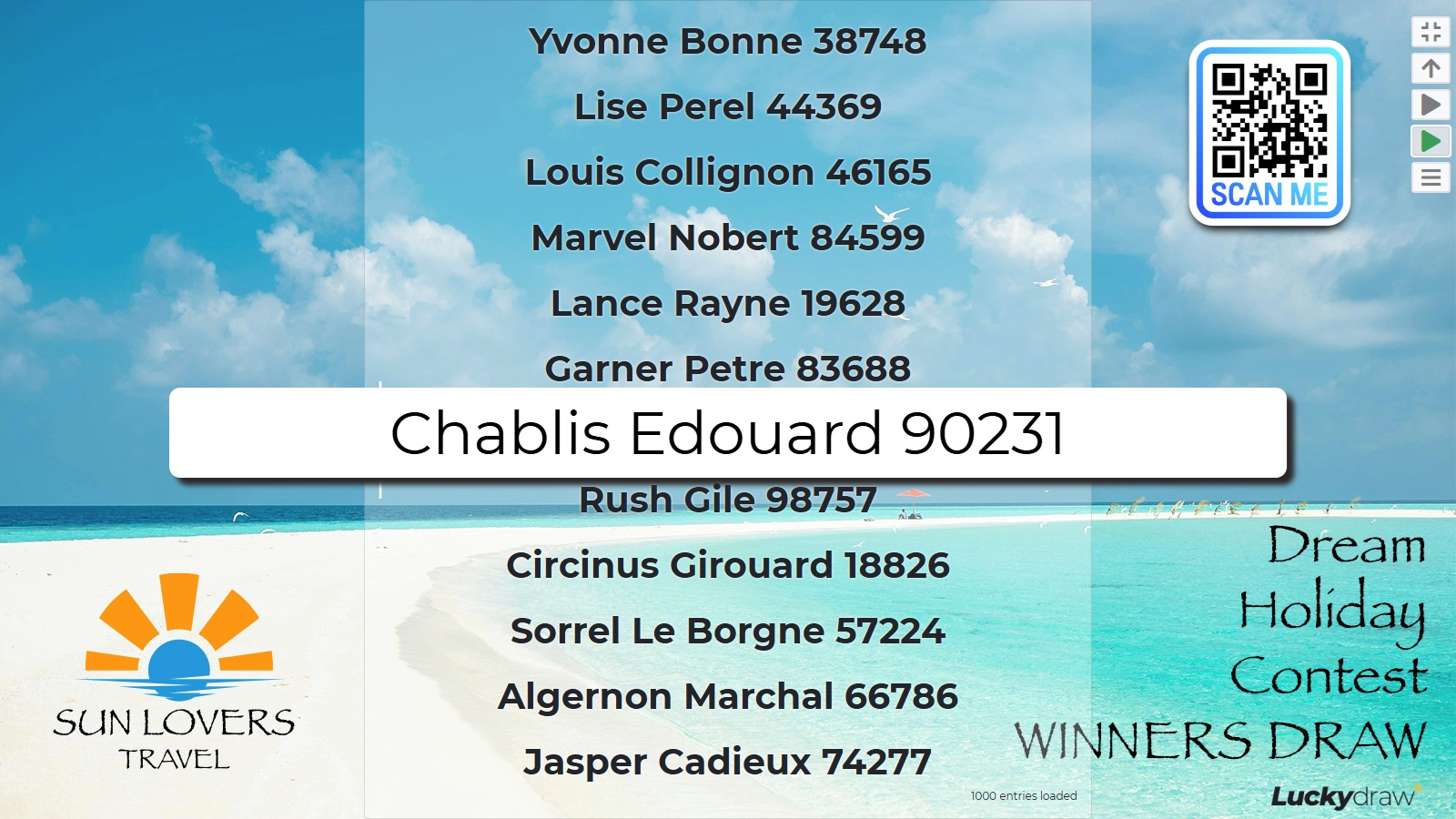
The data in each row will be joined together from left to right to create the entries displayed in the draw.
For example, if you have First name, Last name then Ticket number columns, one entry might look like this: Marie Johnson 56025
Entries settings
There are a few settings that control how entries display in your draw, and how winner selection behaves.
Find them on the Settings | Entries page.
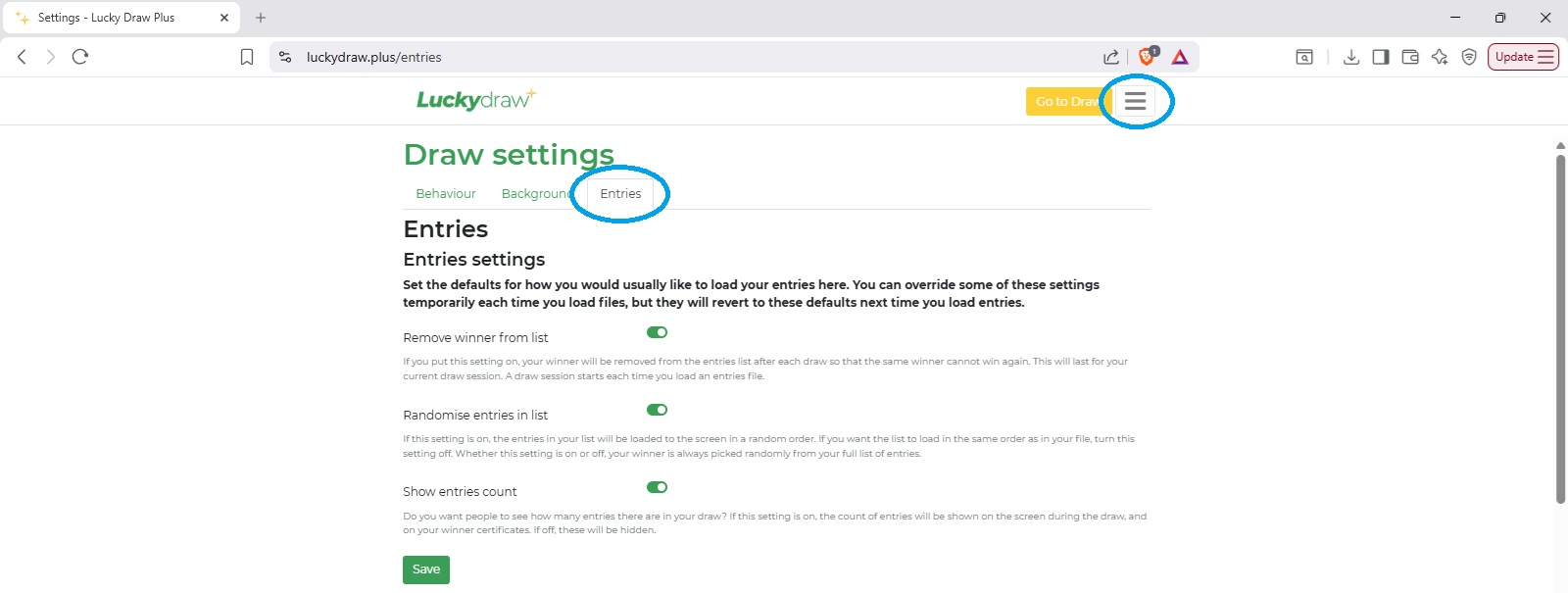
Here is what each of the entries settings does:
Show entries count
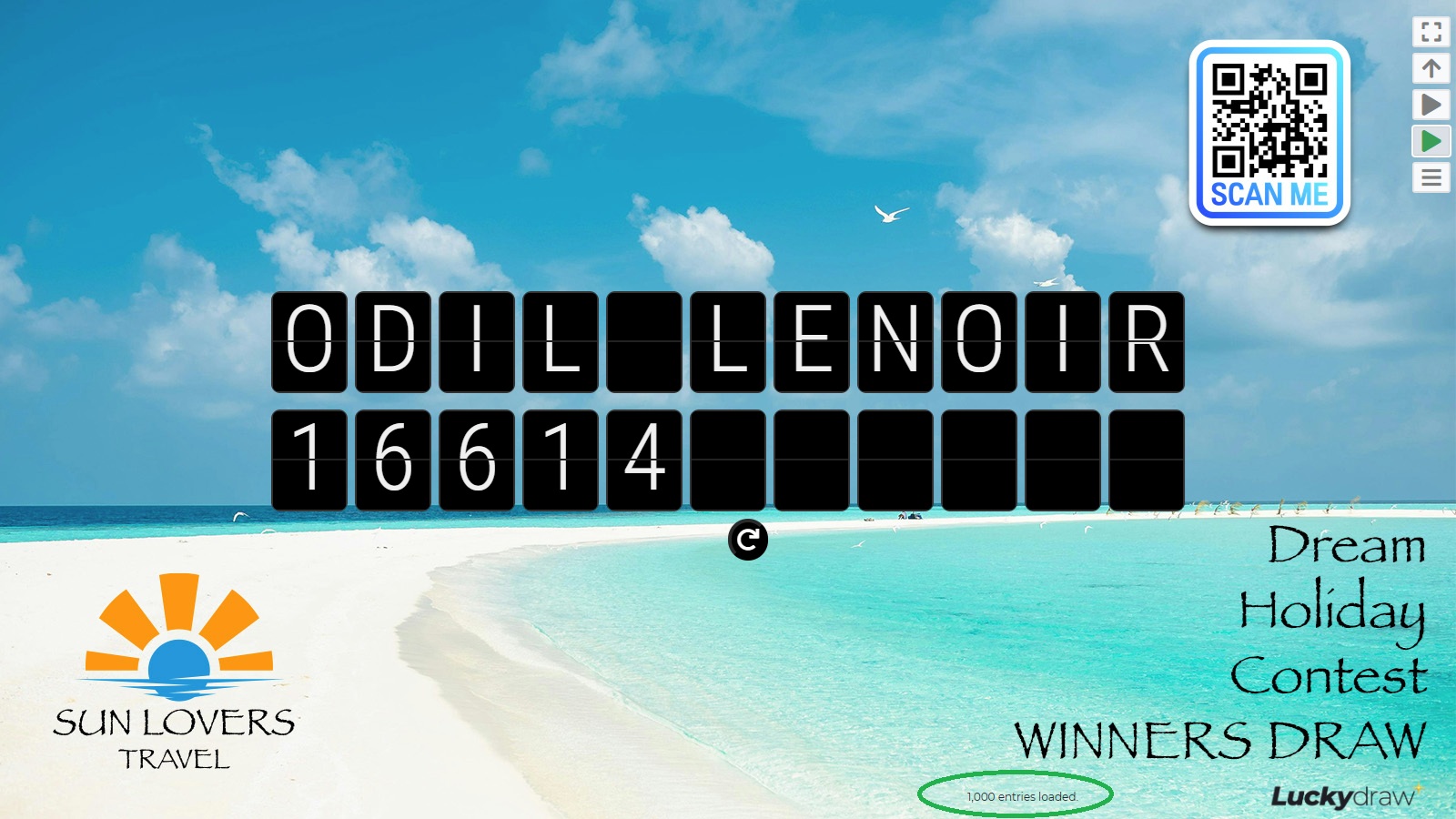
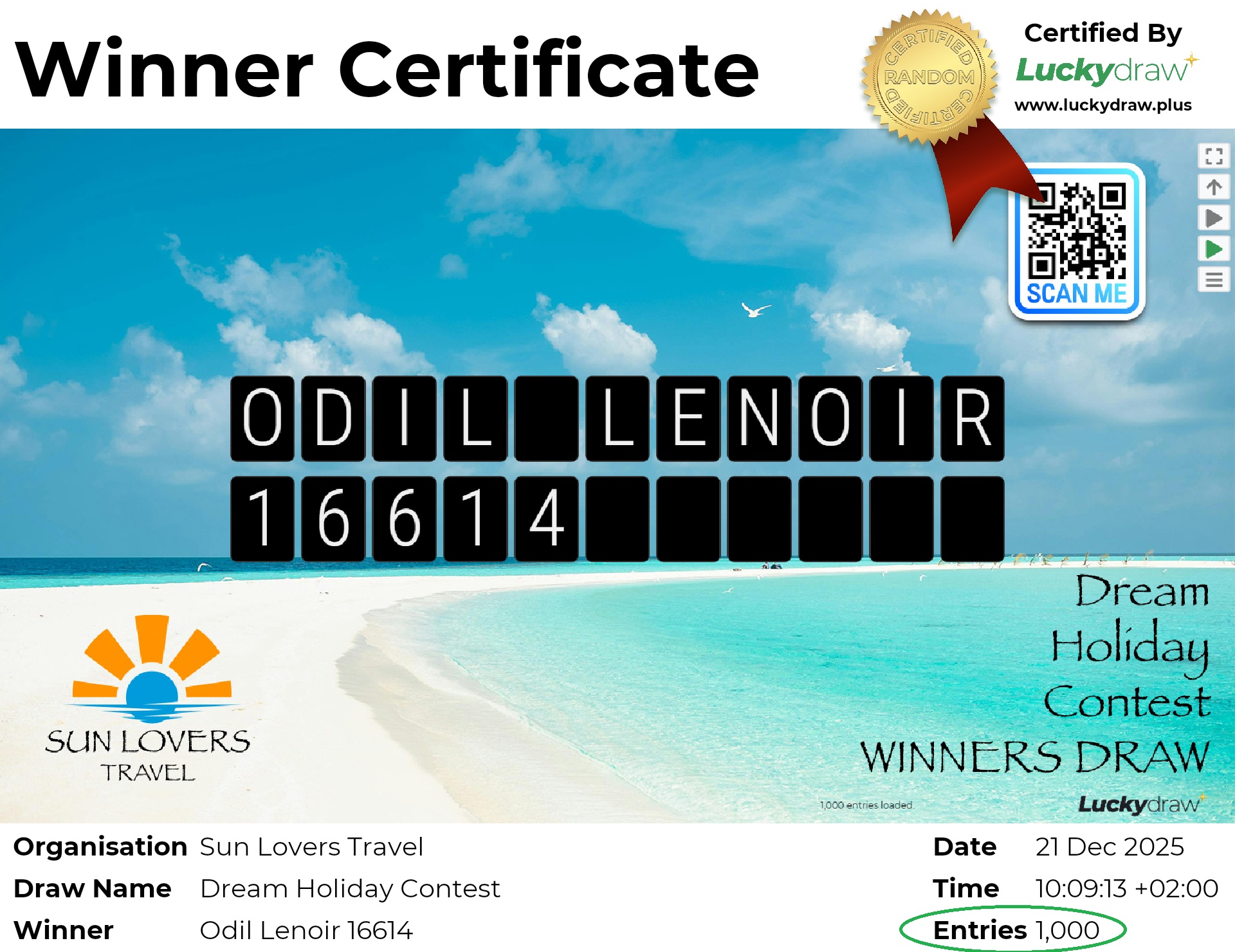
Do you want people to see how many entries there are in your draw? If this setting is on, the count of entries will be shown on the screen during the draw, and on your winner certificates. If off, these will be hidden. By default this setting is on.
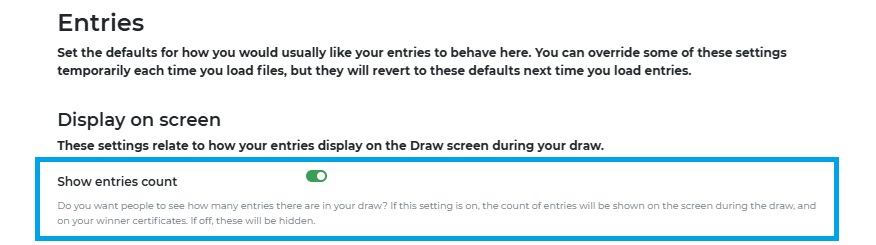
Here’s the effect in the draw screen and winner certificate when the setting is ON:
|
|
Randomise entries
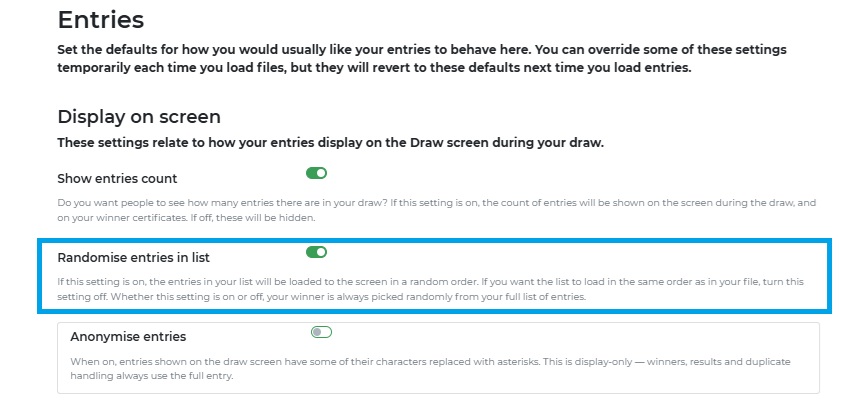
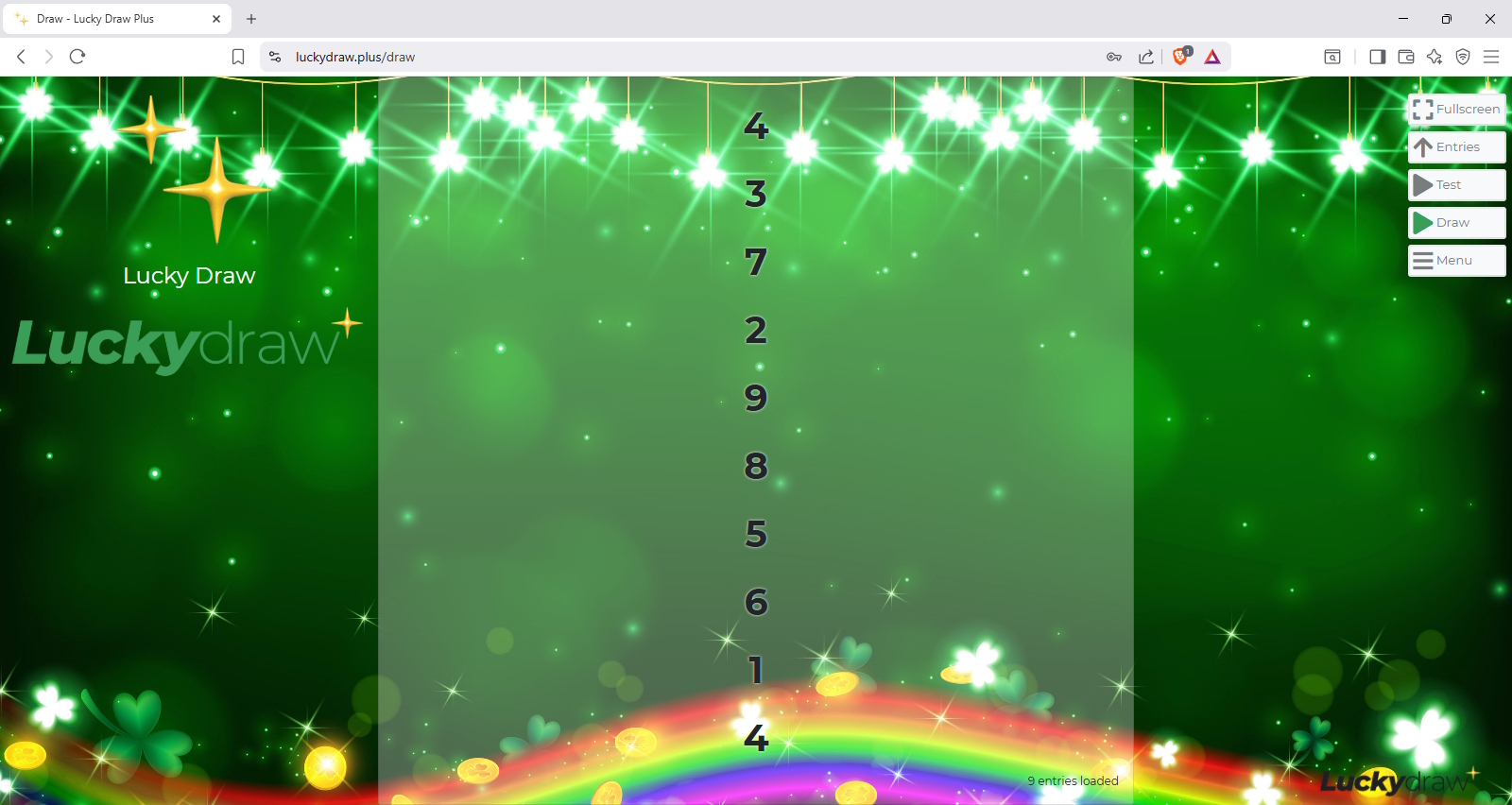
If this setting is on, the entries in your list will be loaded to the draw screen in a random order. By default, this setting is on.
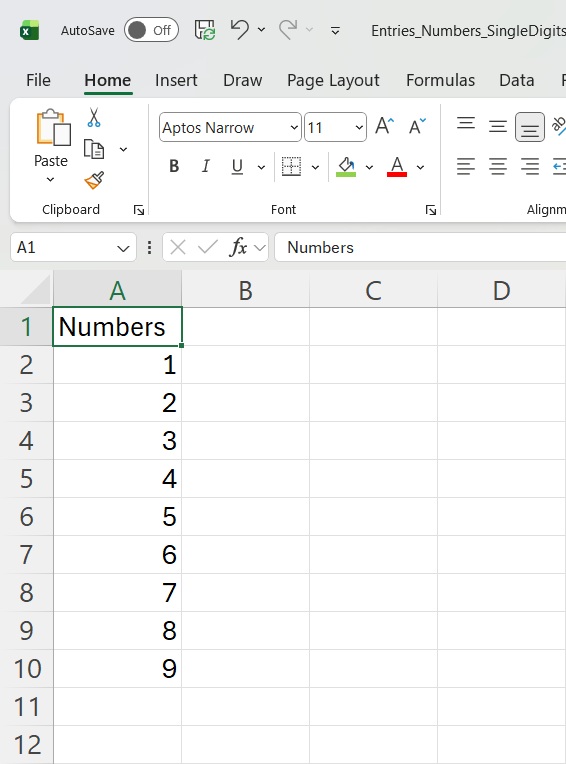
Here’s an ordered list loaded to the screen in a random order (randomise entries setting ON):
|
|
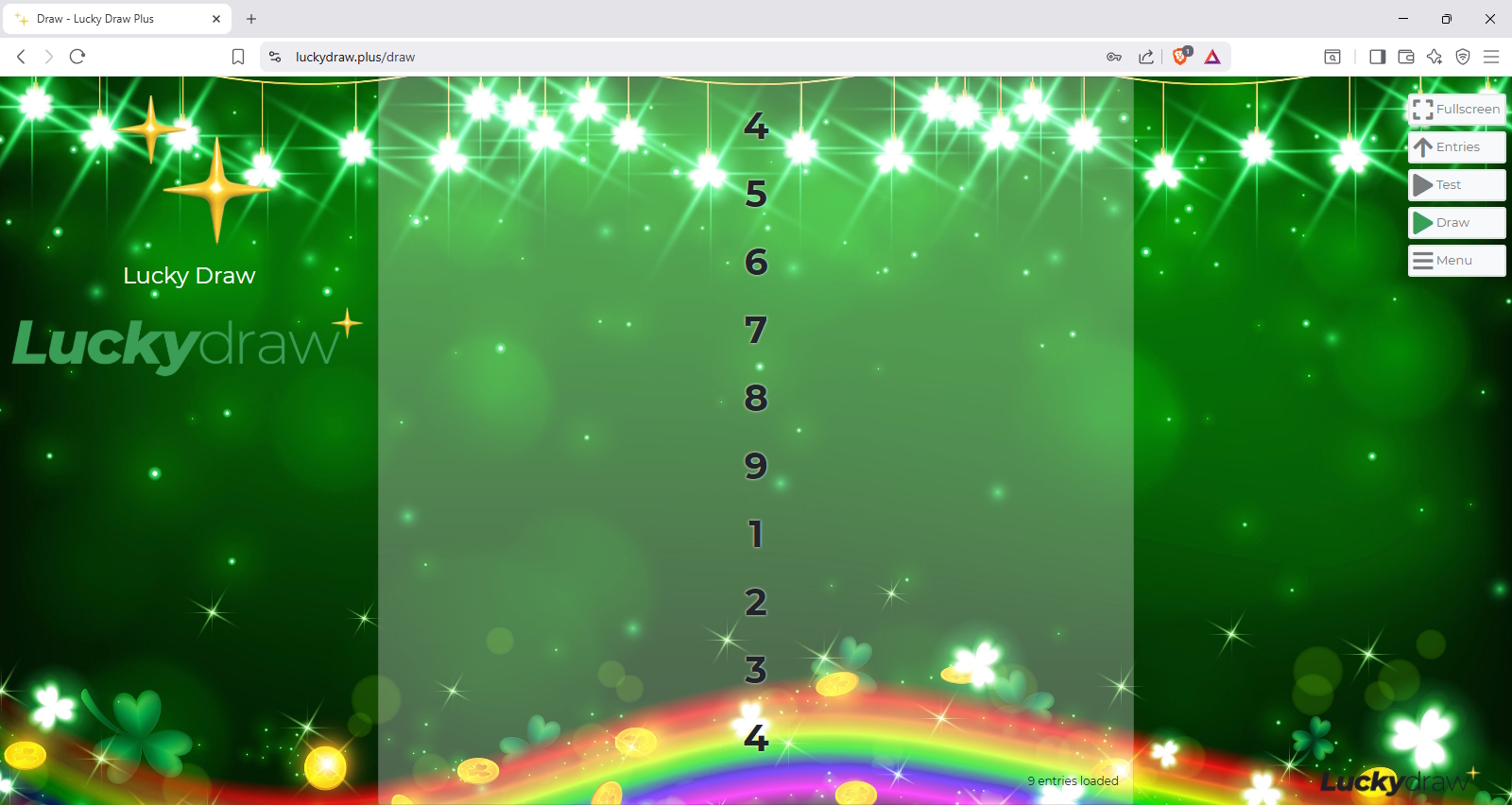
If you want your list to load in the same order as in your file, turn this setting off.
Here’s the same ordered list loaded to the screen in the same order as in the file (randomise entries setting OFF):
|
|
|
Whether this setting is on or off, your winner is always picked randomly from your full list of entries.
Anonymise entries
If this setting is on, the entries in your list will be anonymised in the draw screen - some of the characters will be masked by asterisks. By default, this setting is off.
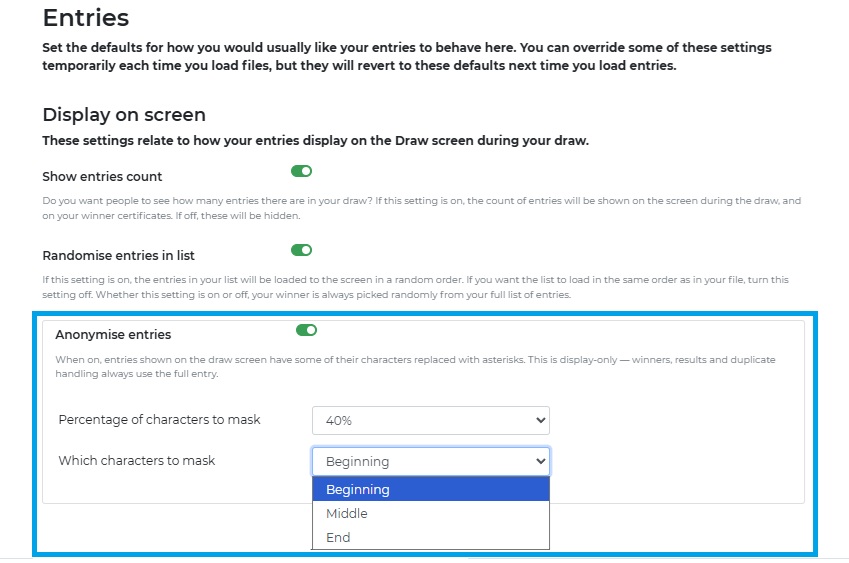
You can turn anonymise entries on to protect people’s privacy if you are using sensitive information for your entries, such as email addresses, mobile numbers or ID numbers, and don’t want these shown in full to a live audience.
You can choose:
Which characters you want to mask - those at the beginning, in the middle, or at the end
How much of the entry you want to mask - 20, 40 or 60%
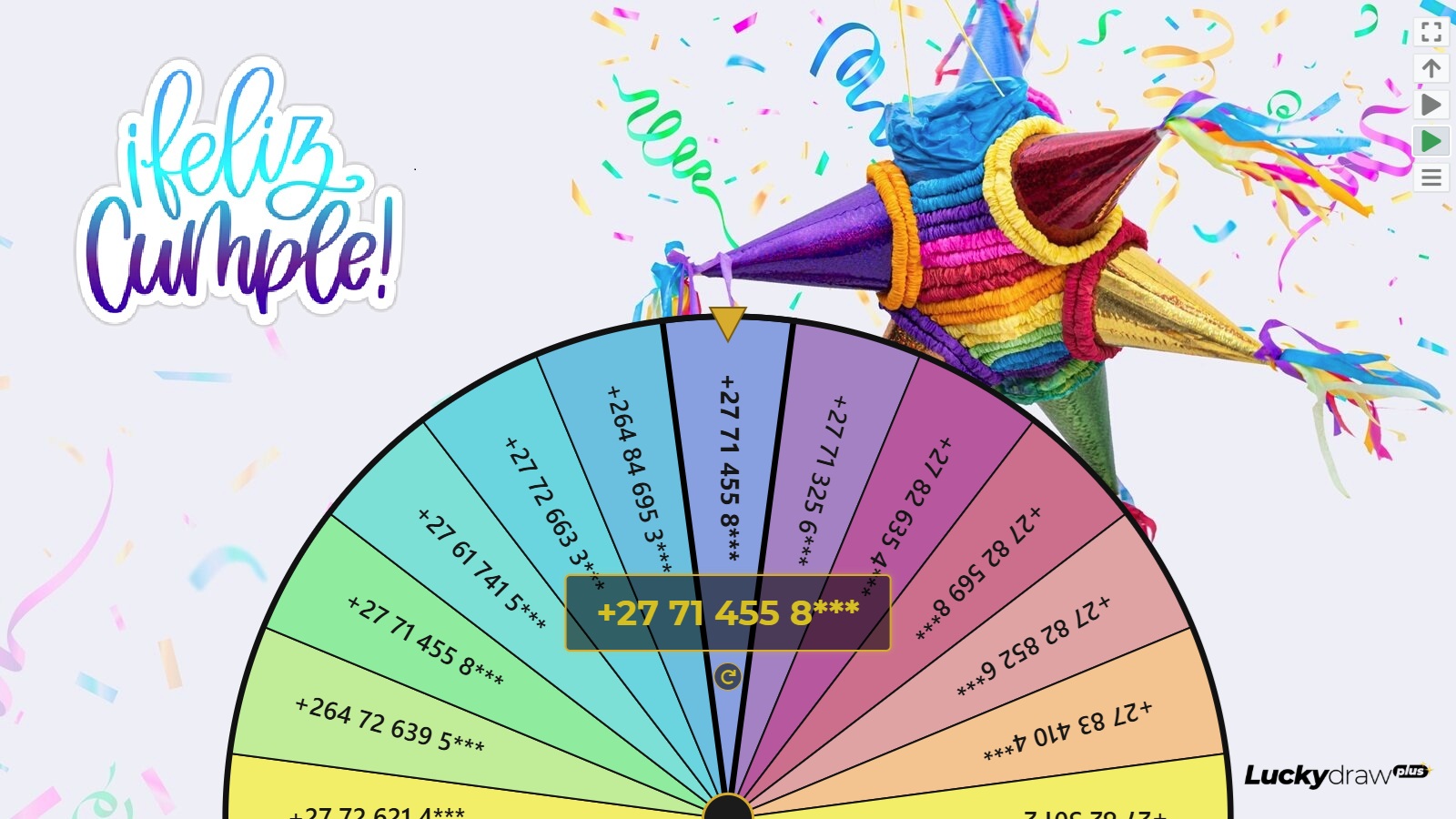
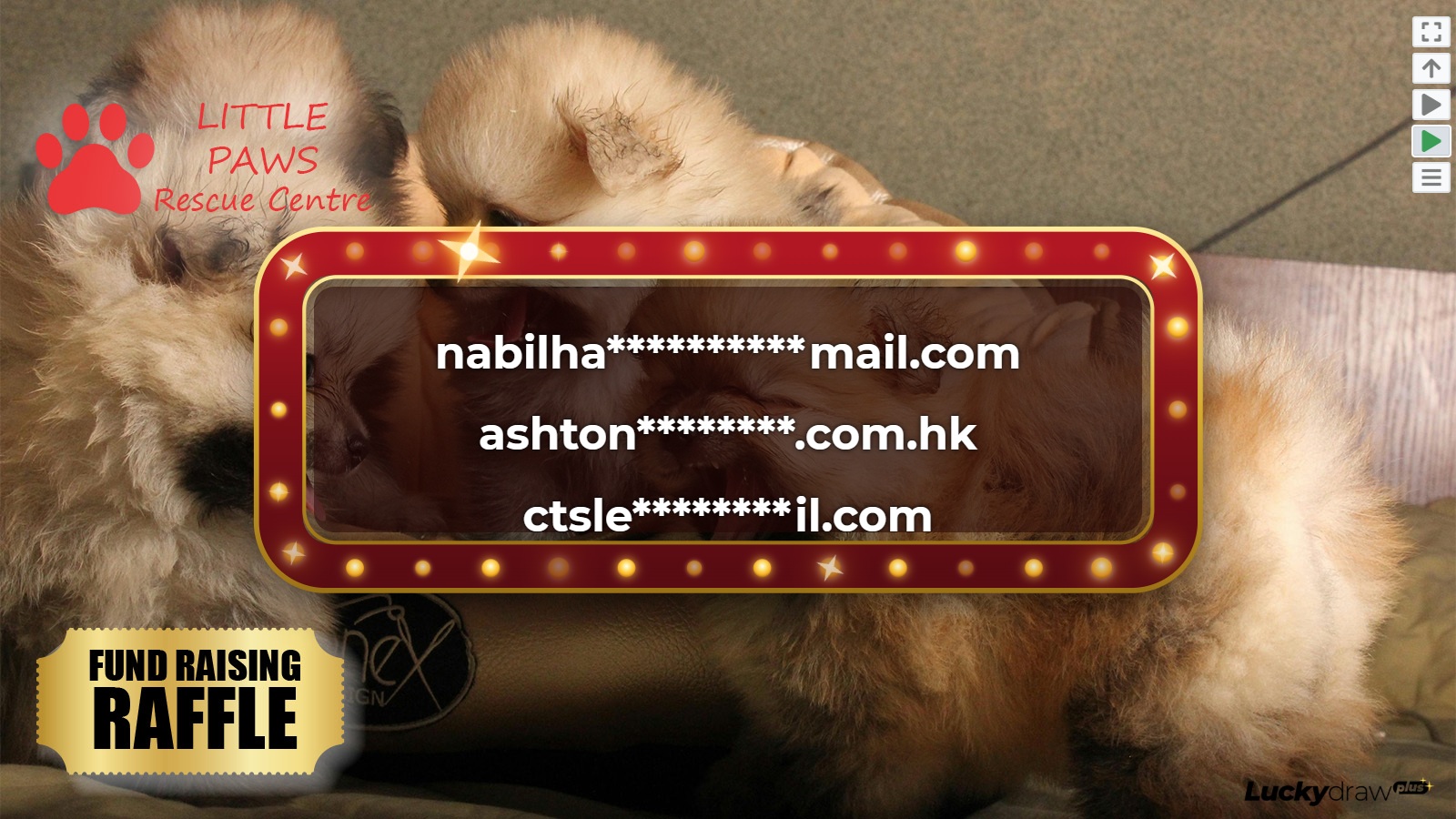
Here are two examples of the draw screen with anonymise entries set to ON:
20% mask at the END |
40% mask in the MIDDLE |
|
|
Your entries will be anonymised on the Draw screen and on the Winner Certificate for public display, but the full original entry will be shown in your Results screen and Results CSV for your personal working records.
Remove winner from list
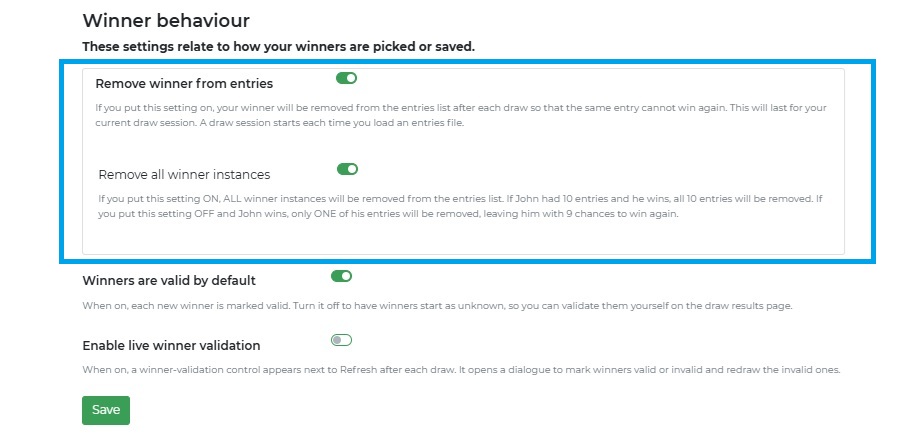
If you put this setting on, your winner will be removed from the entries list after each draw, so that the same entry cannot win again if you do more than one draw, or if you draw multiple winners in one go. By default this setting is on.
You will see your number of entries decrease and the winner name disappear for the next draw.
Number of entries: 3; Three wins |
Number of entries: 2, Three not in list |
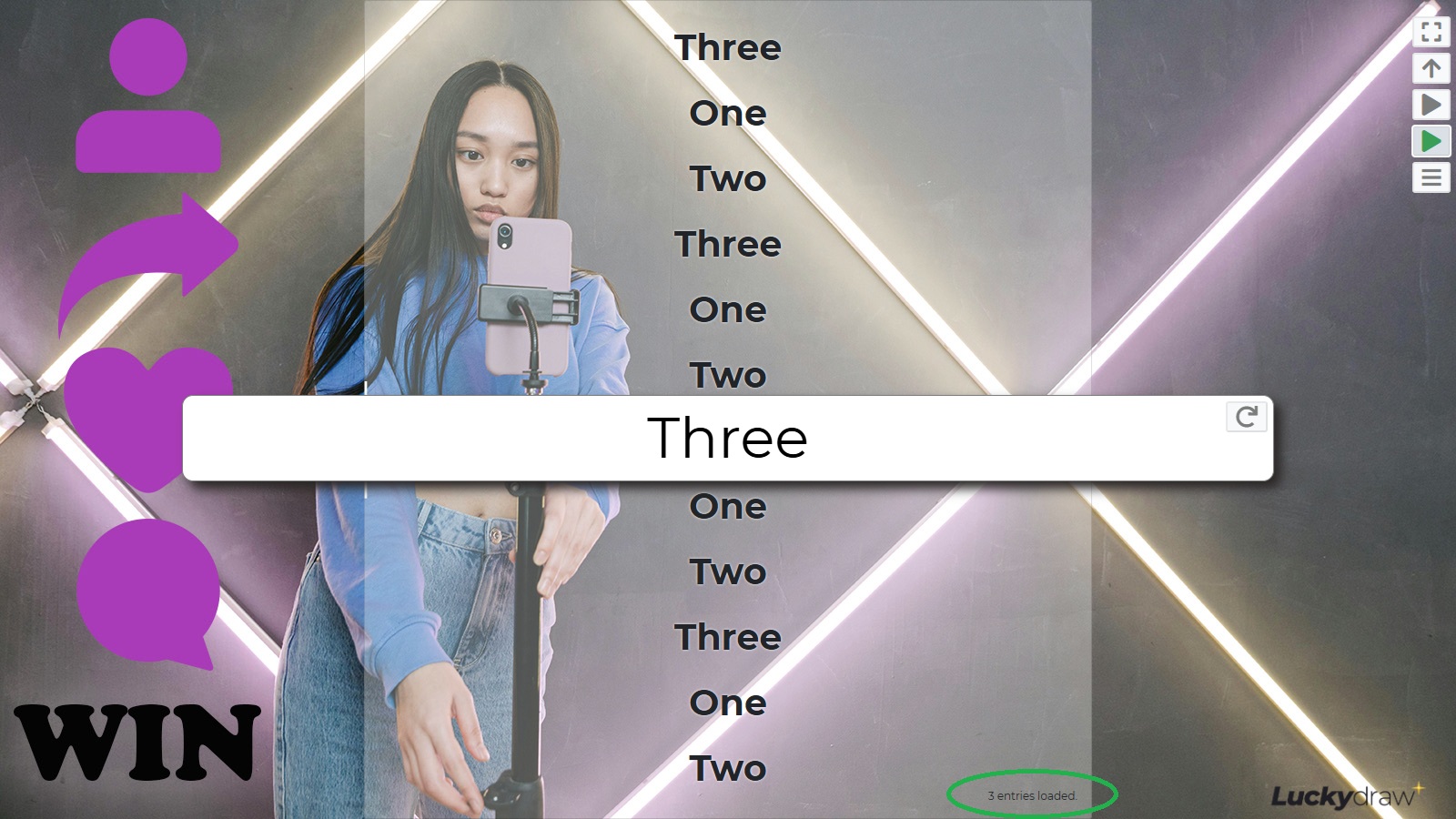
|
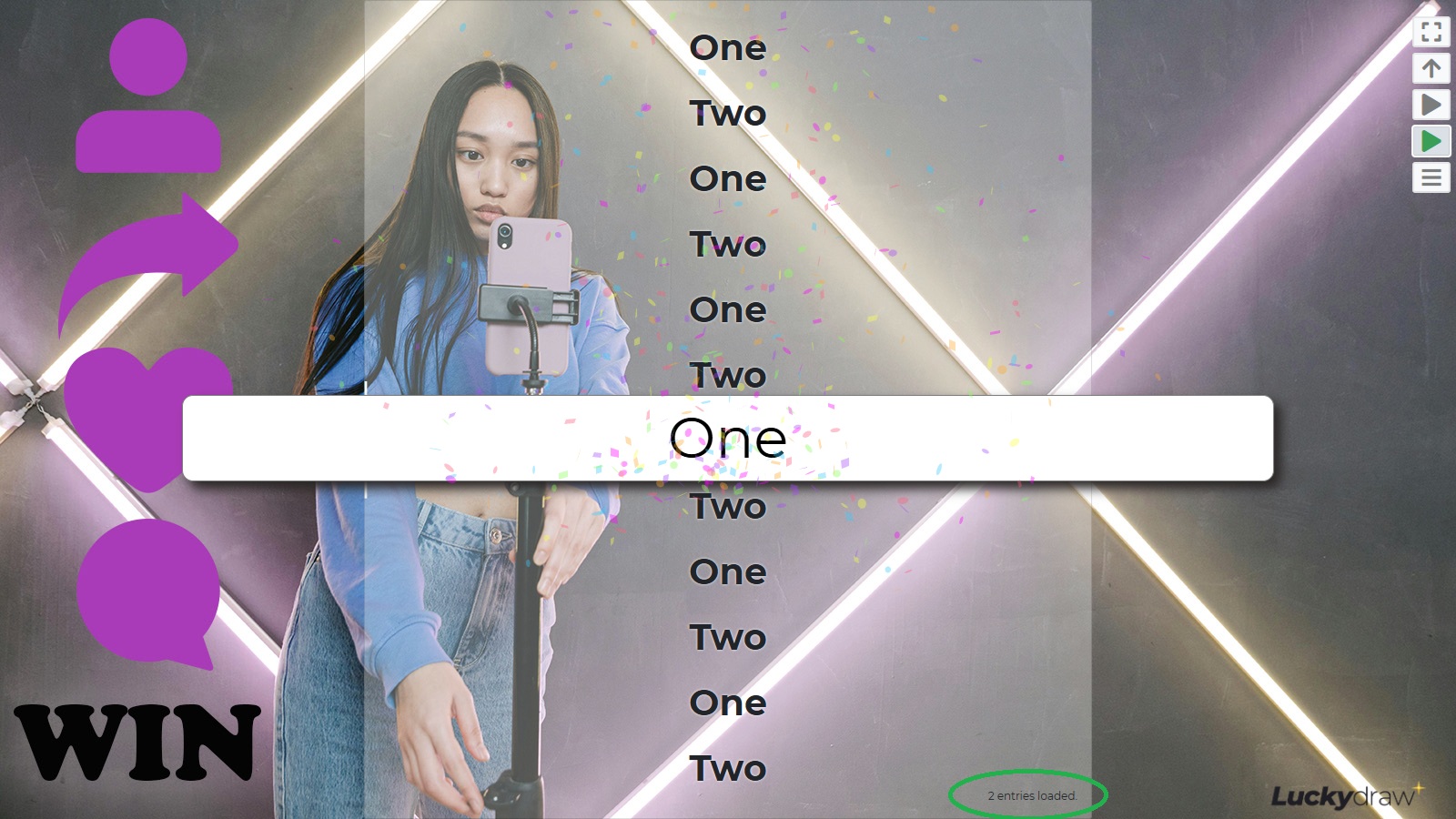
|
Remove all winner instances or just one?
If you want to remove the winning entry from the list after each draw, you have a further choice of two versions of this setting:
Remove all winner instances
Remove just this winner instance
Let’s do an example to explain the difference:
Say John is in your entries file 10 times, so he has 10 chances to win. If John wins, do you want to
remove all 10 of his entries (remove all winner instances ON), so that he has no chance to win again, or
remove just this one entry of John’s (remove all winner instances OFF), leaving him with another 9 entries and 9 more chances of winning.
An example of where you might not want to remove all instances is if you are drawing prizes, instead of winners. You have a file with your available prizes: 10 bags of popcorn, 5 lollipops, and so on. If someone wins a bag of popcorn, you want to remove that one instance of popcorn, but leave the other 9 bags of popcorn still in the list so that they can still be drawn and won untill all the popcorn is finished.
How long will this last for?
Your winner will be removed from the list for your current draw session. A draw session starts when you load an entries list. You can do many draws (both test and live, both single and multi-winner draws) with that same loaded list, and they will all belong to that session.
See also What is a draw session?
If you re-load your list you will start a NEW draw session, and all the entries from that list will be back in again.
Keep in mind!
Do not start a new draw session (do not load your entries again or leave the draw page).
If you load your entries list and do a test draw, the winner of the test draw will be removed from the list. To make sure that that entry has a chance to win in your live draw, re-load the full list again before doing your live draw.
Winners are valid by default
If this setting is on, your winners will be saved as Valid in your Results list. By default this setting is on.
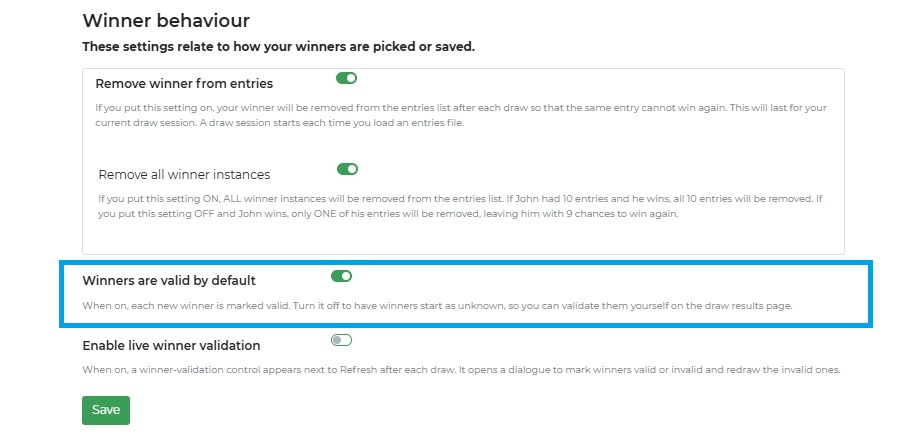
You can always change a winner to Invalid or to Unknown, either during live winner validation or later in your Results screen, but this setting will set them as Valid to begin with and can save you some time if you expect most of your winners to be valid.
If you want all of your winners to be saved as Unknown, so that you have to specifically set them to either Valid or Invalid, turn this setting off.
See also Draw results
Live winner validation
You are able to validate your winners live during your draw, and redraw for a new winner immediately. By default this setting is off.
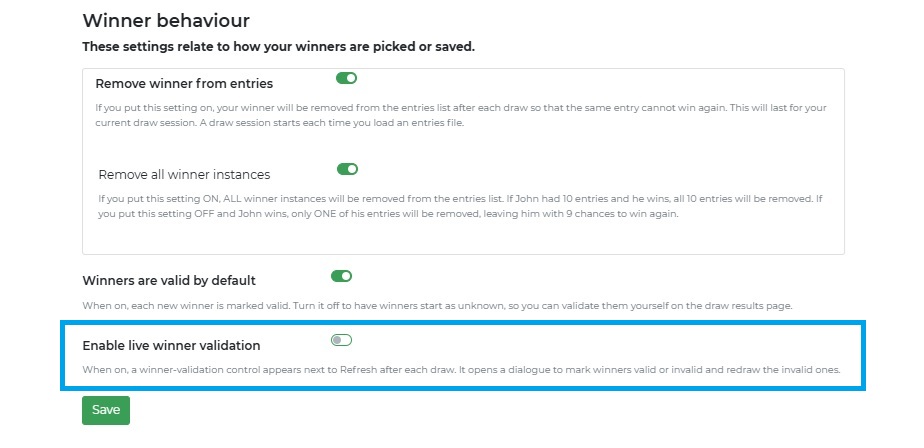
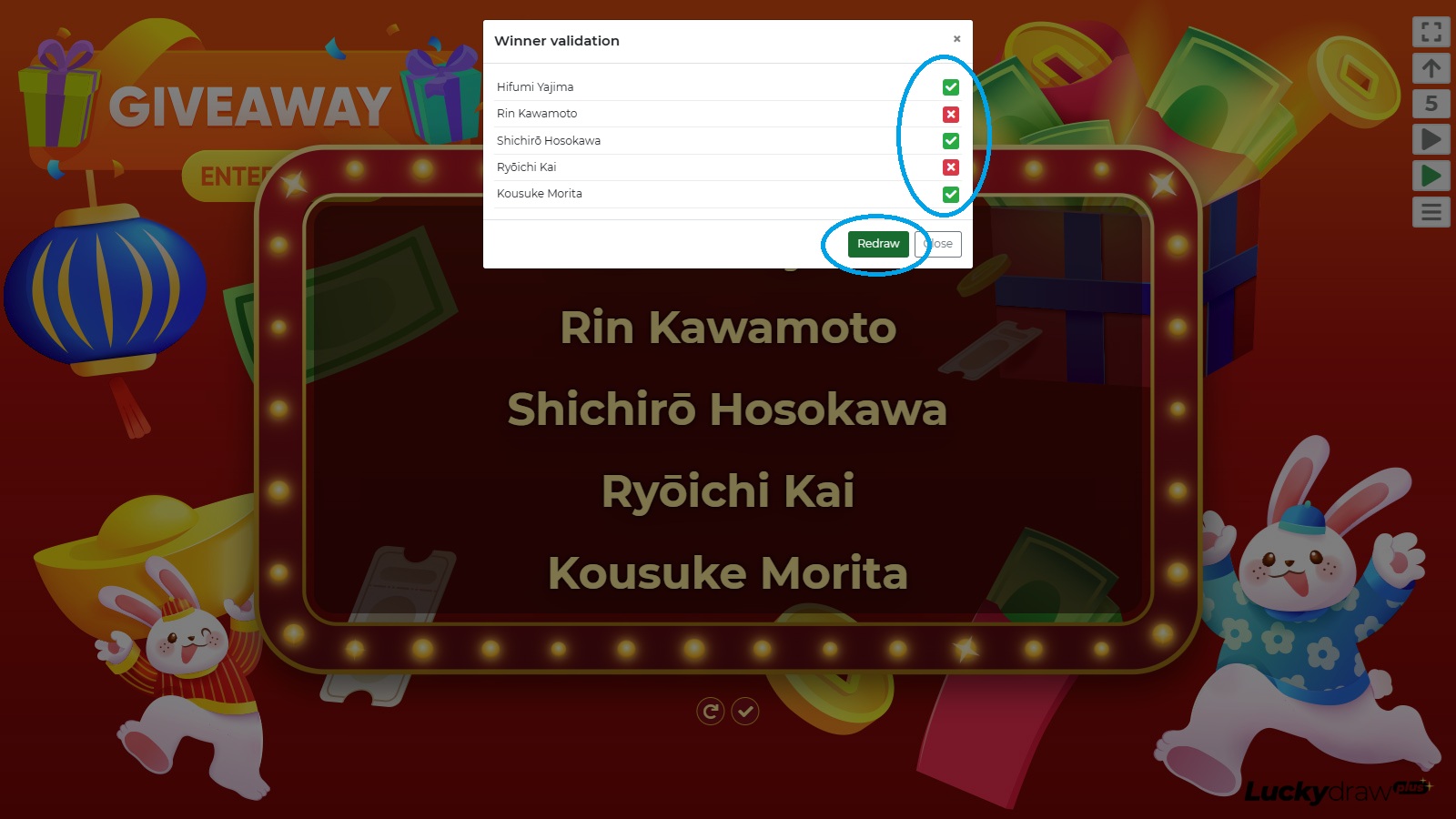
Imagine your draw rules say that the winners need to be present at the live draw in order to claim their prize. You draw a winner and call their name. If they are not there, you can mark them as invalid, and redraw a new winner immediately in the same draw session.
To enable live winner validation, put this setting on.
Then look for the Winner validation icon below the winner display in your draw screen (tick/check icon).
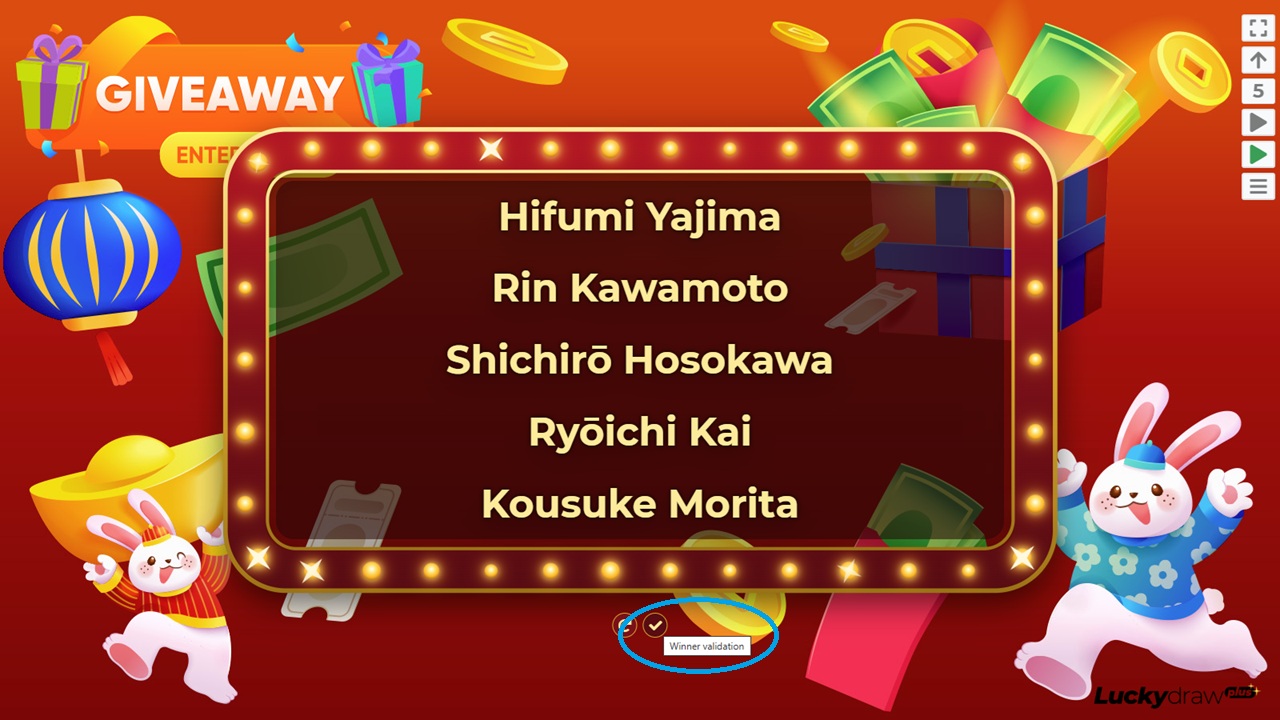
Click the Winner validation icon to open the Winner validation window. Mark any winner Invalid as required, then press the Redraw button to draw a replacement winner immediately in the same draw session.
Note that you use one credit for every winner you draw. This includes redraws. So if you draw one winner, mark them invalid, and redraw a winner, this will use two credits in total.
Even if you do not validate winners live during your draw, you can always do this later in your draw Results list.
See also Draw results
Override default settings on load
The settings you save on the Settings | Entries page will be the default settings used each time you open the Load entries dialogue. Set them to the options you would like used most often.
However you can override some of these settings as you load an entries file.
Changing the settings at this time will not save new defaults for you, but will only take effect for your current draw session. Use this to test different behaviour temporarily.
What is a draw session?
A new draw session starts each time you load an entries list. This can happen when you:
Load a new entries file (or re-load the same file)
Leave the draw page, for example to go to the Settings menu
Log out and then in again
Refresh your browser
All of these will force you to load entries again, and a new draw session will start, with all your entries back in the list.
If you are doing multiple draws and you don’t want the same winner to win twice, you need to make sure you stay in the same draw session. In other words, don’t do any of the actions above.
How many entries can I have?
We don’t limit the number of entries you can load for each draw at all, so in theory this is unlimited.
However in practice, the device you are using may limit you, depending on the amount of memory that it has. To give you an idea, you can easily handle 300 000+ entries on a mid-range laptop a couple of years old, so you should be good for most draws.
You use one credit per live draw, no matter how many entries you have in your draw.
See also Credits
Working with very large numbers of entries
If you have a very large number of entries, and are experiencing performance issues, try the following:
Try a shorter scroll duration. The longer you set your draw to scroll before picking a winner, the more performance is demanded.
Try a slower draw speed. The faster you set to draw to scroll, the more performance is demanded.
Try a different draw style. The split flap draw style needs less performance than the classic scroll draw style, for example.
Think about splitting your draw into heats. Draw a winning name for each heat, and then enter those winners into a Grand Finale.
Make sure you test your final entries file using the device that you will use for your live draw to ensure you know how it will perform.
How many chances to win?
Each entry in your file has one chance to win.
The winner is picked randomly from the full list of entries. Say you have an entries list with 100 entries, the winner will be picked randomly from the full list, so each entry has a 1/100 chance of winning.
If you are doing multiple draws at one event, say for first, second and third prize, then you can use the ‘Remove winner from list after draw’ feature if you do not want the same entry to win twice.
See also Remove winner from list
Weighting entries
If you want some entrants to have a higher chance of winning, repeat their entries in your list.
For example:
You are running a draw where for each social media interaction people get an entry into your draw.
You have 100 comments on your social media post.
10 of them came from User1.
Repeat User1 10 times in your entries list
Now User1 has a 10/100 or 1/10 chance of winning.
Note that if User1 wins, you can choose whether you want all 10 of their entries removed, or only 1 of them removed, leaving User1 with 9 entries in the draw.
See also Remove winner from list