Draws
How do draws work?
Lucky Draw Plus is simply an engine to pick a random item from a list.
The items in the list are called entries.
The act of picking an entry from the list (picking a winner) is called a draw.
In Lucky Draw Plus you will Load entries, starting a draw session.
You can then click the Draw button as many times as you like, each time picking a new item or winner from the same entries list.
See also Load entries
See also What is a draw session?
There are two draw modes:
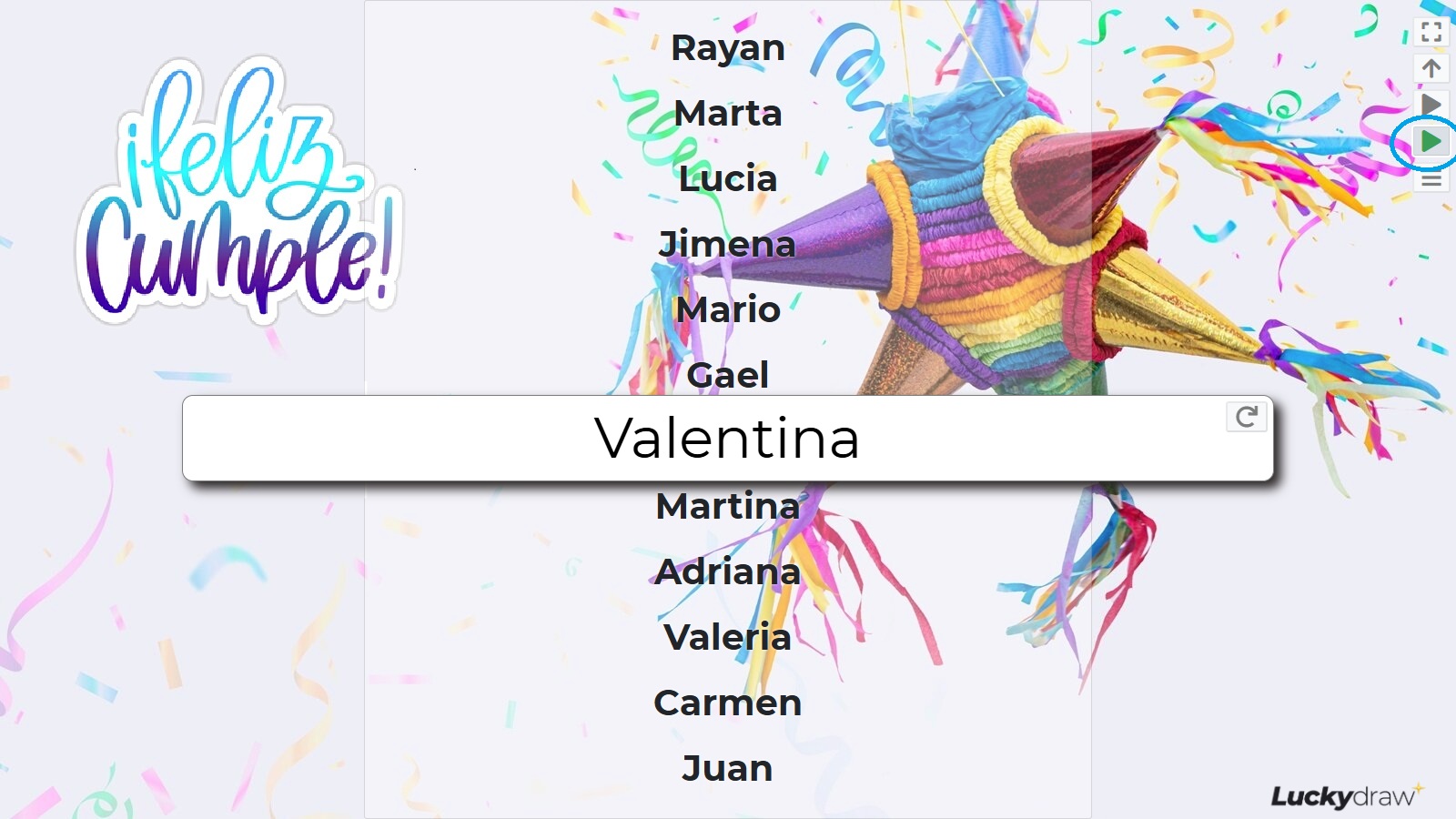
Draw
Use the green draw button.
This is the live draw mode that you will use for final presentation.
Each winner you pick with a live draw uses up one Lucky Draw Plus credit.
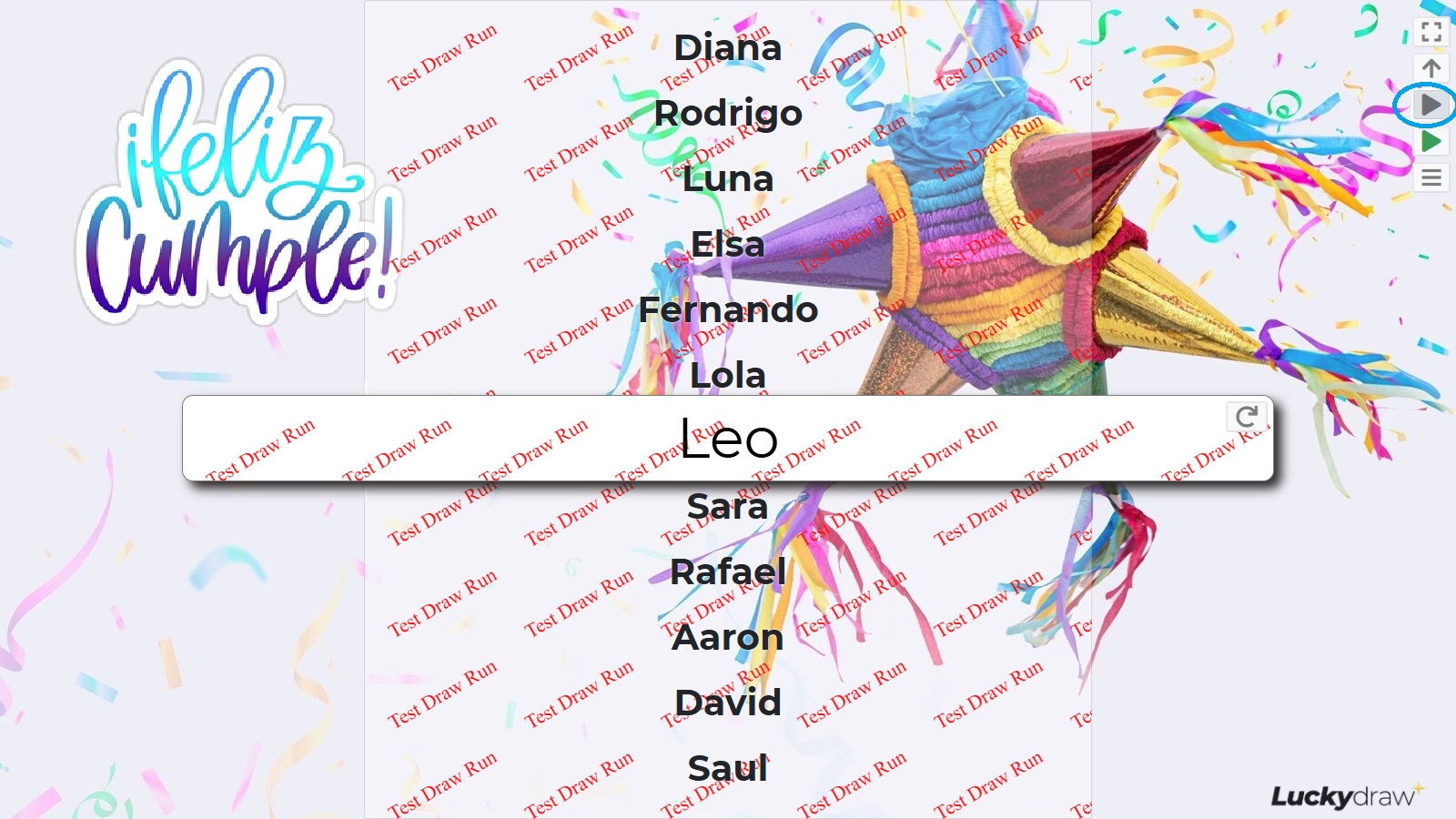
Test
Use the grey draw button.
This works in exactly the same way as the live draw mode, except that there will be a Test Draw overlay (watermark) on the screen.
You will not use any credits to run Test draws.
See also Credits
Each time you do a draw, the details are recorded and a winner certificate is saved. You can find these in the Results section.
See also Draw results
Lucky Draw Plus is designed for live draw presentation to an audience - either in person on a large screen, or virtually, so you are able to get your draw looking perfect for the exact screen size you will present on.
You can customise your draw, changing the look and behaviour. The next section will detail your options.
Set up your draw
Lucky Draw Plus has great default settings built in. You can register and do a draw as soon as you have an entries file, without changing anything - unless you want to.
See also Quick start
However, if you would like to make your draw unique, you can customise it in a number of ways.
Behaviour settings
You can change the way that your Lucky Draw behaves while picking a winner. Your settings do not affect who the winner is, this is always selected randomly from your full entries list.
Change the behaviour of your draw on the Settings | Behaviour page.
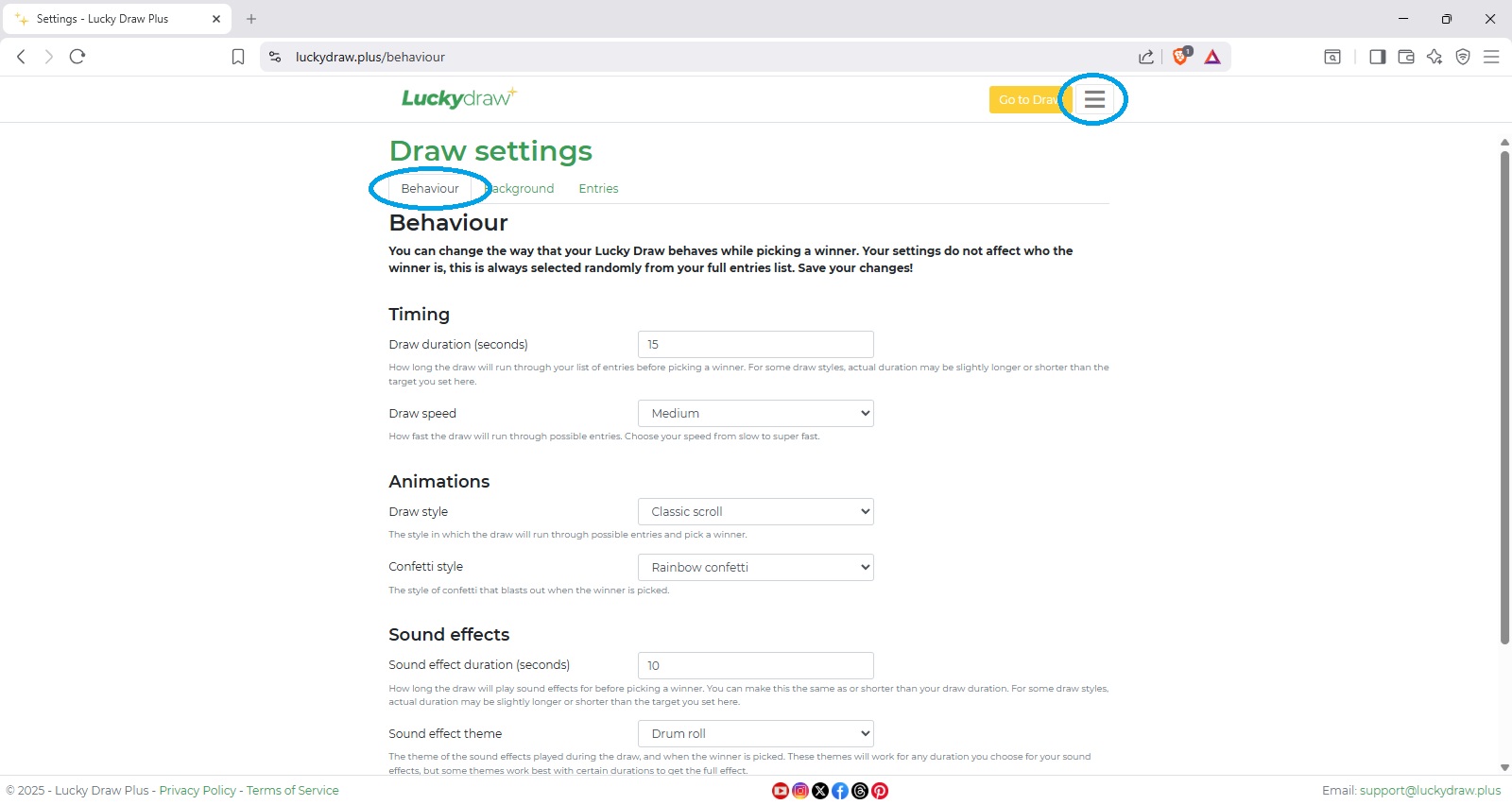
Timing
Draw duration (seconds)
How long the draw will run through your list of entries before picking a winner.
For some draw styles, actual duration may be slightly longer or shorter than the target you set here.
Draw speed
How fast the draw will run through possible entries.
Choose your speed from slow to super fast.
Animations
Draw style
The style in which the draw will run through possible entries and pick a winner.
See also Customising your draw behaviour in the Bonus topics section for demos and more detailed information on the draw style options.
Confetti style
The style of confetti that blasts out when the winner is picked.
You can also switch confetti off.
Sound effects
Sound effect duration (seconds)
How long the draw will play sound effects for before picking a winner.
You can make this the same as your draw duration (sound plays for the full draw), or shorter (sound comes in just before winner is picked).
For some draw styles, actual duration may be slightly longer or shorter than the target you set here.
Sound effect theme
The theme of the sound effects played during the draw, and when the winner is picked.
These themes will work for any duration you choose for your sound effects, but some themes work best with certain durations to get the full effect, so try them for 30 seconds or so to hear the full loop and then shorten as required.
You can also switch sound off.
See also Customising your draw behaviour in the Bonus topics section for demos and more detailed information on the sound effect theme options.
Background settings
You can change the look of your Lucky Draw by changing your draw name, and uploading your own background and logos. Or you can switch off some of these features.
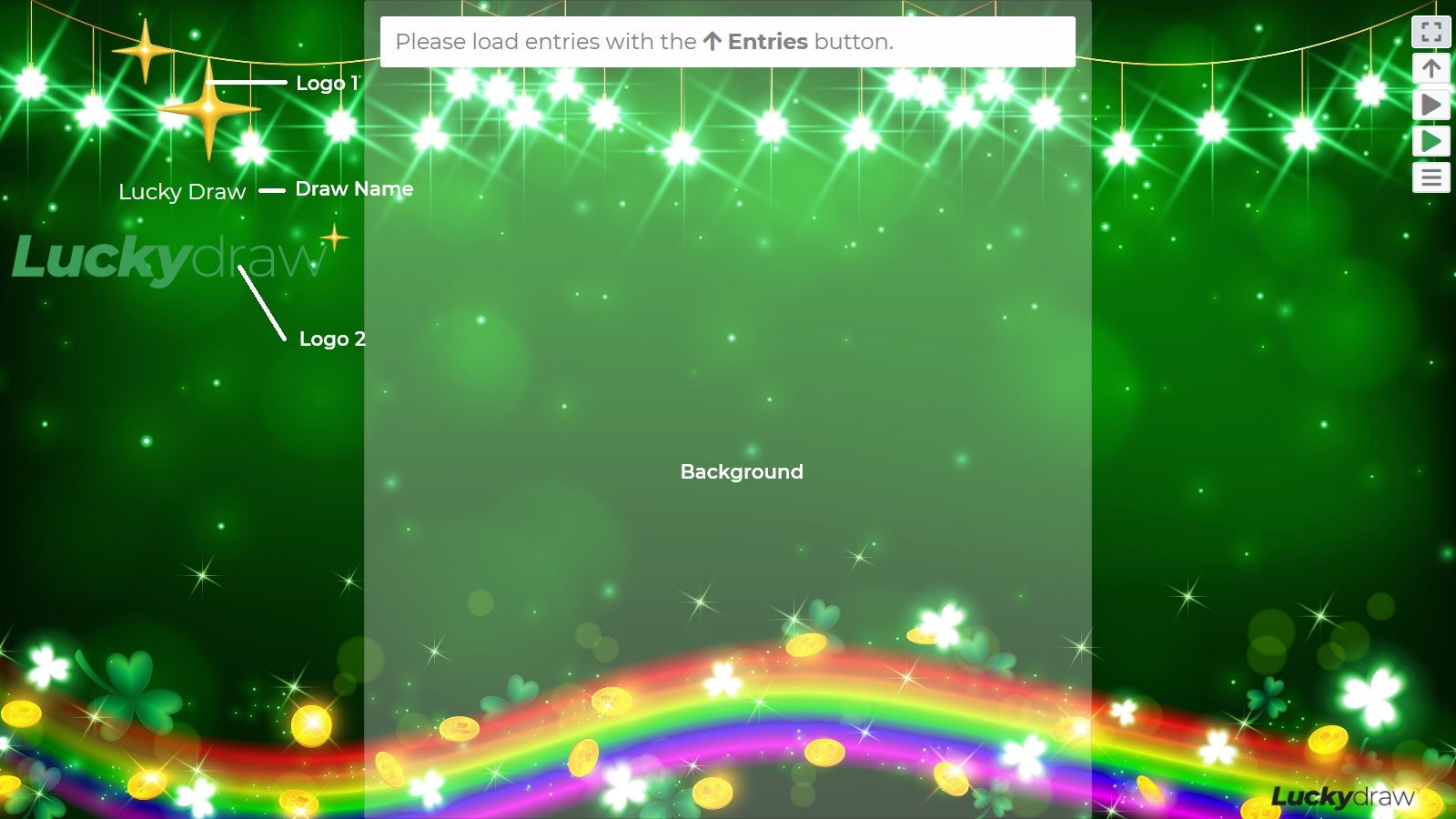
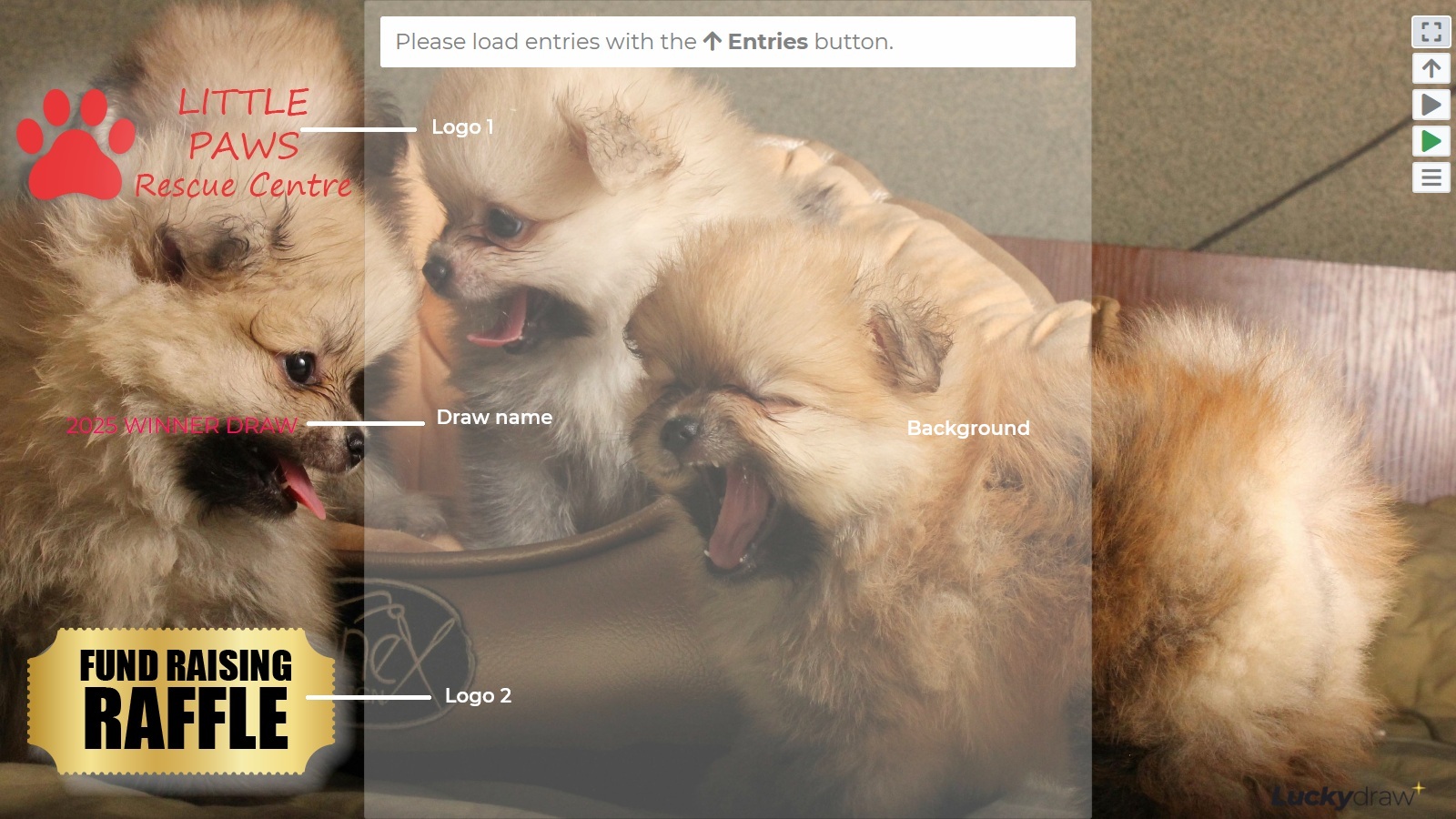
Change the background settings on the Settings | Background page.
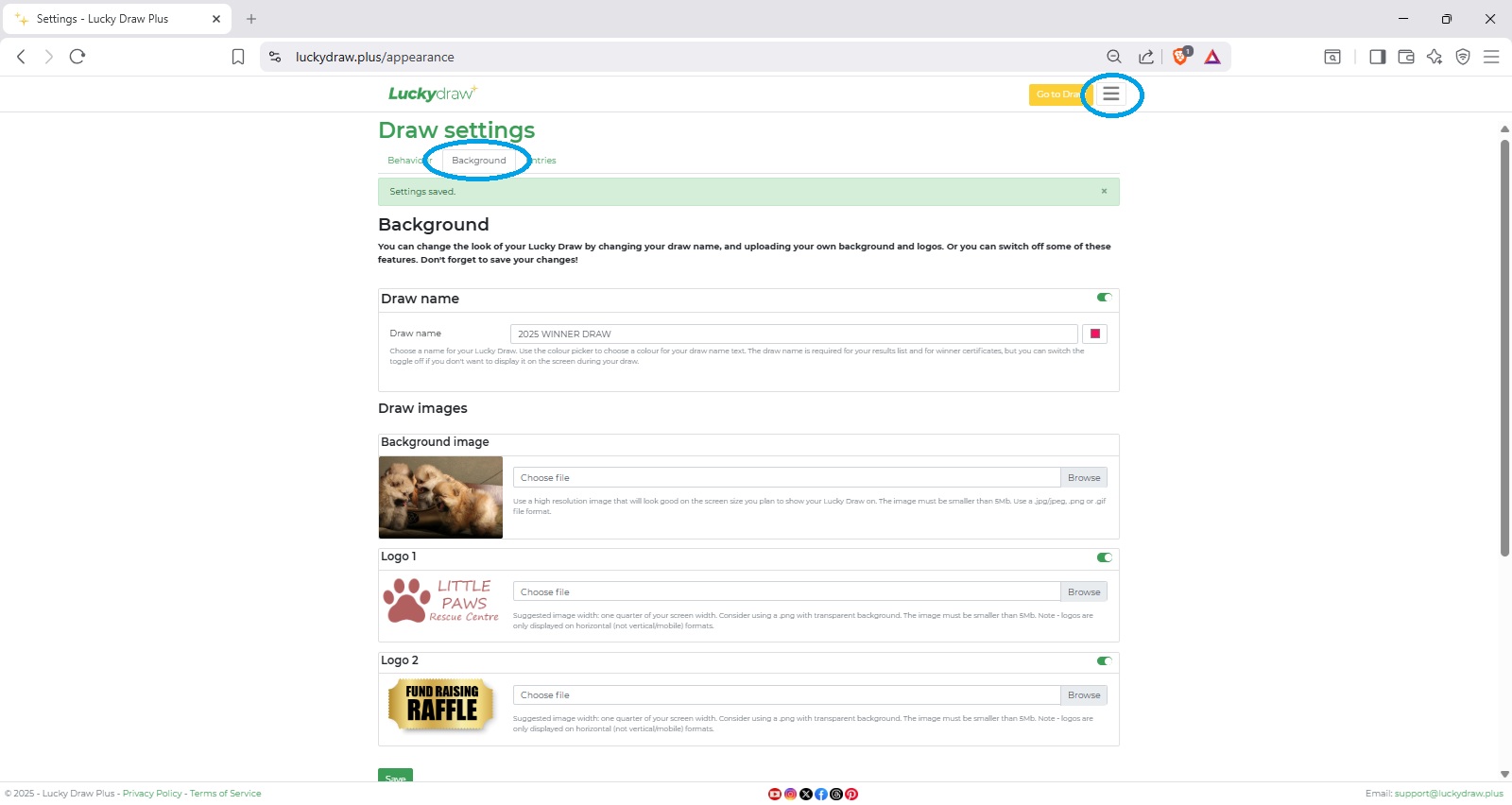
Draw name
Choose a name for your Lucky Draw.
The draw name is required for your results list and for winner certificates, but you can switch the toggle off if you don’t want to display it on the screen during your draw.
Use the colour picker to choose a colour for your draw name text if you are showing it on the screen during your draw.
Draw images
Background image
Choose an image file to use as your main draw background.
The image must be smaller than 5Mb.
Use a .jpg/jpeg, .png or .gif file format.
Use a high resolution image that will look good on the screen size you plan to present your Lucky Draw on.
Use an image that is the same aspect ratio as the screen you plan to present your Lucky Draw on.
Test your draw in Fullscreen mode to see the full image.
Logos
Logos are optional - you can switch Logo 1 or 2 (or both) off.
If you want to use logos, choose the files you would like for
Logo 1 - position top left of the draw screen.
Logo 2 - position bottom left of the draw screen.
Suggested image width: one quarter of your screen width.
Consider using a .png with transparent background, as this logo will be placed over your background image.
The image must be smaller than 5Mb.
Note - logos are only displayed on horizontal (not vertical/mobile) formats.
See also Customising your draw background for more detailed information on screen layout, logo placement, screen resolution, mobile devices, using animated backgrounds, and some great free resources and tools to make your draw look amazing during live presentation.
Entries settings
See also Entries settings for details on settings controlling how your entries will display on your draw screen, and winner selection behaviour.
Run your draw
How to draw
Load entries with the Entries button.
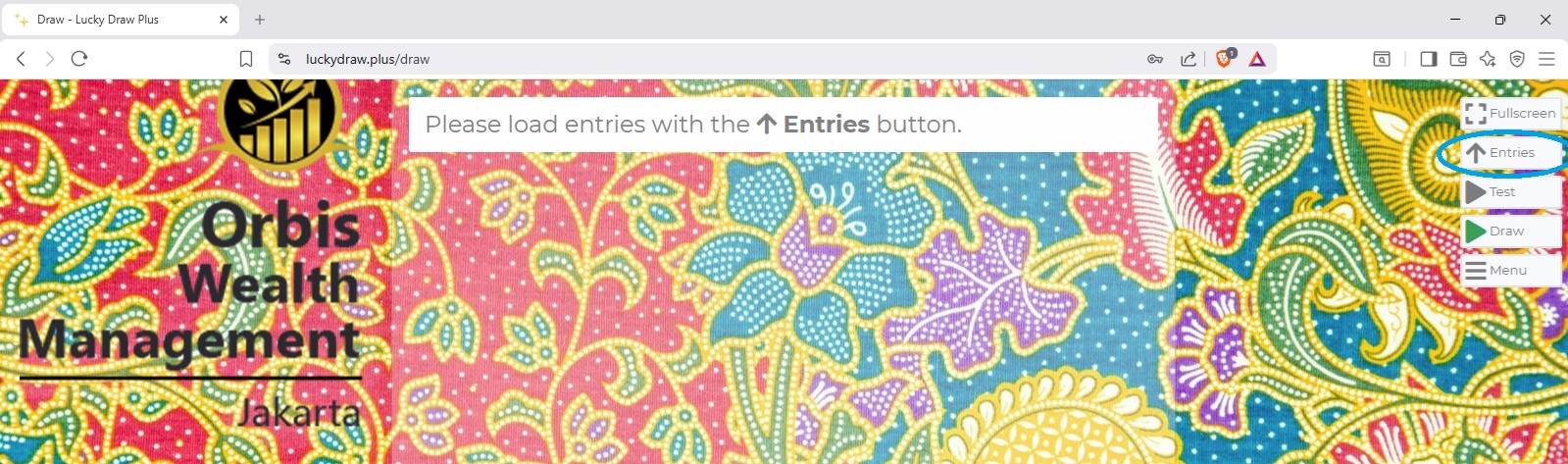
See also Load entries
The draw screen will indicate Ready to Draw… at the top.
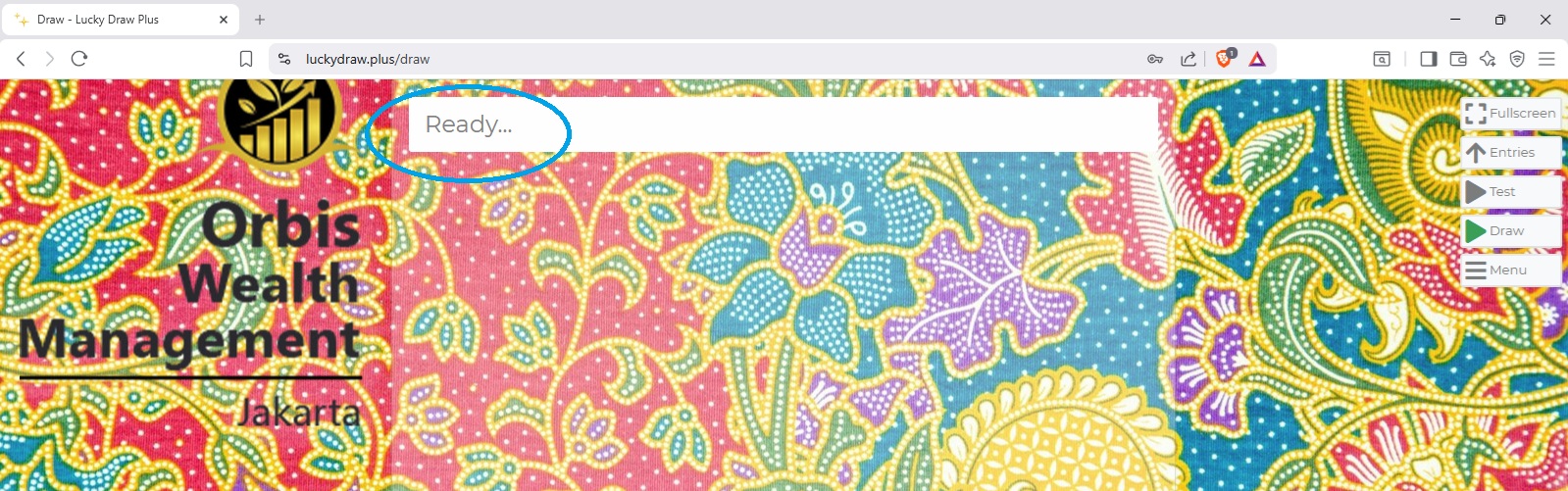
Put the screen into Fullscreen mode if you wish.
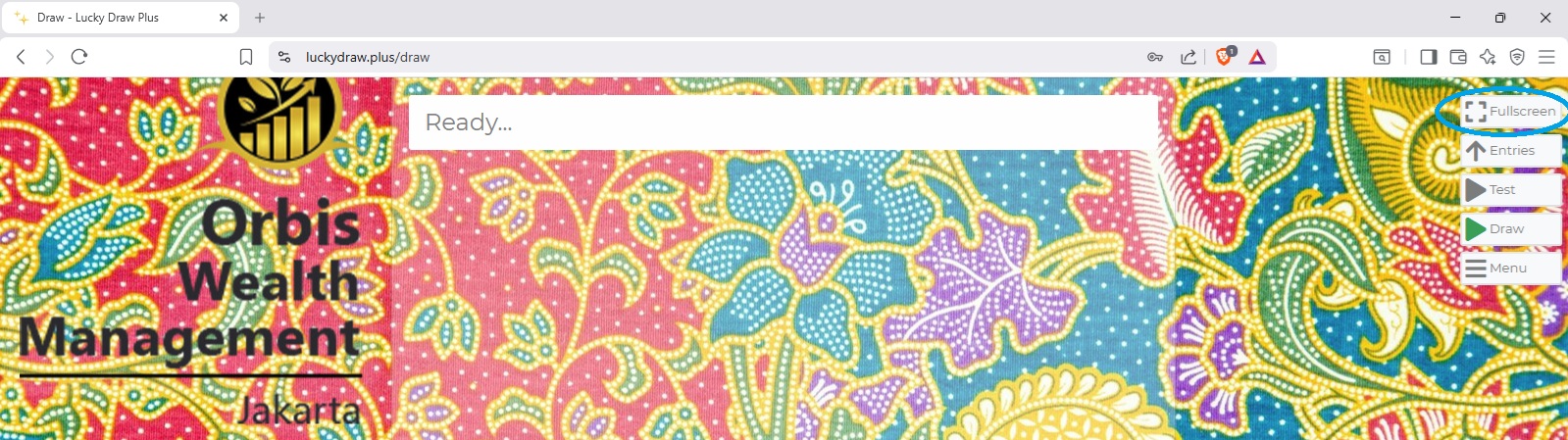
Press either the Test or Draw button to draw.

Wait until you see the Refresh icon appear before drawing again to ensure that your winner certificate is saved.
See also Winner certificates
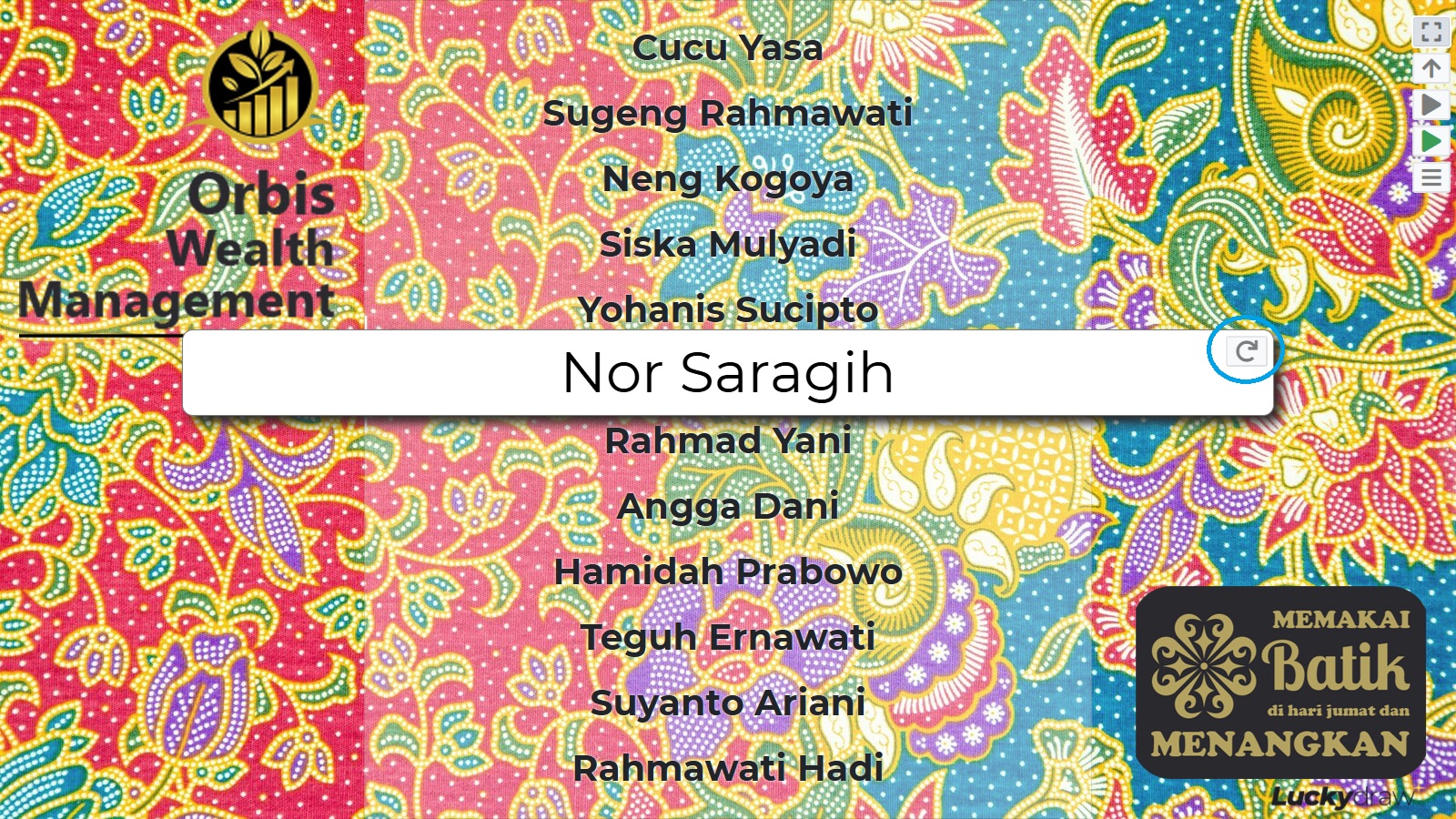
If you have enabled live Winner validation, use the Winner validation icon to mark any winners Invalid as required and Redraw.
You can do as many draws as you like using the same entries list.
See also Live winner validation
Preparing for live draws
See also Checklists for more detailed help in preparing for your draw.
See also In-person, virtual or hybrid? for ideas on various draw formats.
Here are some additional things to do before your final presentation draw:
Check your credit balance
Dismiss the confirm live draw pop-up
Check the technical requirements
Plan your timing
Rehearse your draw
Check your credit balance
Each live draw uses one Lucky Draw Plus credit.
If you have no credits remaining in your balance, you will not be able to do a live draw. You may however use the Test draw button.
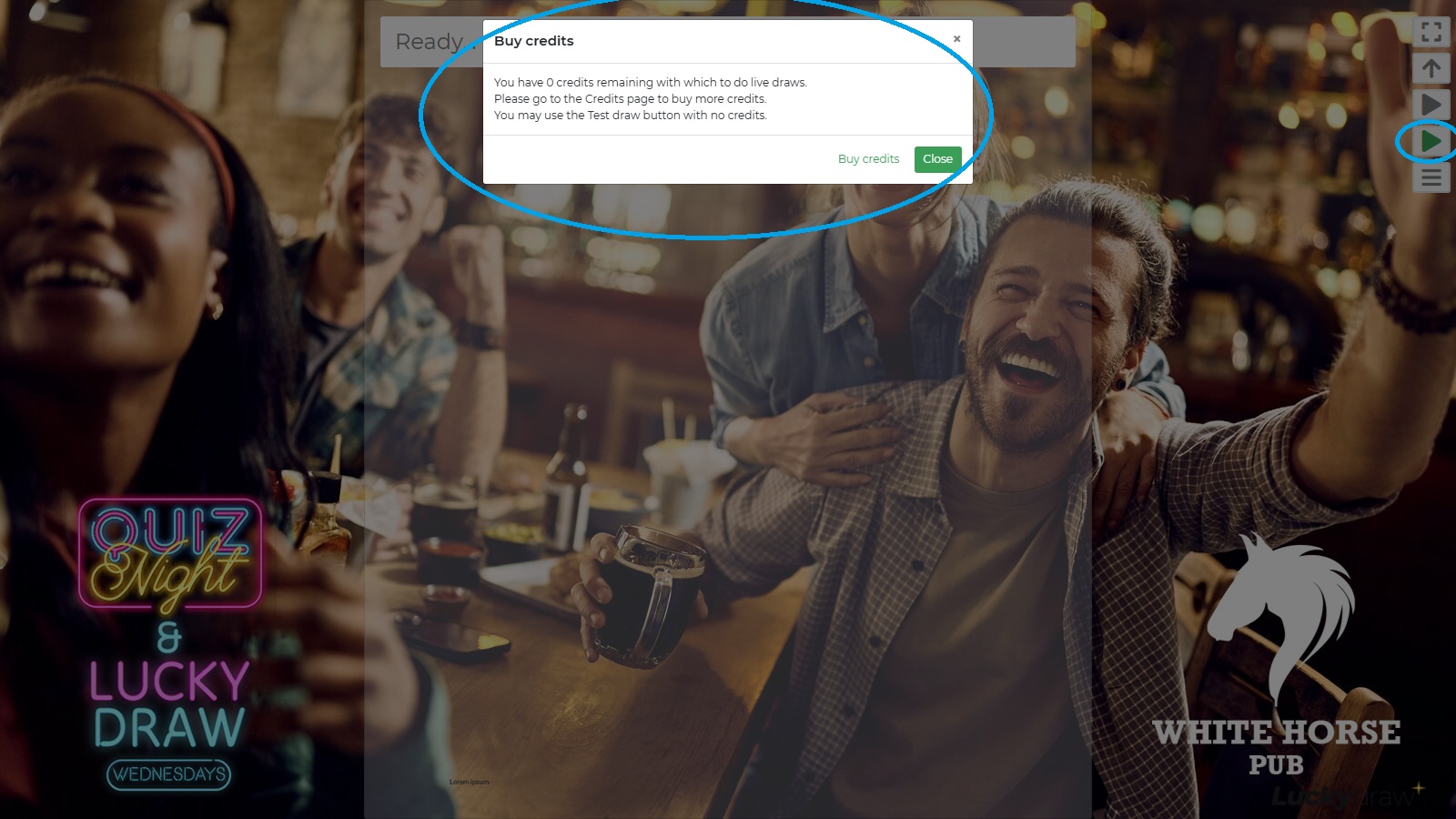
You would not want the Buy credits dialogue showing up because your credit balance is on 0 as you press draw in front of a live audience.
Make sure you have enough credits available before your live draw presentation to cover the number of draws you intend to do.
If your draw rules say that the winner has to be present to claim their prize, and you plan to redraw until you get a winner who is present, estimate the number of credits you will need for these redraws.
See also Credits
Dismiss the Confirm live draw pop-up
The first time you do a live draw, a confirmation screen will pop up, warning you that you are about to use one credit.
Check the box that says Do not show this message again to avoid this screen popping up during your live presentation draw.

We recommend you do at least one live draw to set this setting and to practice before your final presentation.
Check the technical requirements
To run a live draw you will need:
For all events:
internet access
a web browser
a device (mobile, tablet, PC etc) to control your Lucky Draw from. The device you use needs to have the ability to upload your entries file (spreadsheet or CSV), but it does not need to have Excel installed.
For in-person events:
a screen or projector to display your Lucky Draw live to your audience
sound system or speakers, if you would like them to hear the sound effects
For virtual events:
streaming or screensharing software to share your draw live
you can also pre-record your draw, and share it later if you don’t want to draw live
Plan your timing
Imagine your are doing a team-building event and you want to give prizes to 50 team members
You set your draw duration to 30 seconds
You want each team member to come up on stage and get an award
Walk through in your mind how long each draw and award will take, and plan how to fit the total time into your event programme.
Rehearse your draw
We recommend you rehearse your draw with conditions as close as possible to what they will be like during your live presentation.
Use the same entries file that you will use
Use the same device (computer, tablet, phone) that you will use
Use the same screen or at least screen resolution that you will use
Test any supporting equipment, such as sound system, projector
Test any supporting software, such as live streaming or meeting software
See also Checklists for more detailed help in preparing for your draw.
Draw results
Find your draw results on the Results page.
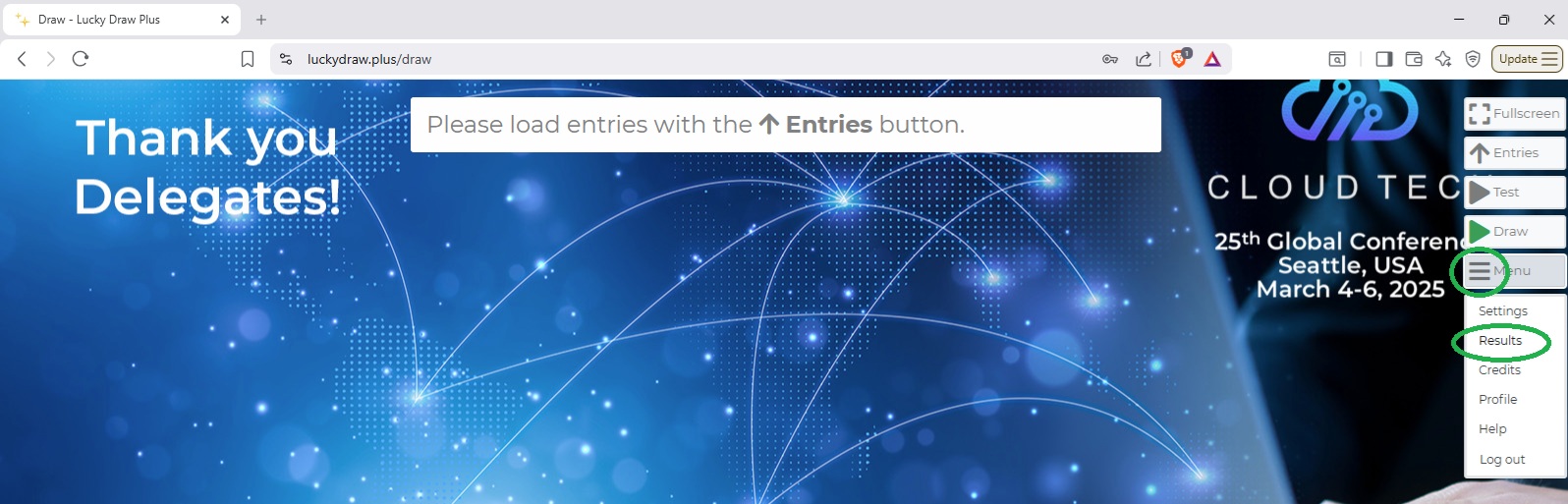
Draw results list
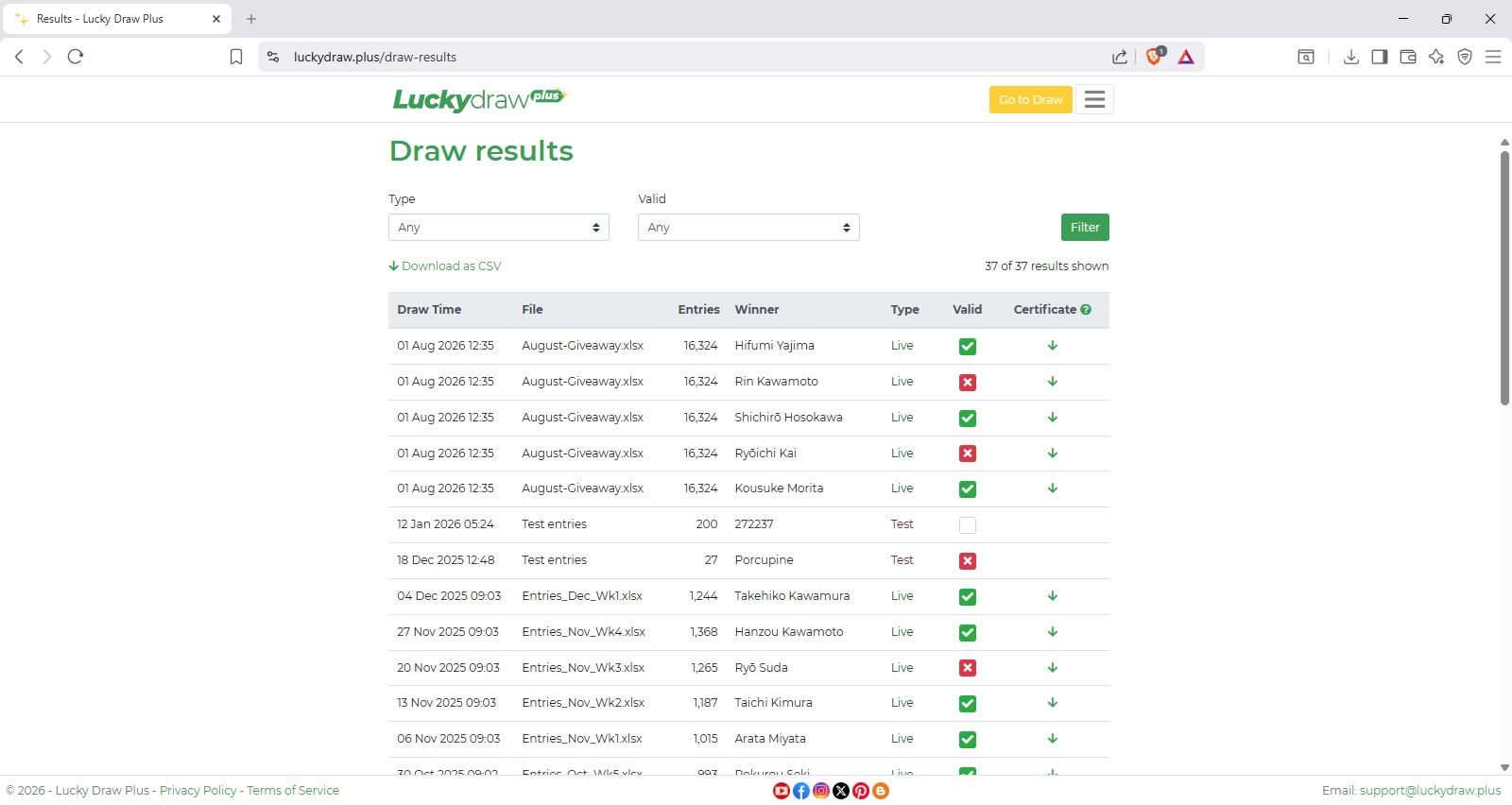
The Draw results page lists all draws you have ever done, both Test and Live.
The most recent draw is on top.
You can:
validate winners
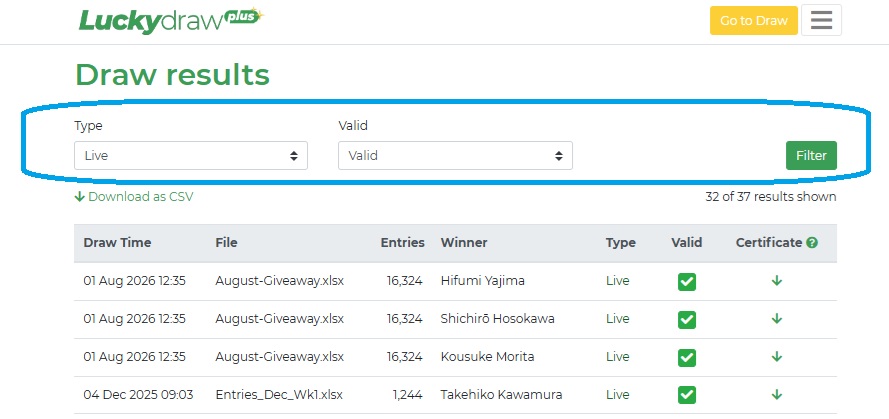
filter your draw results
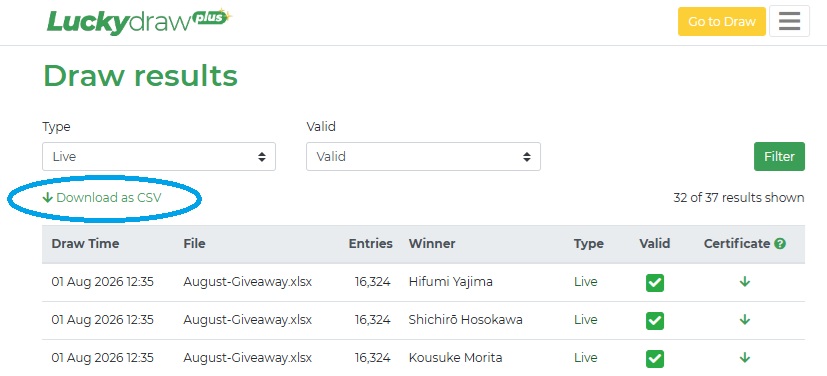
download your draw results list as a CSV file
download your winner certificate for each draw
Draw results list
Filter draw results
Download draw results to CSV
Winner validation
By default, winners will be saved in your results list as Valid. You can change this so that winners are saved as Unknown by default (until you specifically validate them).
See also Winners are valid by default
In your Results page, you can mark winners as Valid, Invalid or Unknown - click the icon repeatedly to toggle through each state.
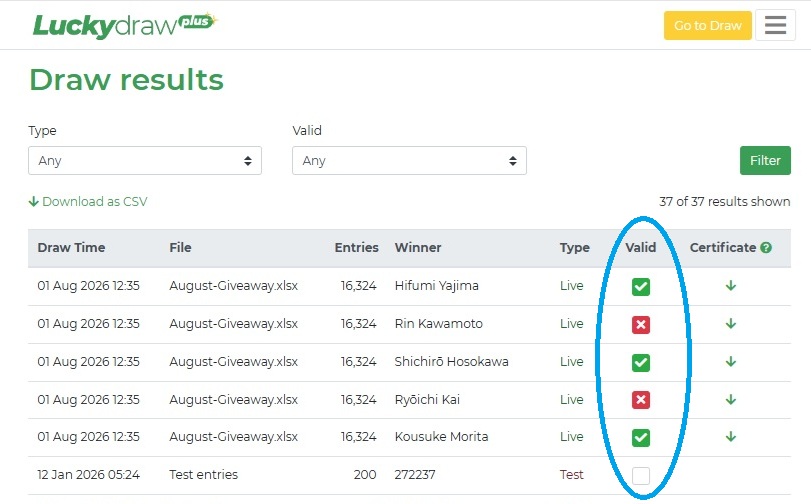
If you have enabled Live winner validation, you can mark winners Valid or Invalid during your live draw (and redraw if required).
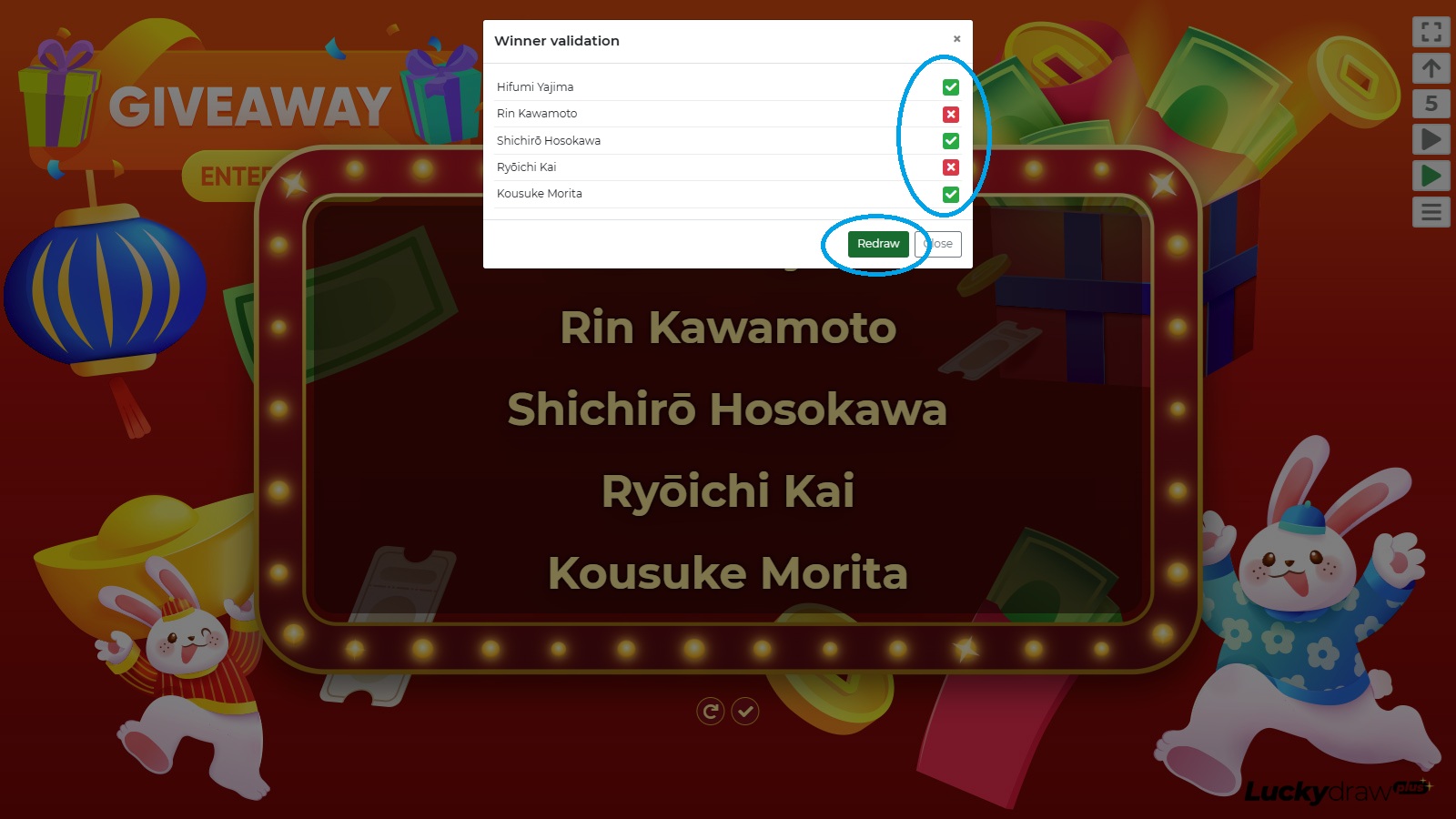
However you always have the option to change their Validity later in your Results list.
See also Live winner validation
Winner certificates
After each lucky draw, a winner certificate is saved, which you can download and share to your site or social media, or send to your winners.
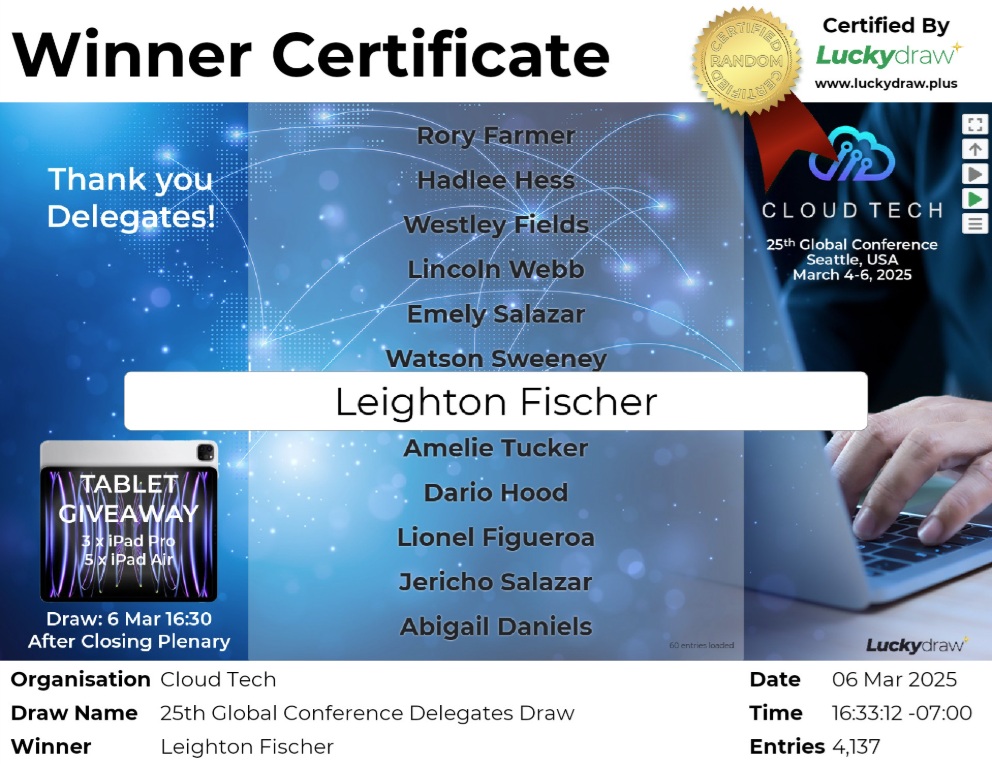
Making sure your winner certificates are populated
Your winner certificates are created at the time of your draw from:
A screenshot of the screen during your draw (in fullscreen mode or not, as you had it)
Some information from the draw run (timestamp, winner)
Some information from your profile (organisation name)
Some information from your draw settings (draw name, whether or not to show entries count)
Make sure your profile and draw settings are complete before your draw, and that you draw in fullscreen mode if required, in order to make sure your winner certificates will be created as you want them to be.
Making sure your winner certificates are saved
After your draw, it takes a second or two to save your winner certificate. If you navigate too quickly away from your draw, the certificate may not be saved in time. This includes if you:
Close your browser window
Start a new draw
Go to another page, for example Settings or Results.
To make sure your winner certificate is saved after each draw, wait for the Refresh icon to appear on the winner banner. This will tell you that the certificate has finished saving. You can then safely re-draw, or navigate to a different page.
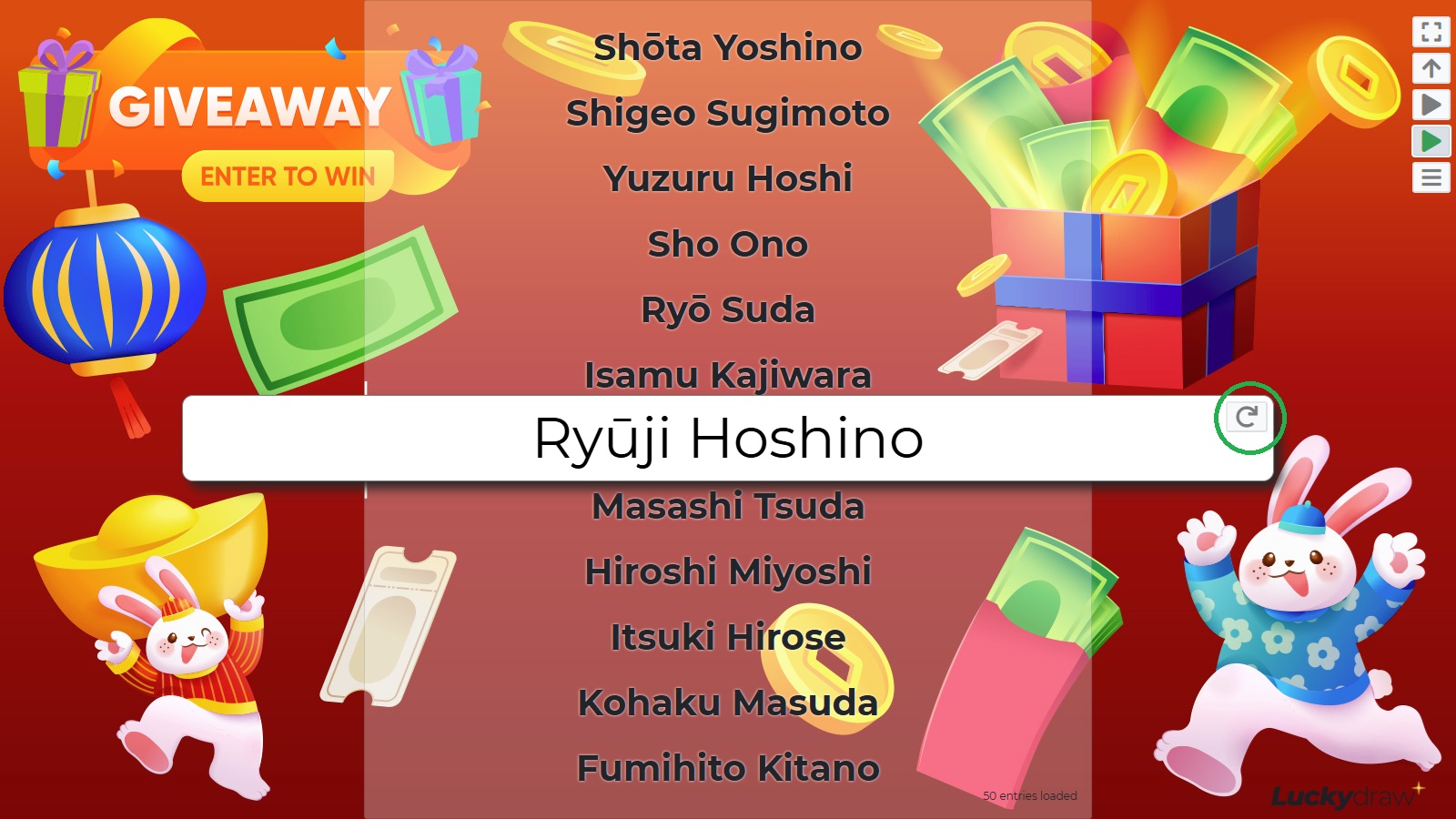
Downloading your winner certificates
Download your winner certificates in the Results page from the relevant draw results record.
Click the Certificate download icon to download.
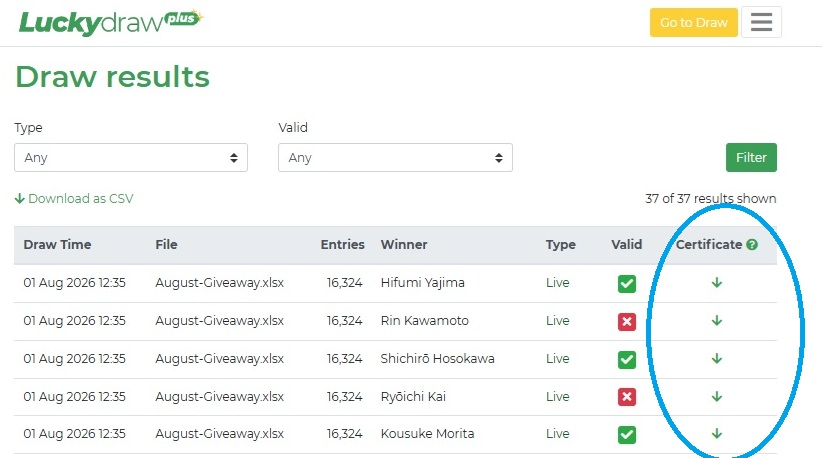
Winner certificates for Test draws may be deleted from our server after 24 hours, so if you need them, be sure to download them within that time.
Winner certificates for Live draws are retained on our server for at least one year after your last login.