Bonus topics
This section contains more detailed or advanced information on using Lucky Draw Plus. If you are just getting started, we’ll refer you also to the relevant intro section for each topic.
Customising your draw background
See also Background settings for an intro to draw backgrounds.
Lucky Draw Plus screen layout
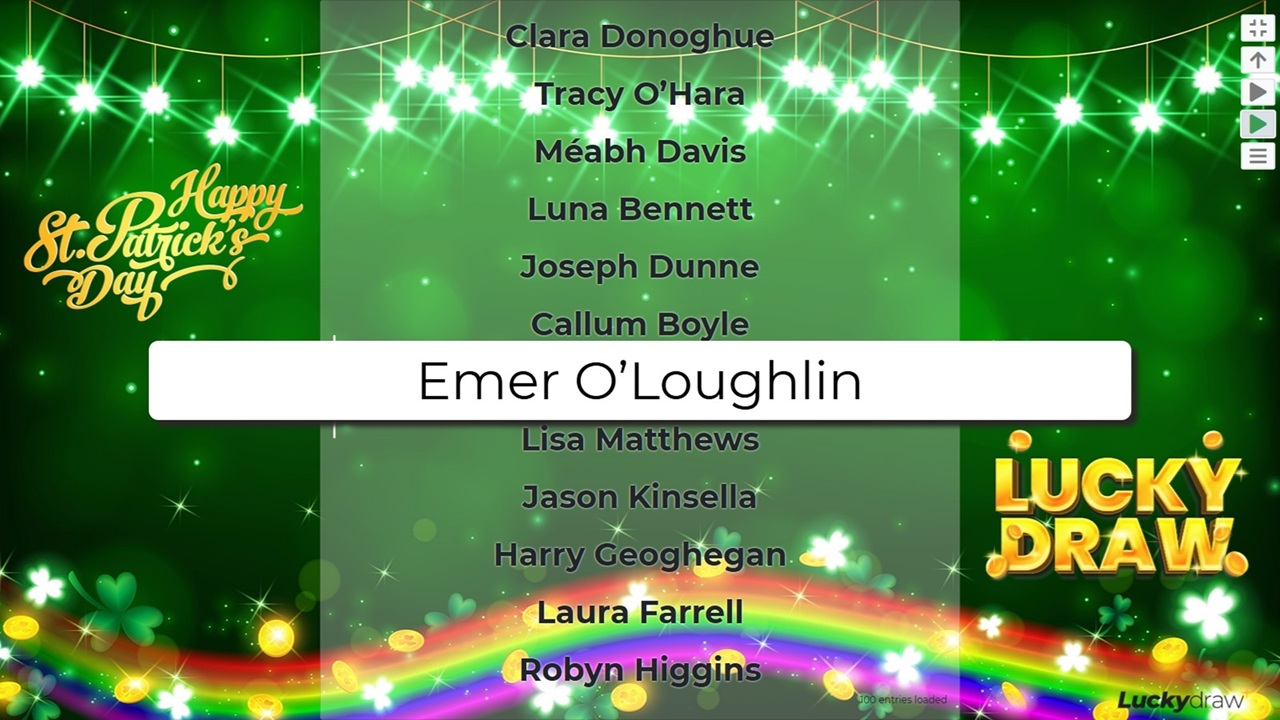
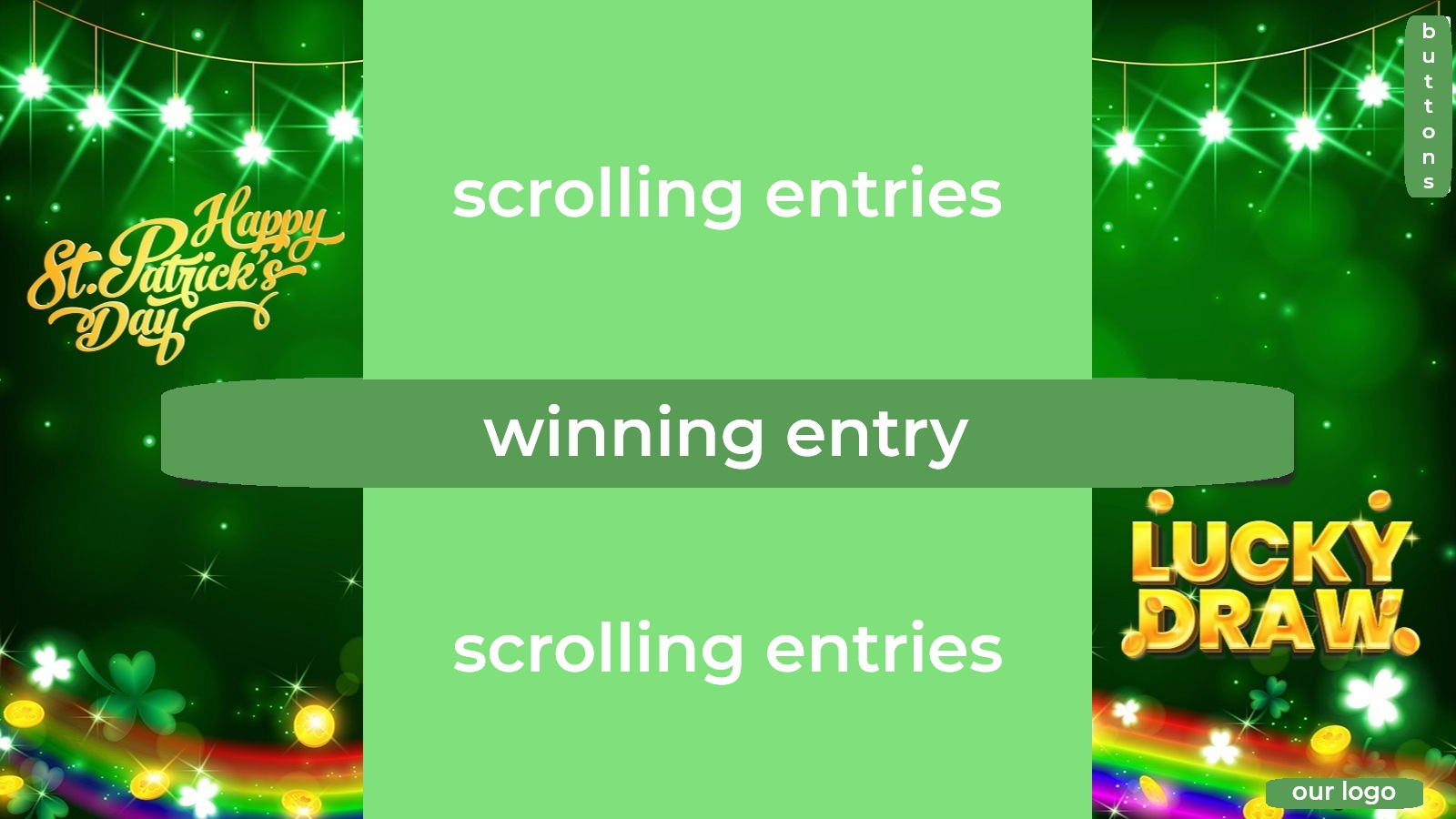
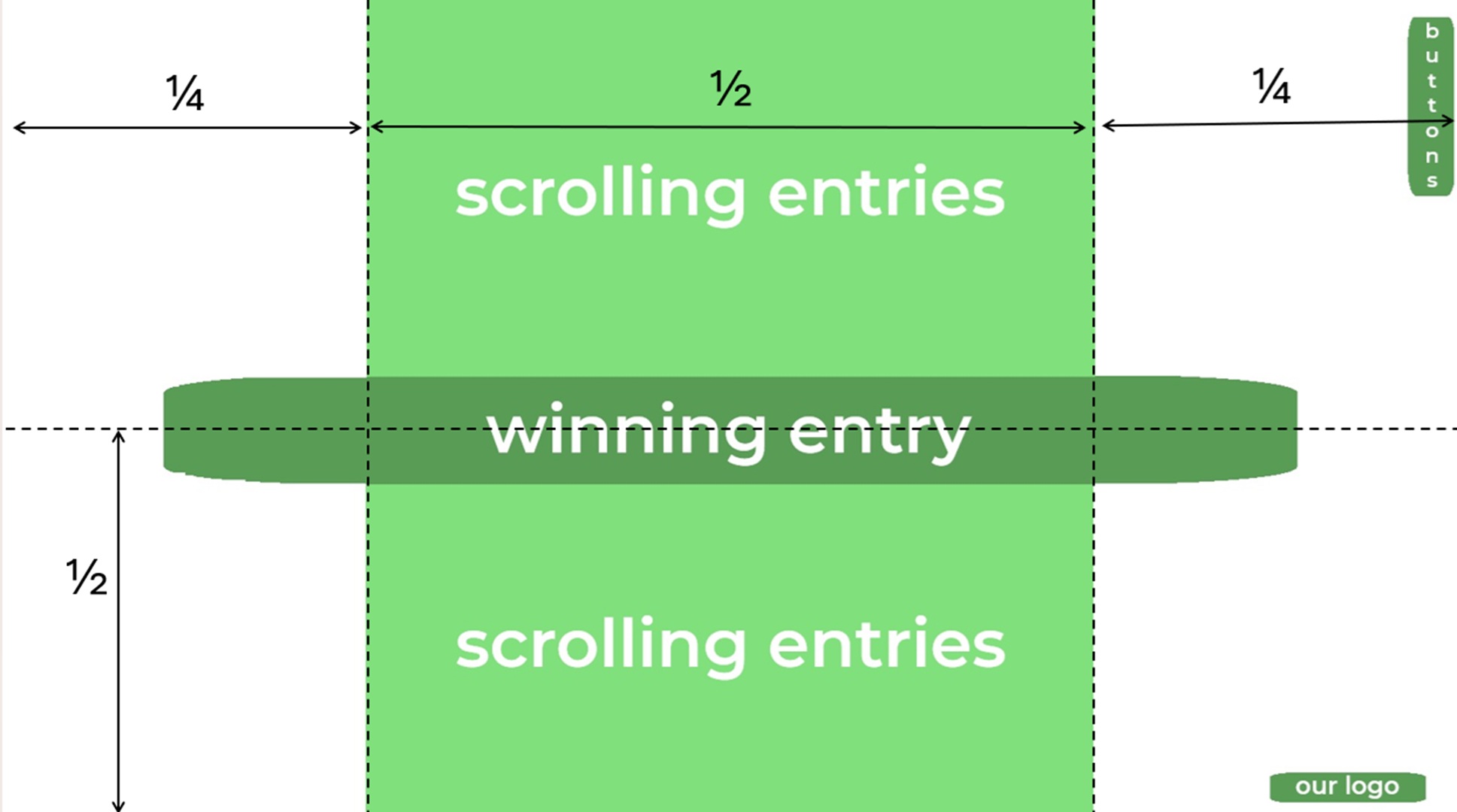
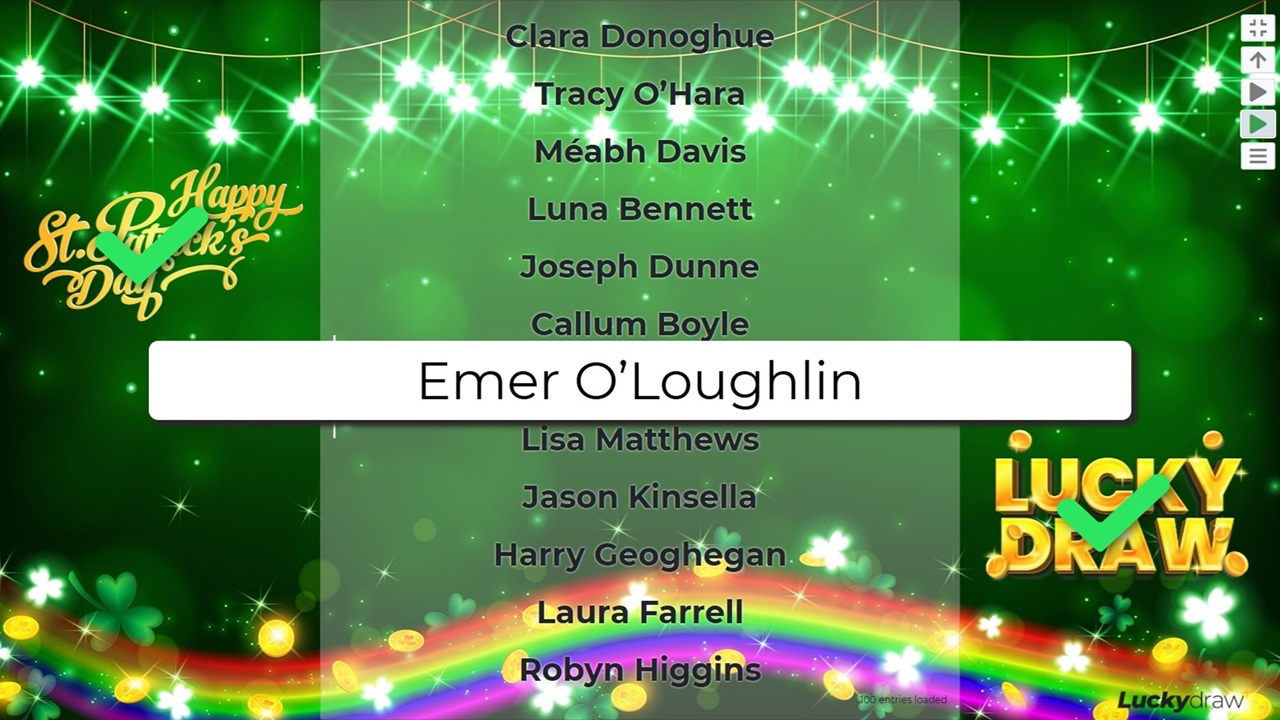
In Lucky Draw Plus, we use certain areas of the screen for buttons, scrolling entries, winning entry and so on.
You may wish to avoid these areas for important elements of your background design.
For example, put your logo or any messages top left or bottom right for maximum visibility.
This series of images shows you which areas of the screen we use.
Screen resolution
To make your draw look amazing, make sure your background image is correct for the screen resolution you will present your draw on.
The aspect ratio should be the same, otherwise you will lose parts of your image
The quality should be good enough to show crisply at the size you will present at
Test your draw in full screen mode at the resolution you will present at
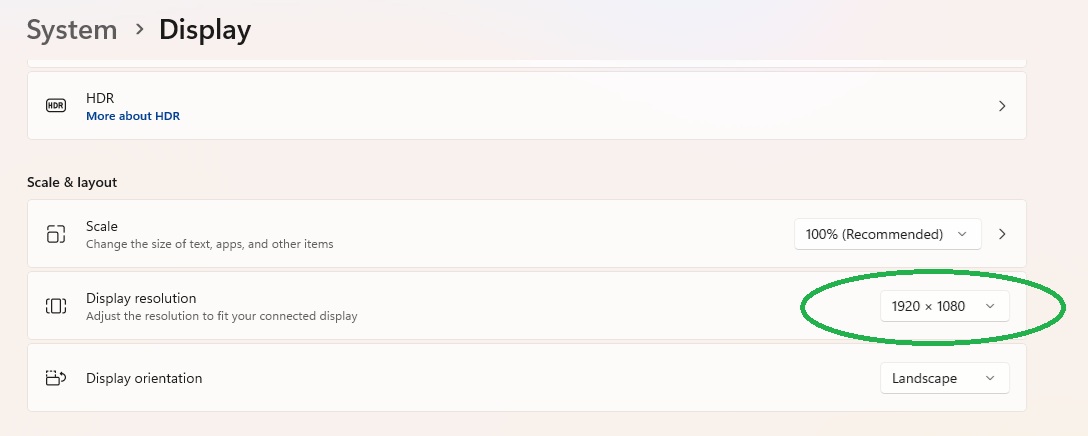
Find out your screen resolution
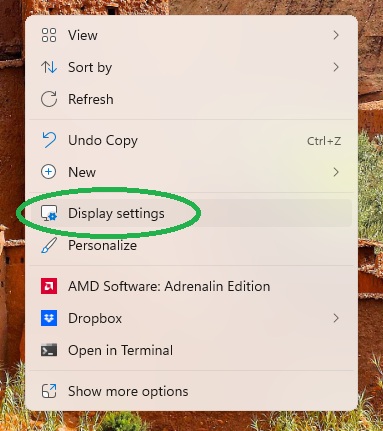
In Windows, right-click on your desktop and click on Display settings.
Check the display resolution of your screen:
Match your background image
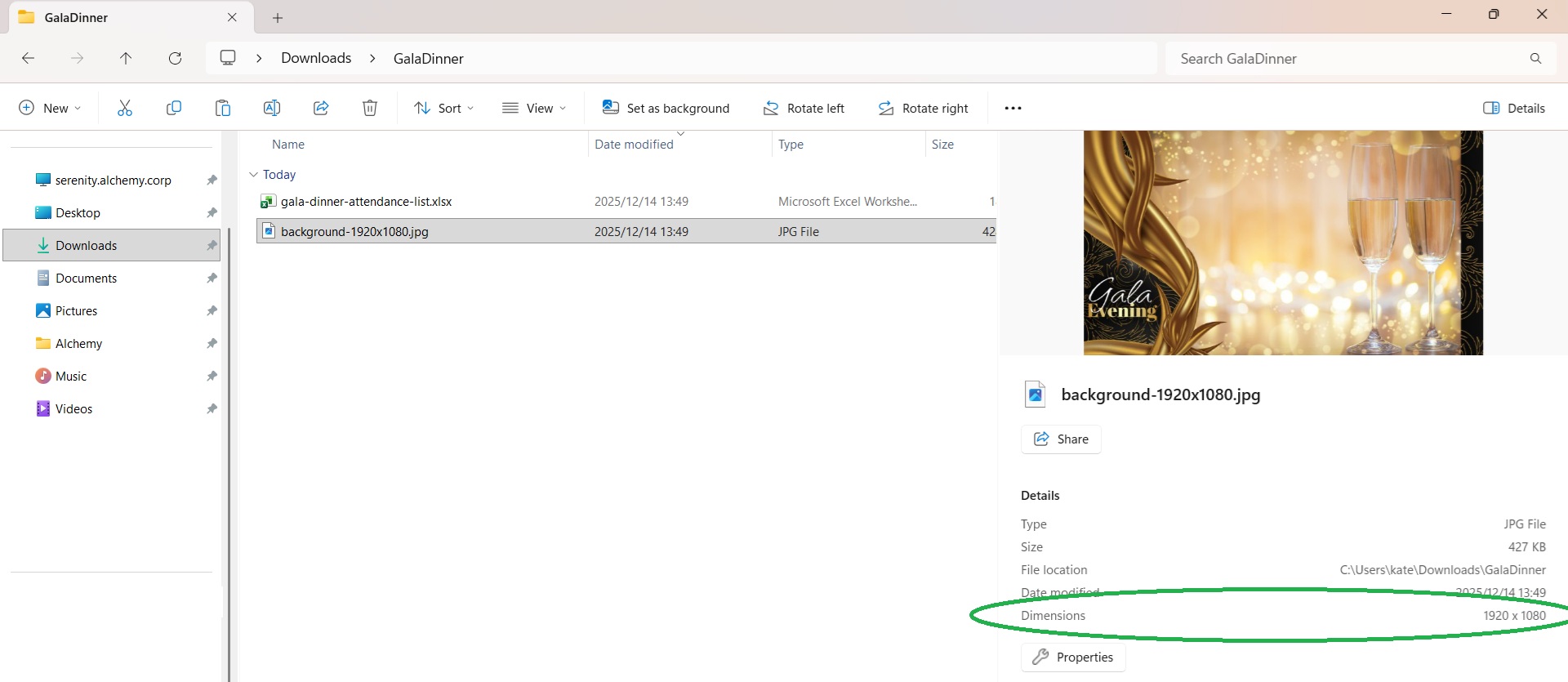
Design your artwork to that screen resolution, matching the height and width for best results.
You can find out the height and width of your image by right-clicking on the file in File Explorer, and going to Properties.
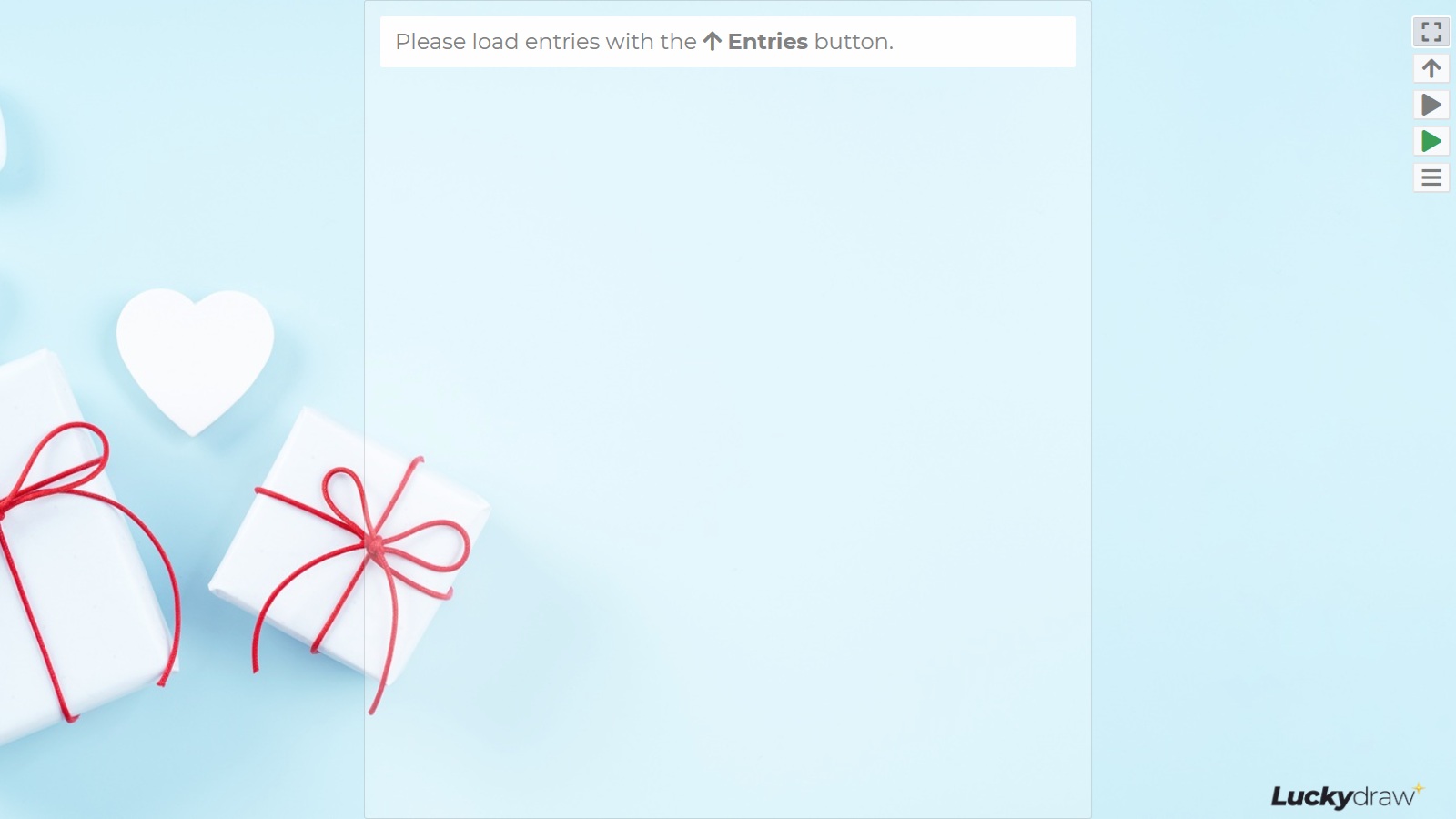
If the sizes, or at least the aspect ratios, do not match, Lucky Draw Plus will centre your image on the screen, and you may end up losing either the sides or the top and bottom of your image.
Original image |
Lucky Draw Plus with different aspect ratio |

|
|
Use fullscreen mode
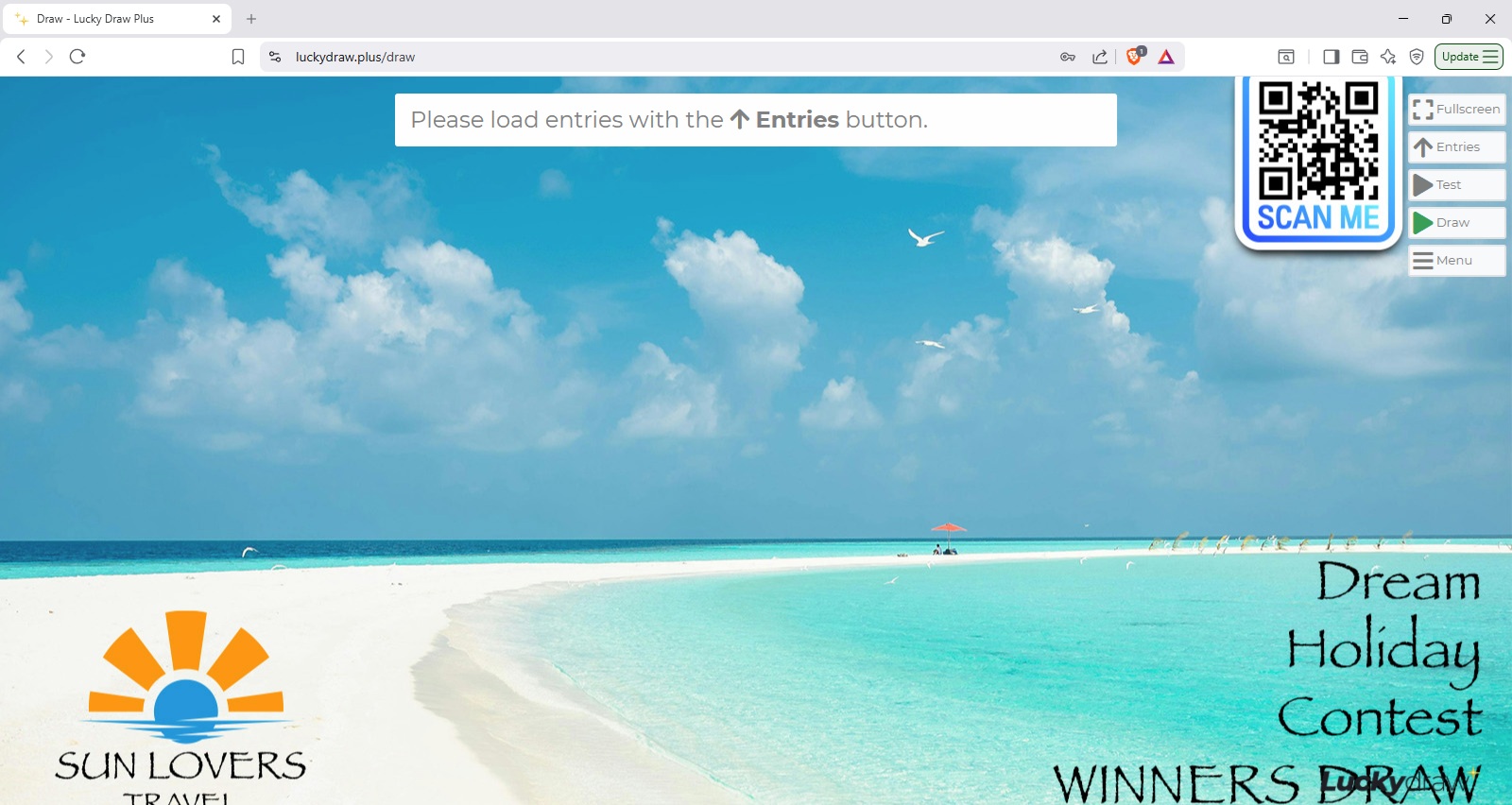
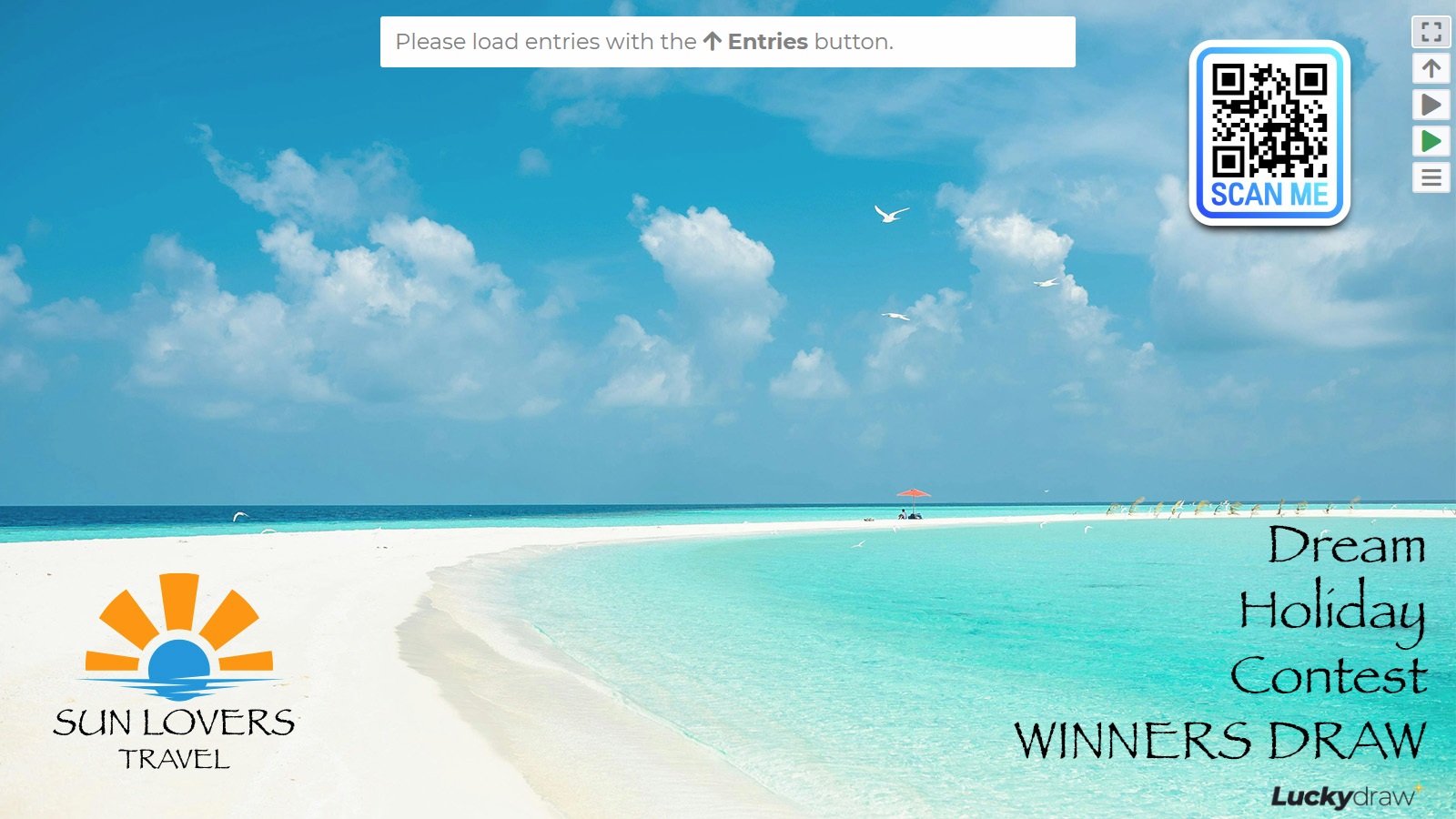
Lucky Draw Plus expects you to present in Fullscreen mode. If you are testing without Fullscreen, you will not be seeing your full final image.
Not fullscreen: logo and QR code cut off |
Fullscreen |
|
|
Simulate your presentation screen res
You may be setting up and testing your draw on a different screen resolution and aspect ratio to what you will use for your final presentation.
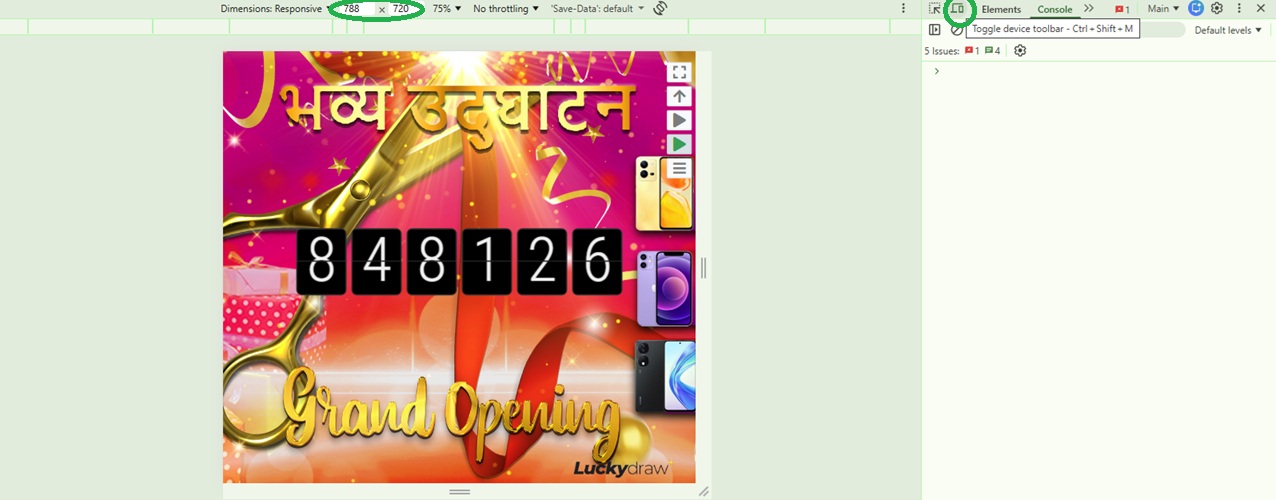
You can use Dev Tools to simulate a screen resolution.
In Chrome, press F12 to open Dev Tools, then click Toggle device toolbar and set the screen height and width you would like to simulate.
Logo placement
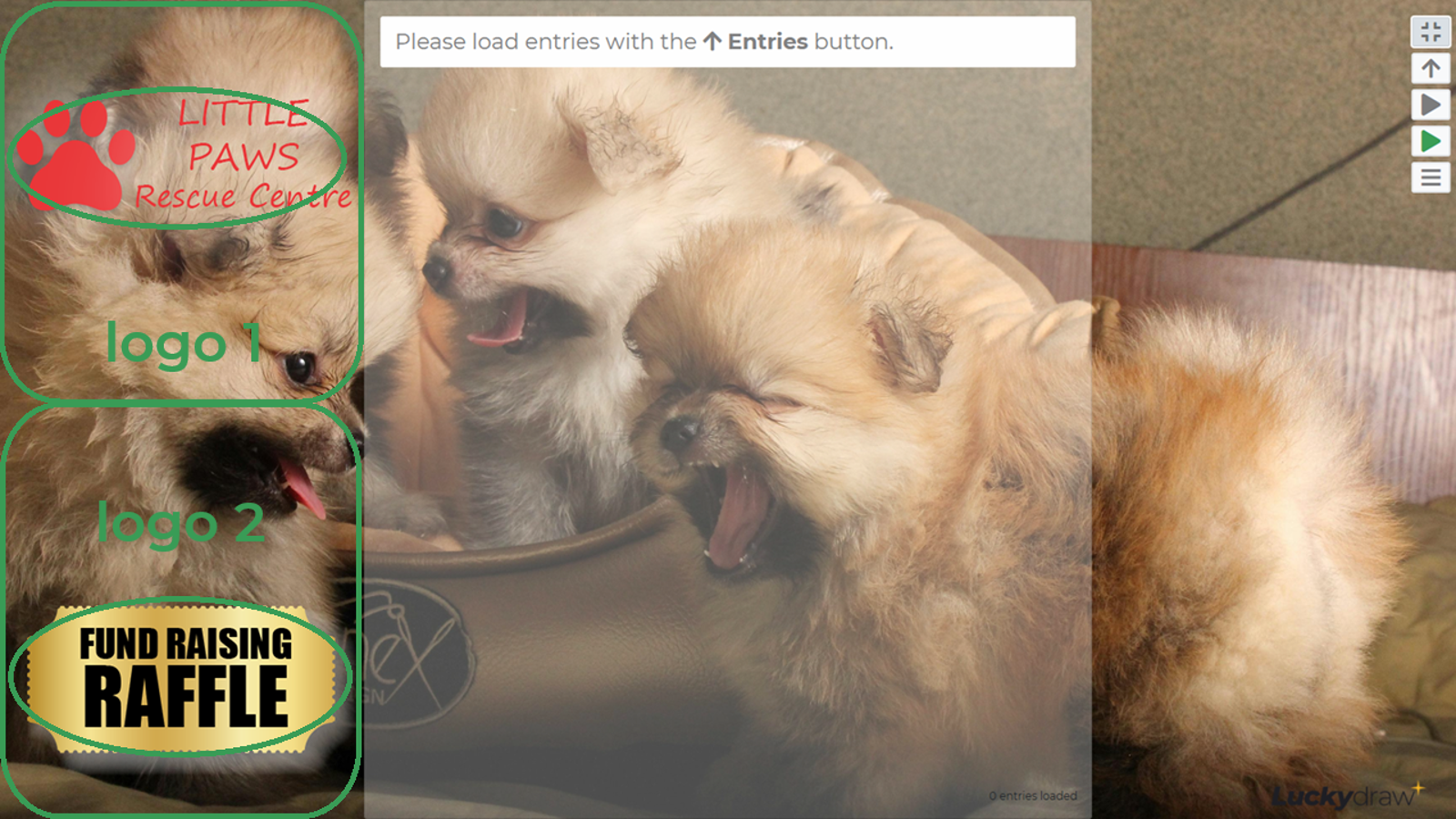
Lucky Draw Plus allows you customise your draw name, add a background image, and add up to two additional images or “logos”. Logo 1 and logo 2 could be any image, including your brand logo, sponsor logos, or text elements.
The logos and draw name will be overlaid on your background down the left one quarter of the screen, like this:
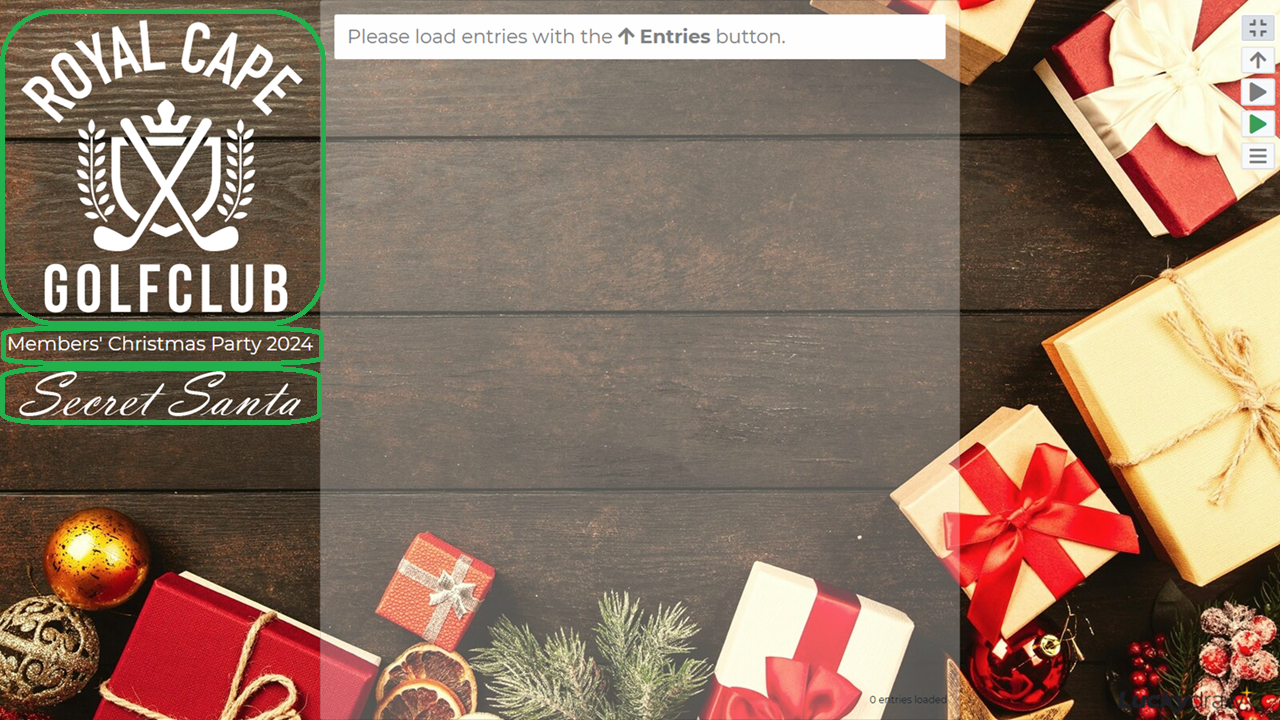
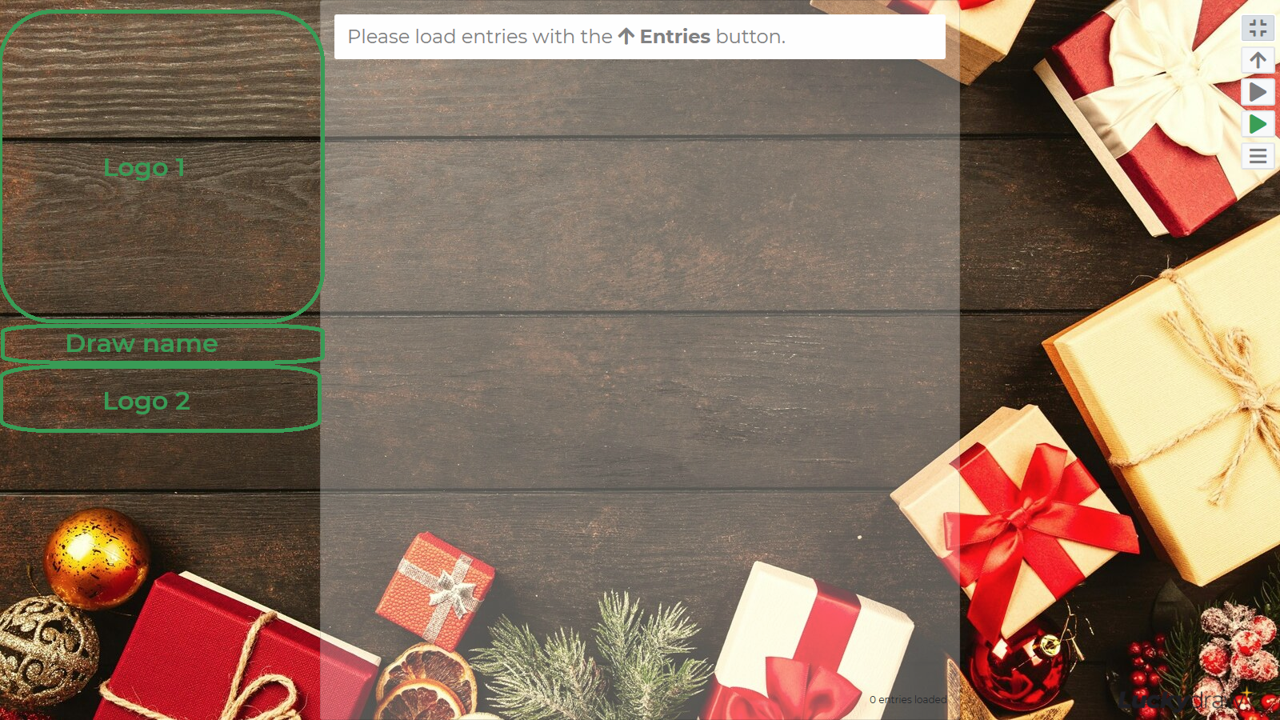
Whatever size your logos are, they will be resized either up or down so that the image width becomes one quarter of your screen width. The image aspect ratio will be maintained.
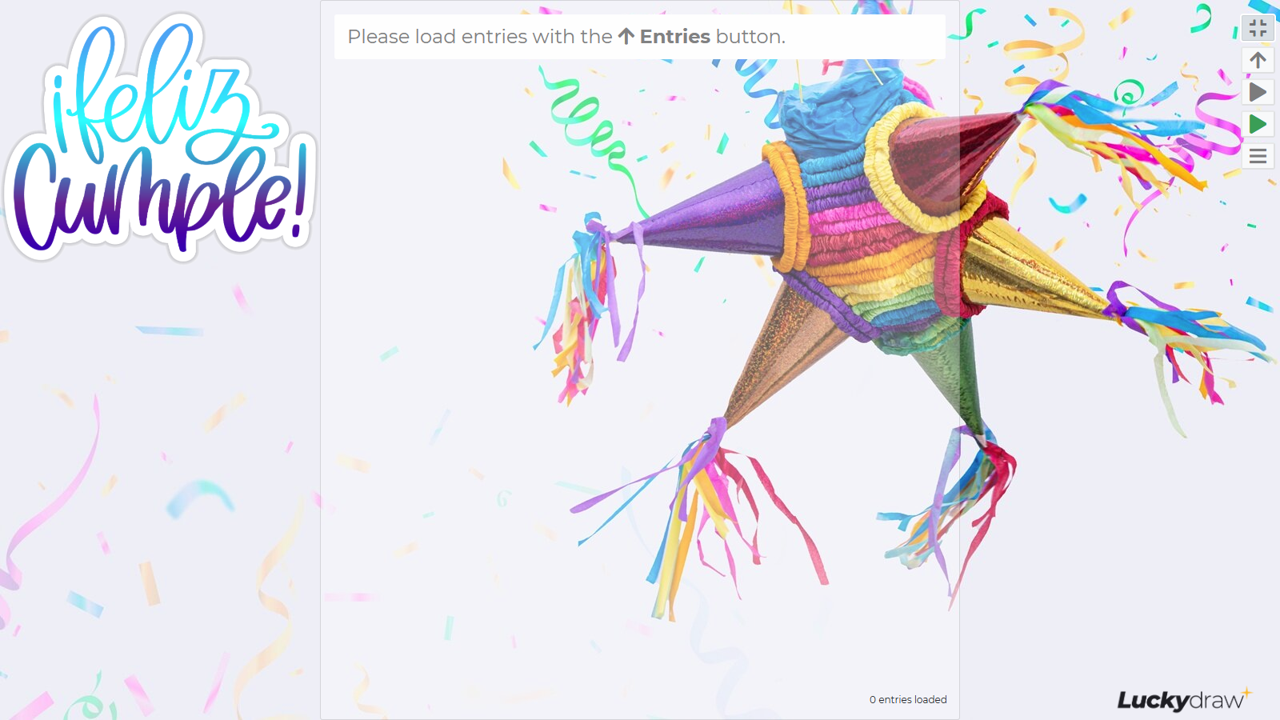
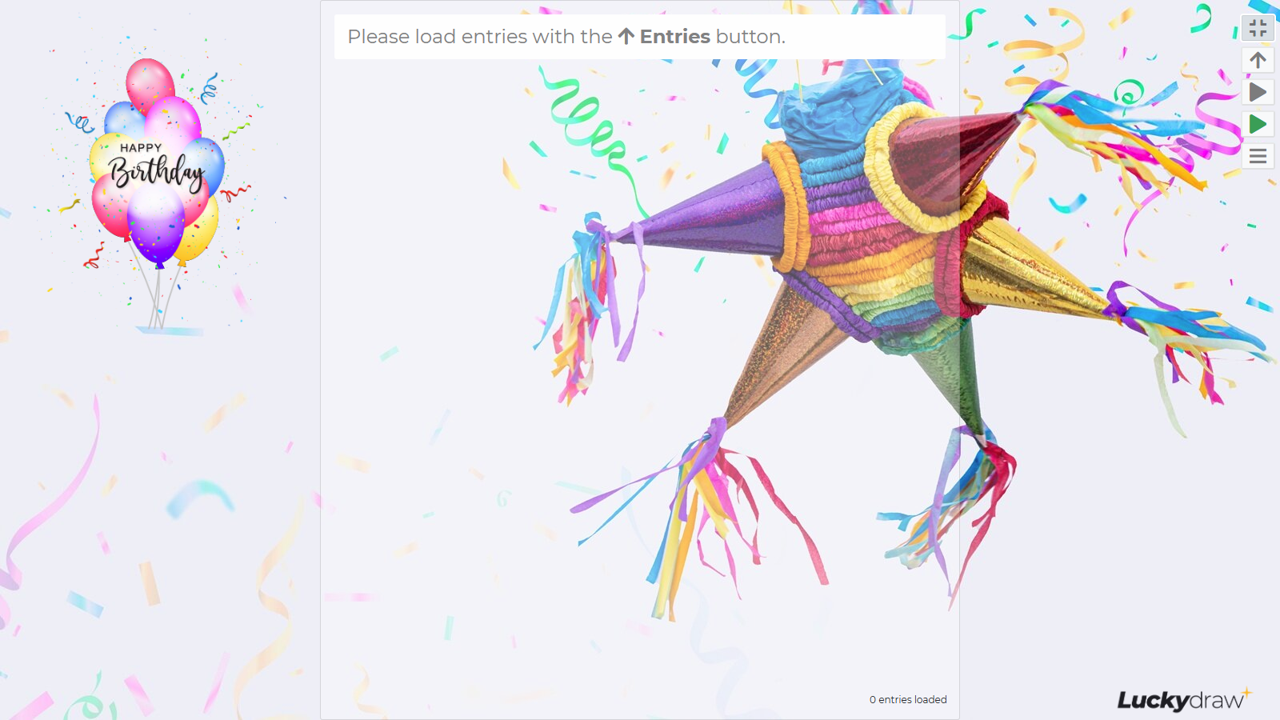
Here are three different sized images, and what they look like in Lucky Draw Plus when used as Logo 1.
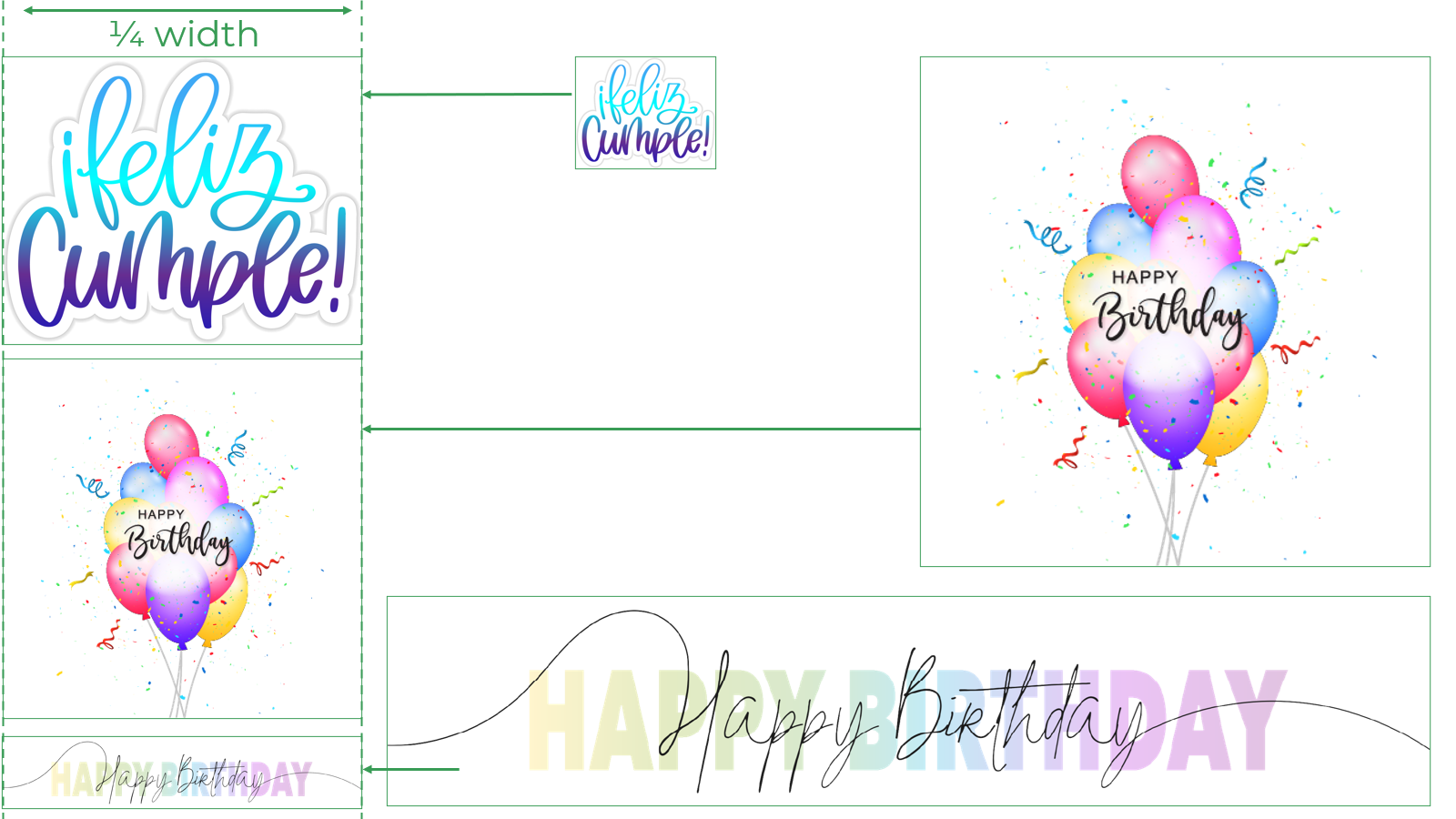
Click an image to enlarge it.
In these images, only Logo 1 is used, and Draw Name and Logo 2 are switched off.
|
|
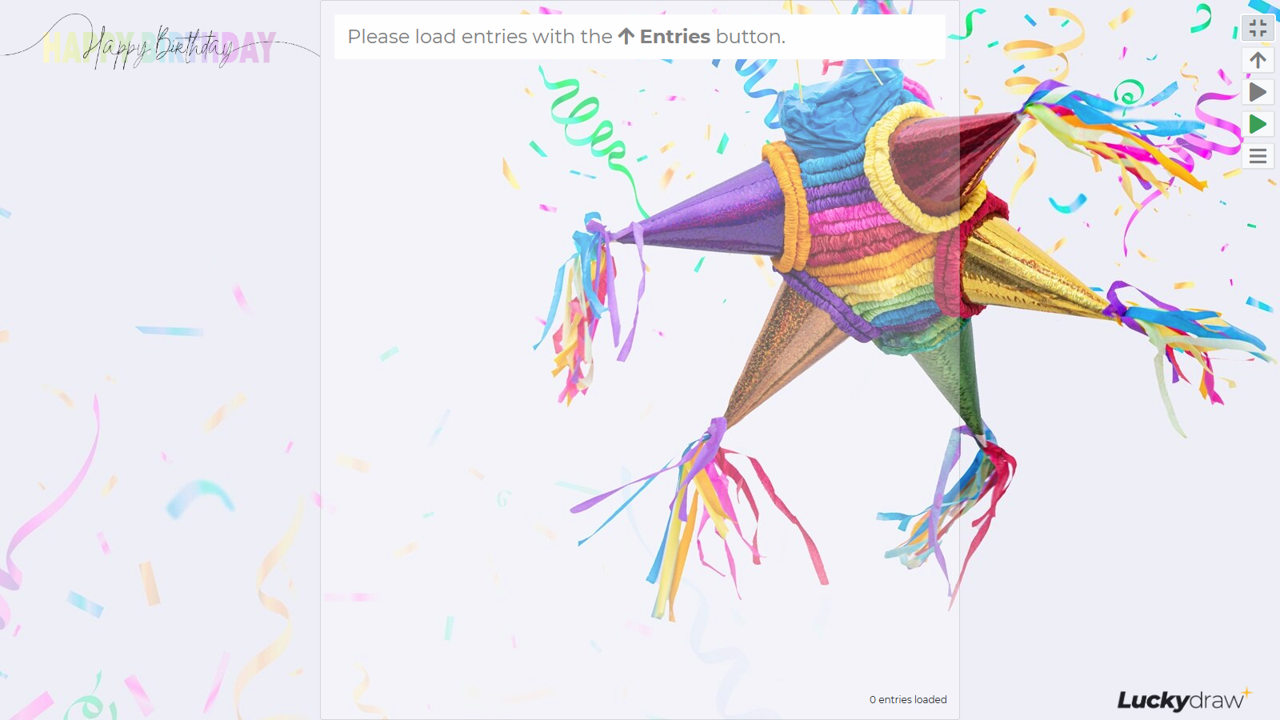
|
You can “move” your logos up and down by making your image canvas bigger or smaller.
Logo images cropped to exact height |
|
|
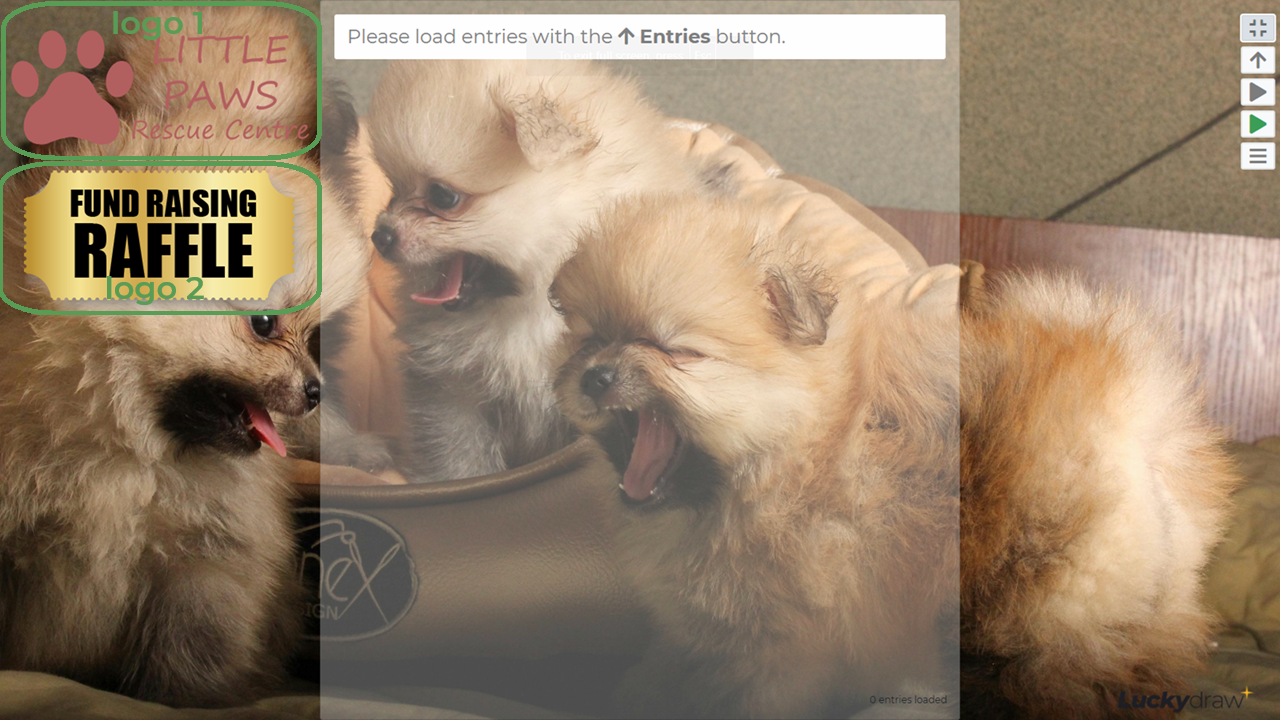
|
Logo images on higher canvases |
|
|
|
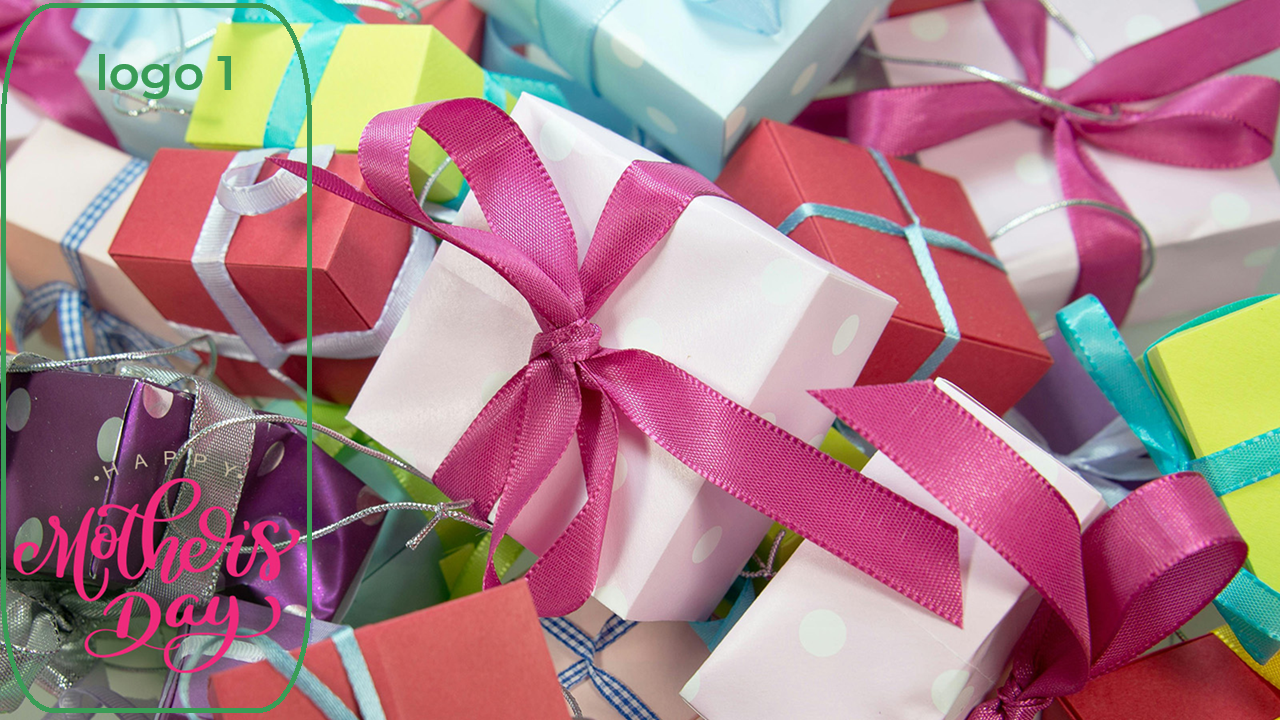
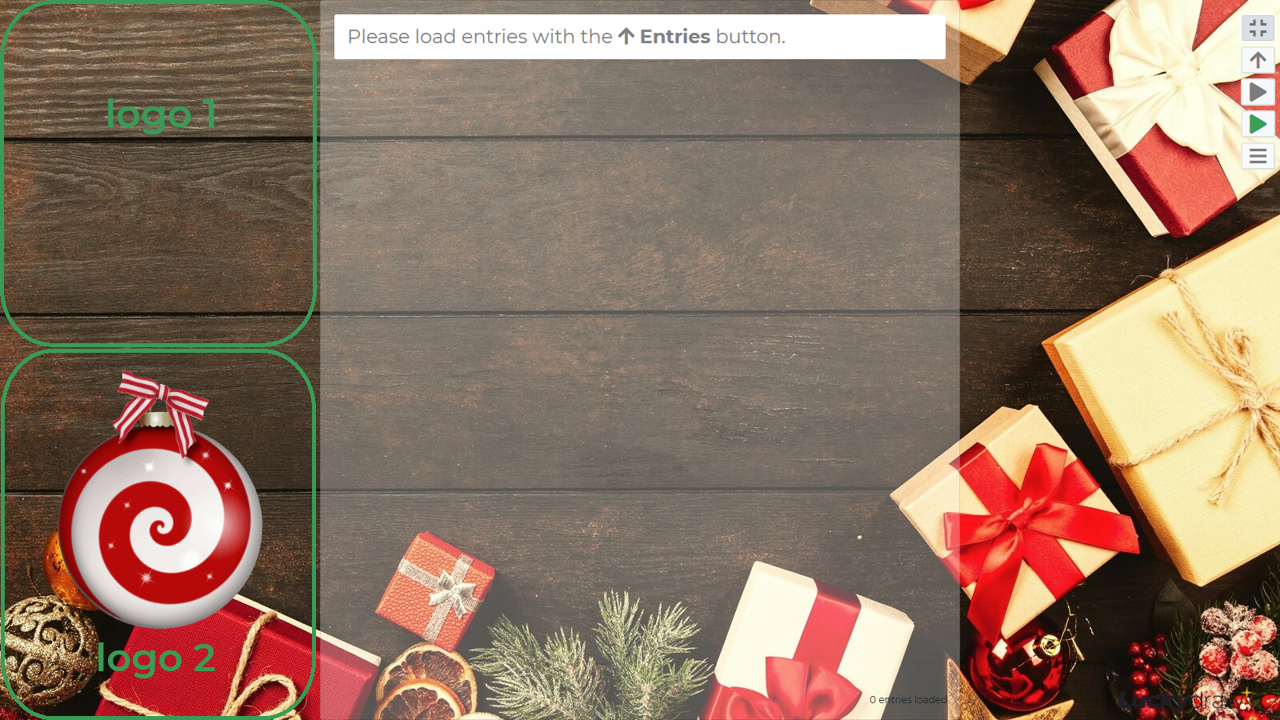
If you only want a logo at the bottom left of your screen, make a very high logo 1, or upload a blank transparent .png as logo 1, and your image as logo 2.
High Logo 1 |
Blank Logo 1 |
|
|
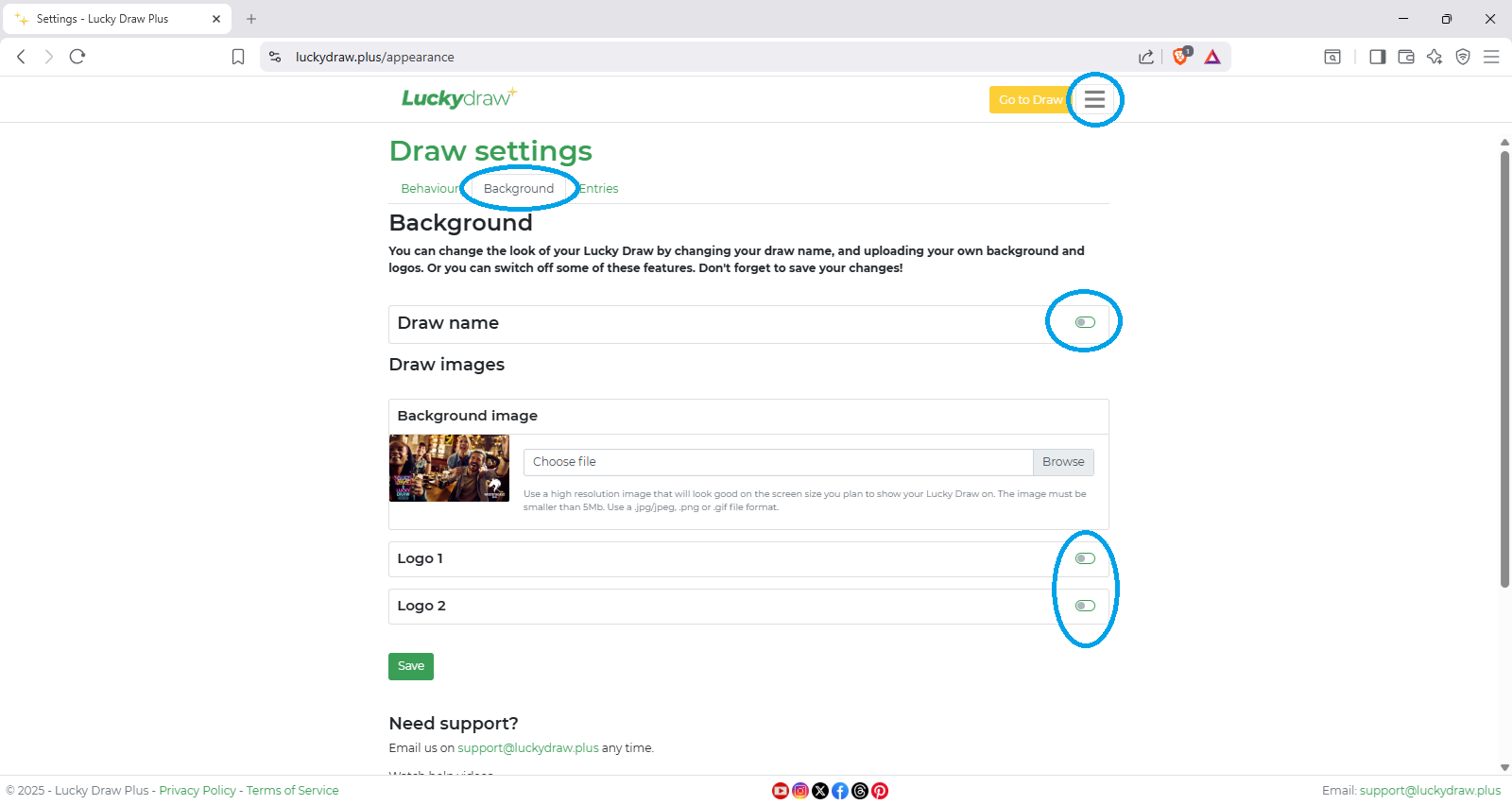
If you want to place logos more precisely, or on the right of the screen, create a single background image with all your elements embedded in it, and switch off logo 1 and 2 in Settings.
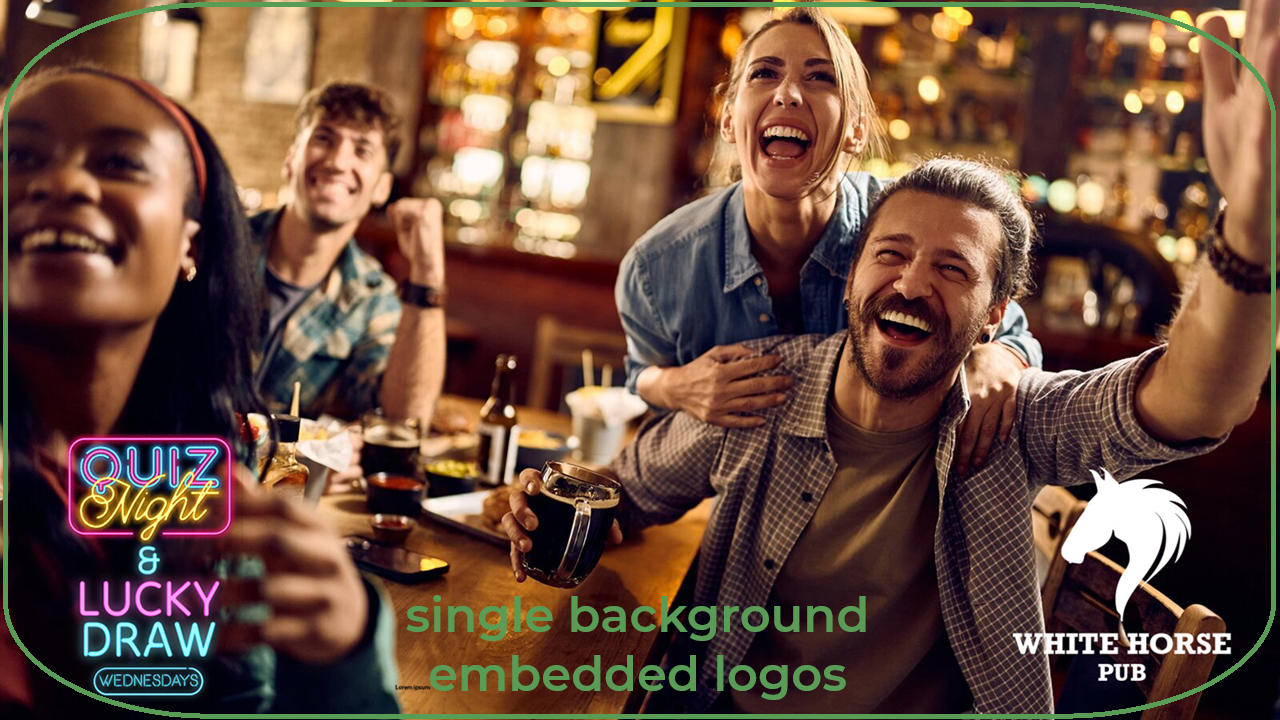
Using logos allows you to easily switch out just one element while leaving the rest of your background the same. For example, if you have weekly draws where your branding remains the same but there is a different prize sponsor each week, your background, draw name and your logo could remain, and you switch out just the sponsor logo each week.
Mobile device layout
Lucky Draw Plus is designed to adapt to any screen size, including mobile devices.
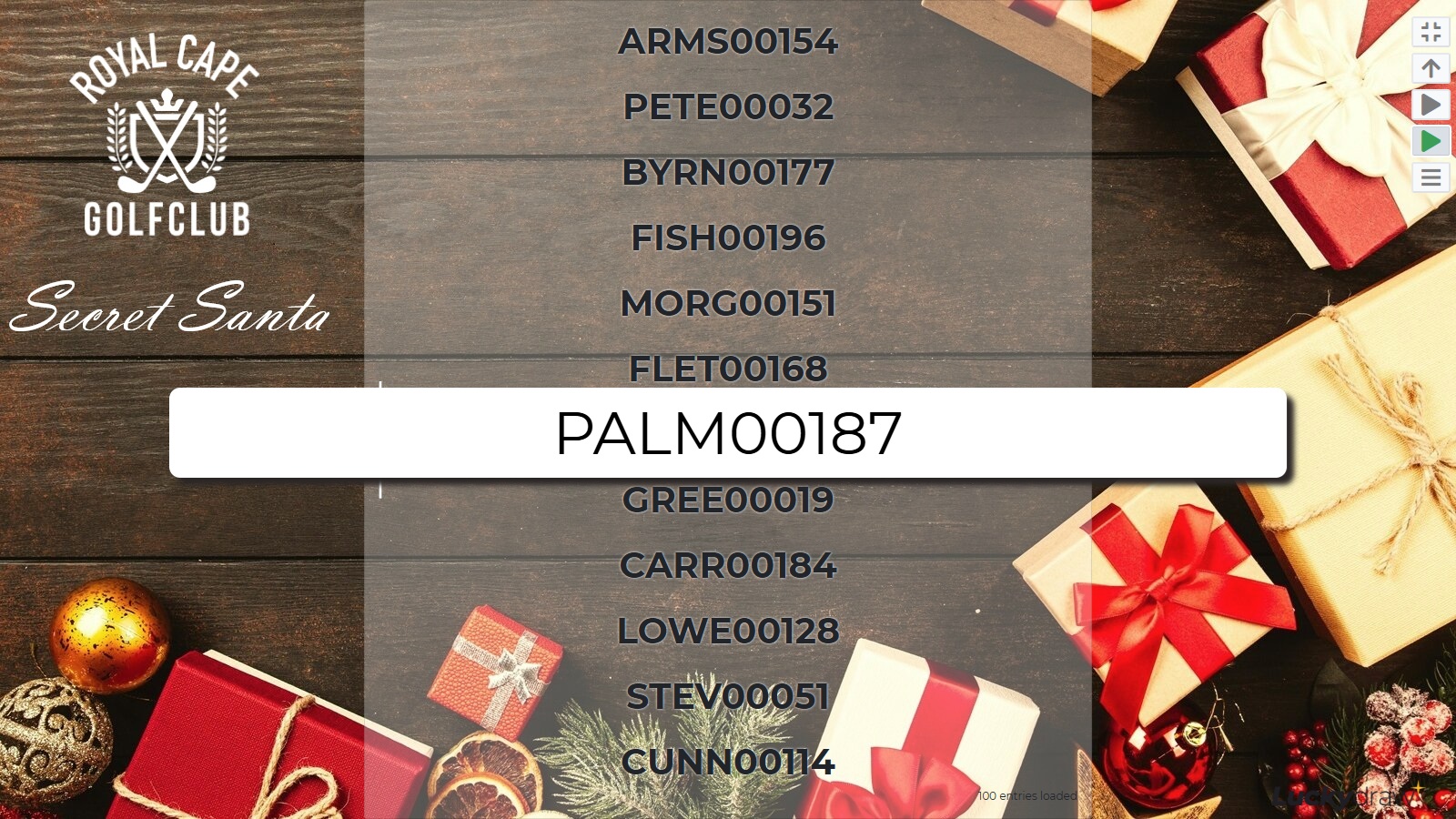
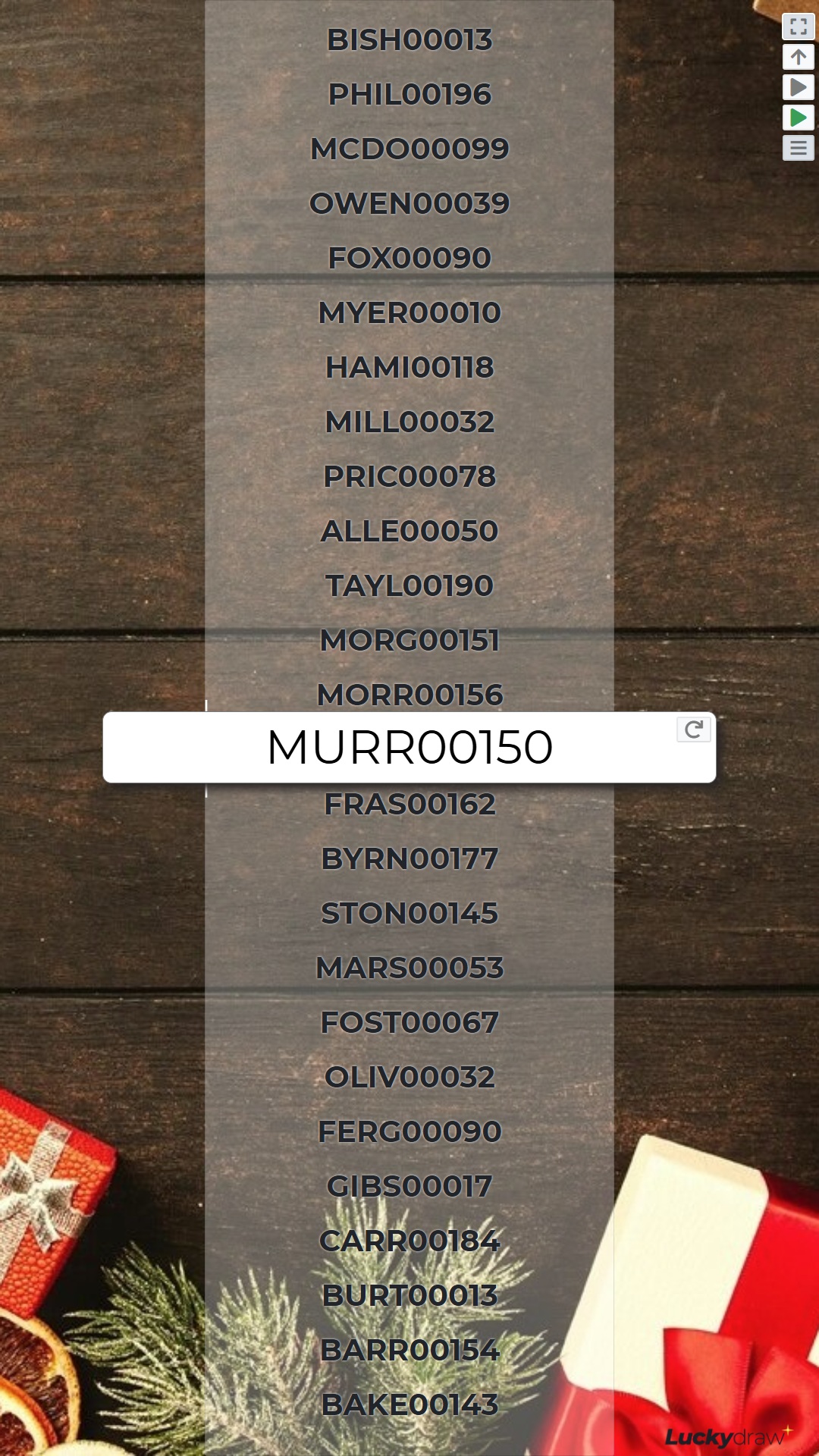
Lucky Draw Plus will centre any background image you upload, so you may lose the sides of your image if the aspect ratio is not the same.
Horizontal layout |
|
|
|
For perfect results, design your background image to match your mobile device resolution so that all the elements you want show up.
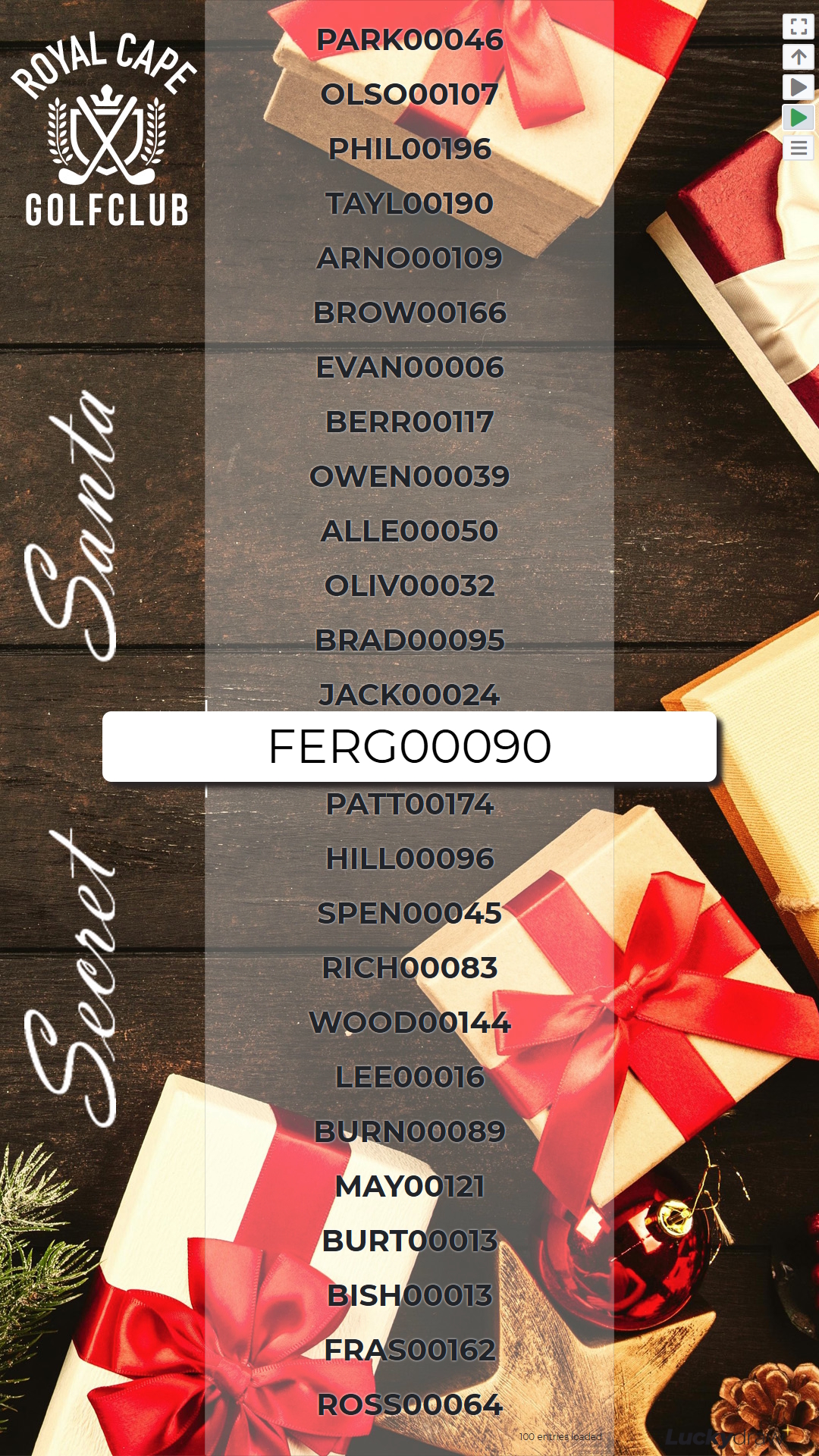
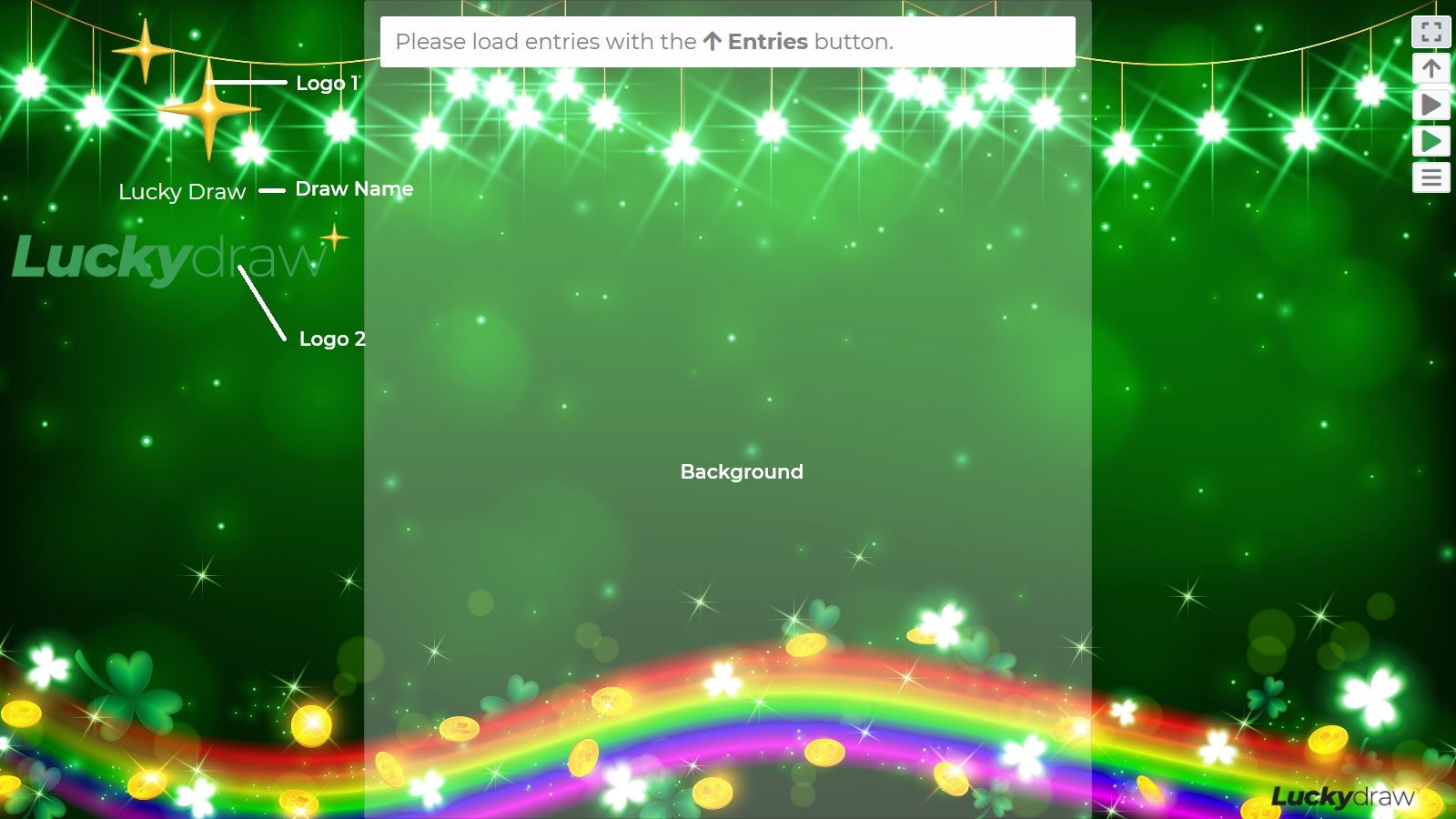
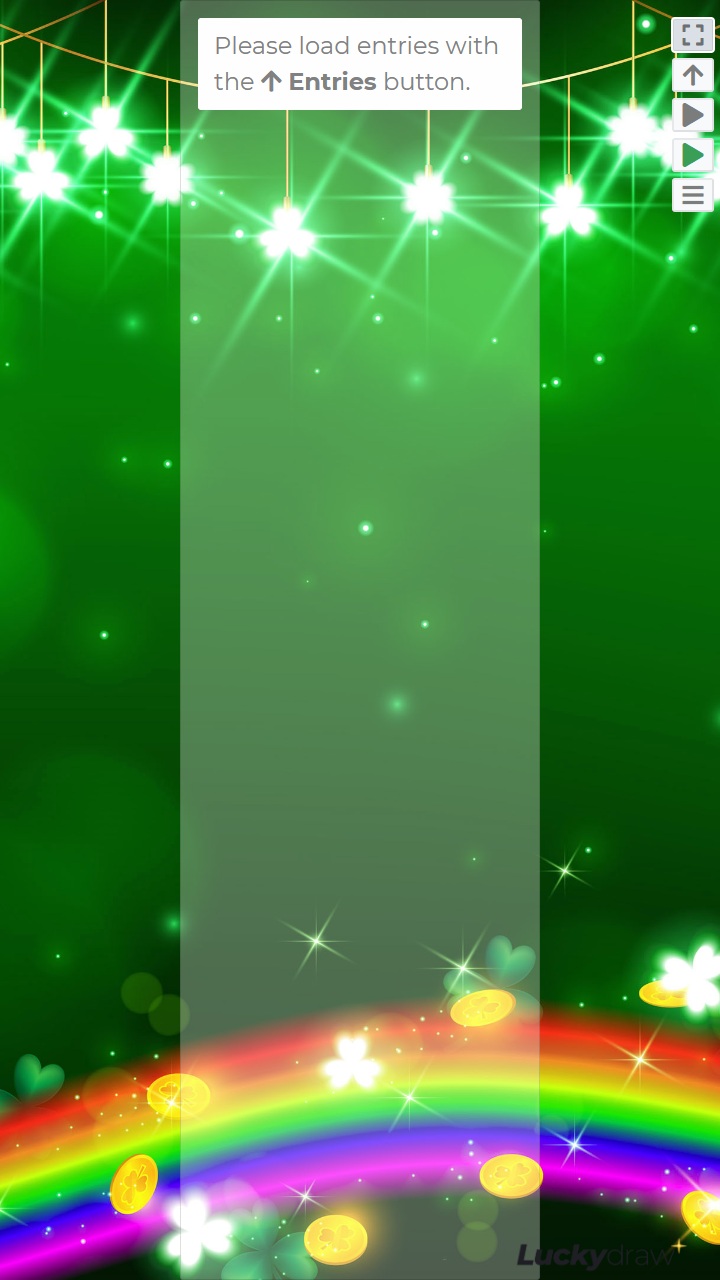
Note that for vertical layouts under a certain width (mobile), Lucky Draw Plus does not display the Draw Name or Logo 1 or Logo 2 even if you have uploaded them and left them switched on in settings.
Horizontal layout - draw name and both logos |
Vertical layout with same settings |
|
|
Animated backgrounds
You want your random winner draw to be as visually exciting for your live audience as possible.
Try using an animated .gif as either your background or one of your logos! Here are some examples.
Animated .gif uploaded as background
Animated .gif uploaded as Logo 1
Animated .gif uploaded as Logo 2
Image resources and tools
Here are some great free resources and tools to help you create a stunning background for your live draw presentation:
Photos: Pexels, Adobe Stock and Pixabay
Other artwork: images, logos, text effects and more - Adobe Stock and Pixabay
Animated gifs: Pixabay and Motion Elements
Fonts: Font Squirrel
Cropping and resizing tools: Img2Go
Please check the licensing of any resources carefully before you use them!
Pexels
Photographs free to use with an option to donate to the creator.
Adobe Stock
Photos, vectors, images, editable text effects and more! You can download three assets per day from their free category, more with one of their tiered subscription options including a free trial.
Pixabay
Animated gifs, images, photos. There are free assets with an option to donate to the creator, and paid assets.
Motion Elements
Animated gifs. These assets are paid. but most are very affordable.
Font Squirrel
Free fonts for commercial use.
Img2Go
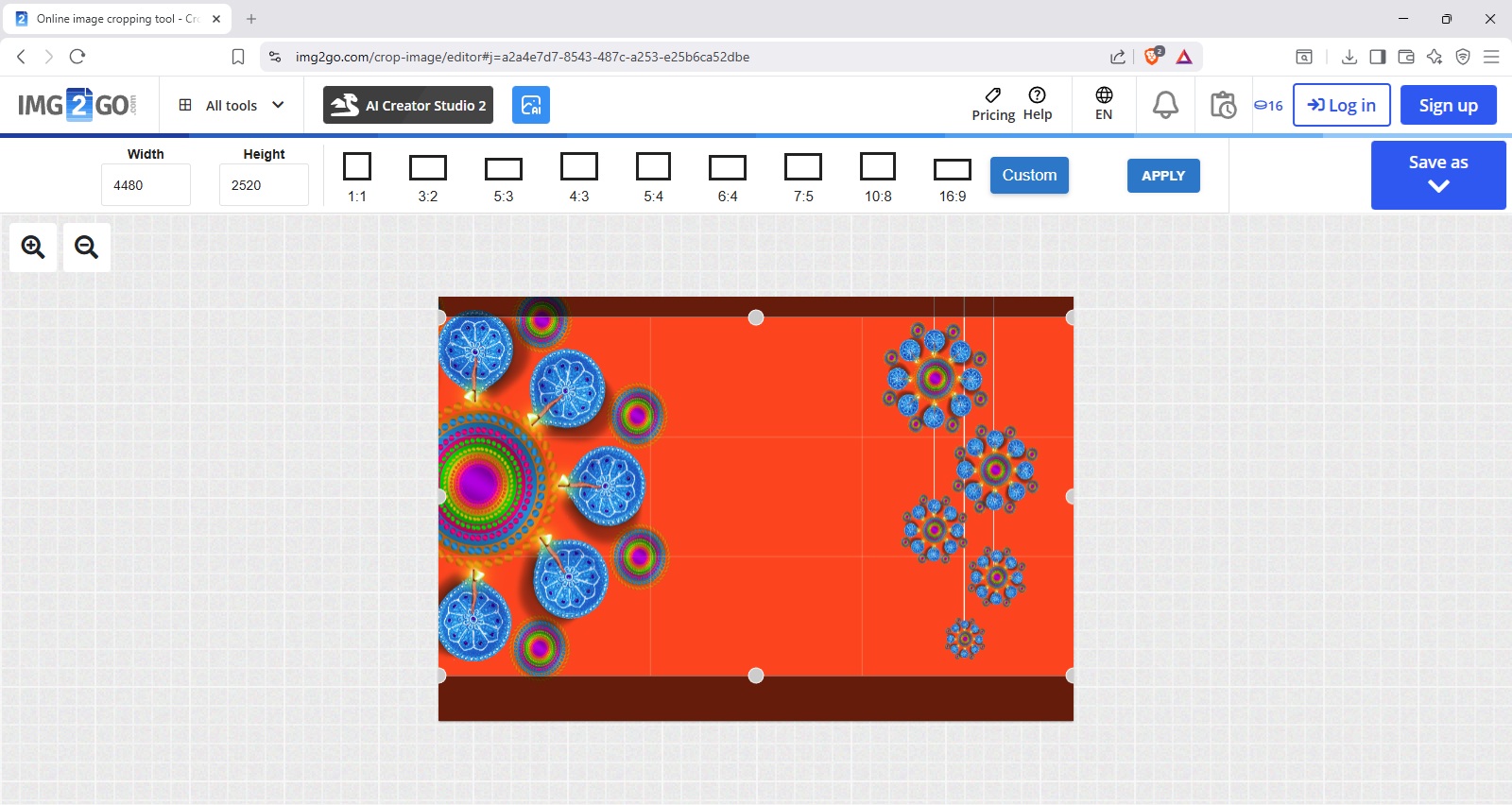
Online tools to manipulate images in so many ways.
With the image cropping tool, you can easily select the best part of an image that is a different aspect ratio to your desired screen resolution.
You can do a number of operations free of charge each day. They also have subscription options.
Use your imagination and wow your audience for an unforgettable live draw event!
Customising your draw behaviour
See also Behaviour settings for an intro to draw behaviour.
Draw style
The draw style you pick is one of the main elements that influences the feeling of your draw.
Classic scroll
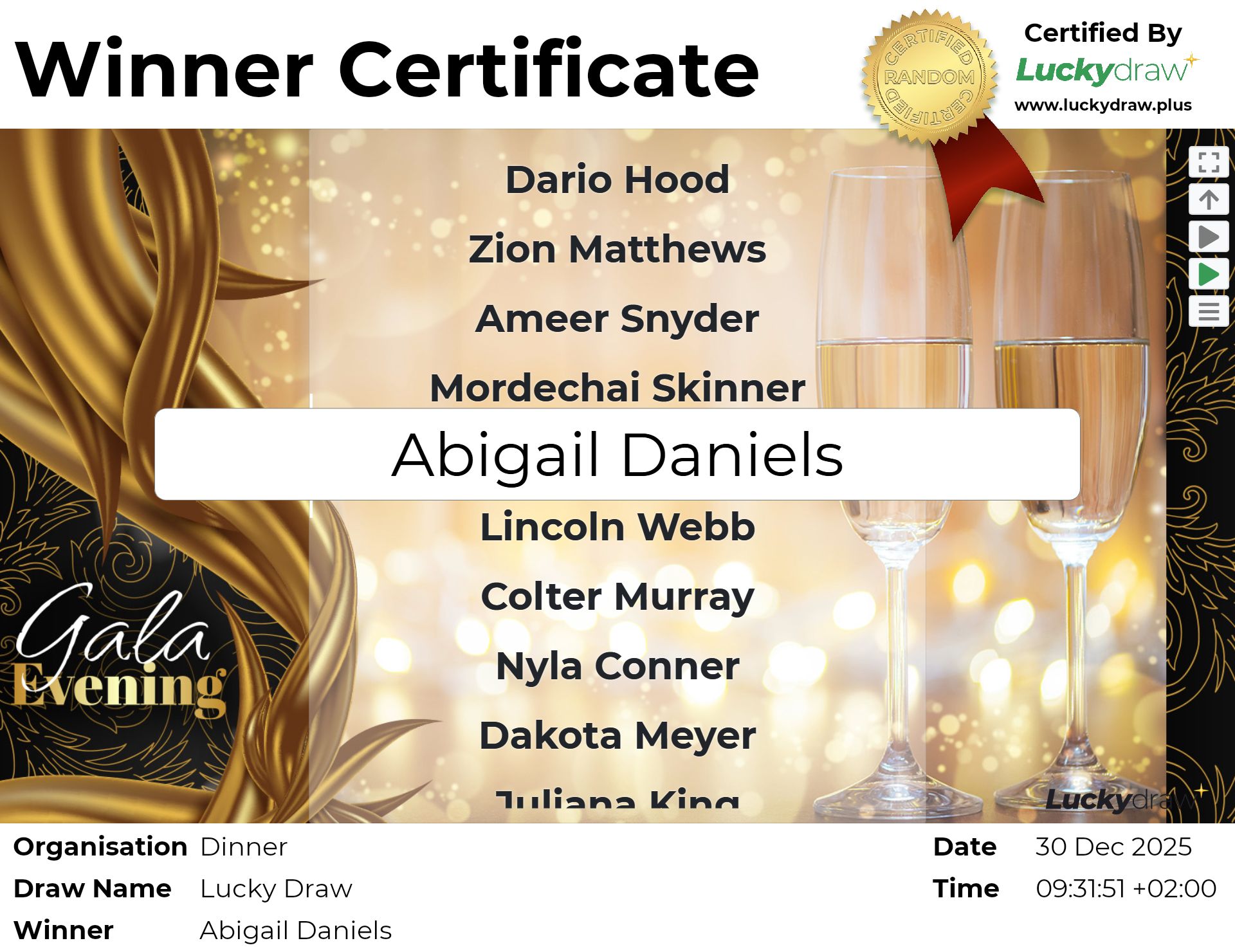
Here are three examples of the classic scroll style.
In this draw style, many possible entries scroll on the screen before your winner is picked.
The longer you set your draw duration to, and the faster you set your draw speed, the more entries will scroll.
Use this draw style if you want your participants to have the sense that there were many entries into the draw, and possibly see their own entry for maximum excitement.
This draw style handles non-Latin character sets better than the split flap board draw style.
The winner certificate for this draw style shows the winning entry as well as any other entries that were on the screen at the time of the winner being picked.
Split flap board
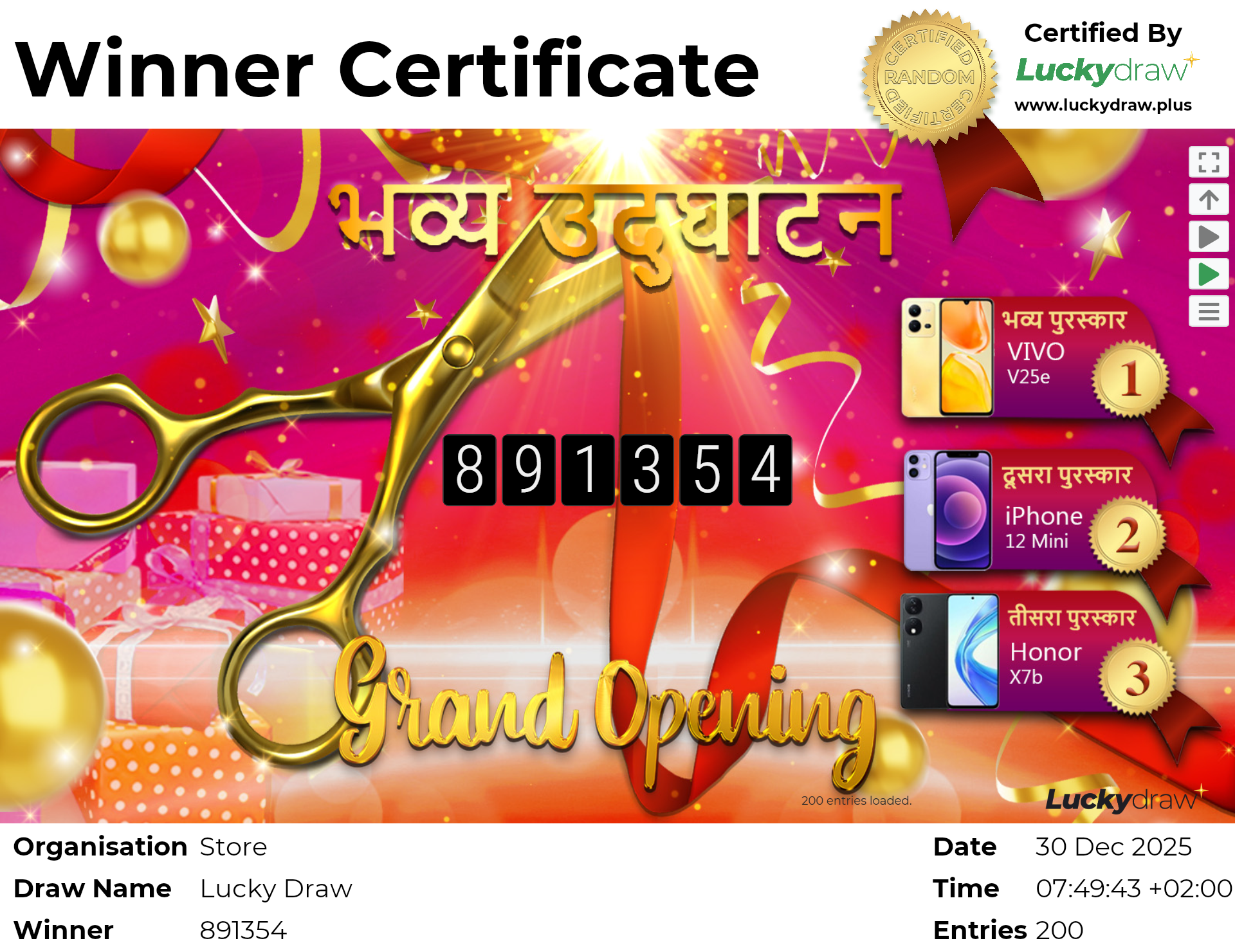
Here are three examples of the split flap board style.
In this draw style, only a few entries are shown before your winner is picked - more or less depending on the draw duration you select.
Use this draw style if you do not want as many of your non-winning entries shown on the screen, possibly for privacy reasons.
Some non-Latin character sets are not well supported by this draw style.
The winner certificate for this draw style shows only the winning entry on the screen.
Mini scroll
Here is an example of the mini scroll draw style.
In this draw style, many possible entries scroll on the screen before your winner is picked, but you can only see three of them at a time on the screen.
Once the winner is picked, no other entries are shown.
Use this draw style if you do not want as many of your non-winning entries shown on the screen, possibly for privacy reasons.
This draw style also leaves more of your background area and artwork clear than for example Classic scroll.
The winner certificate for this draw style shows only the winning entry on the screen.

Wheel of fortune
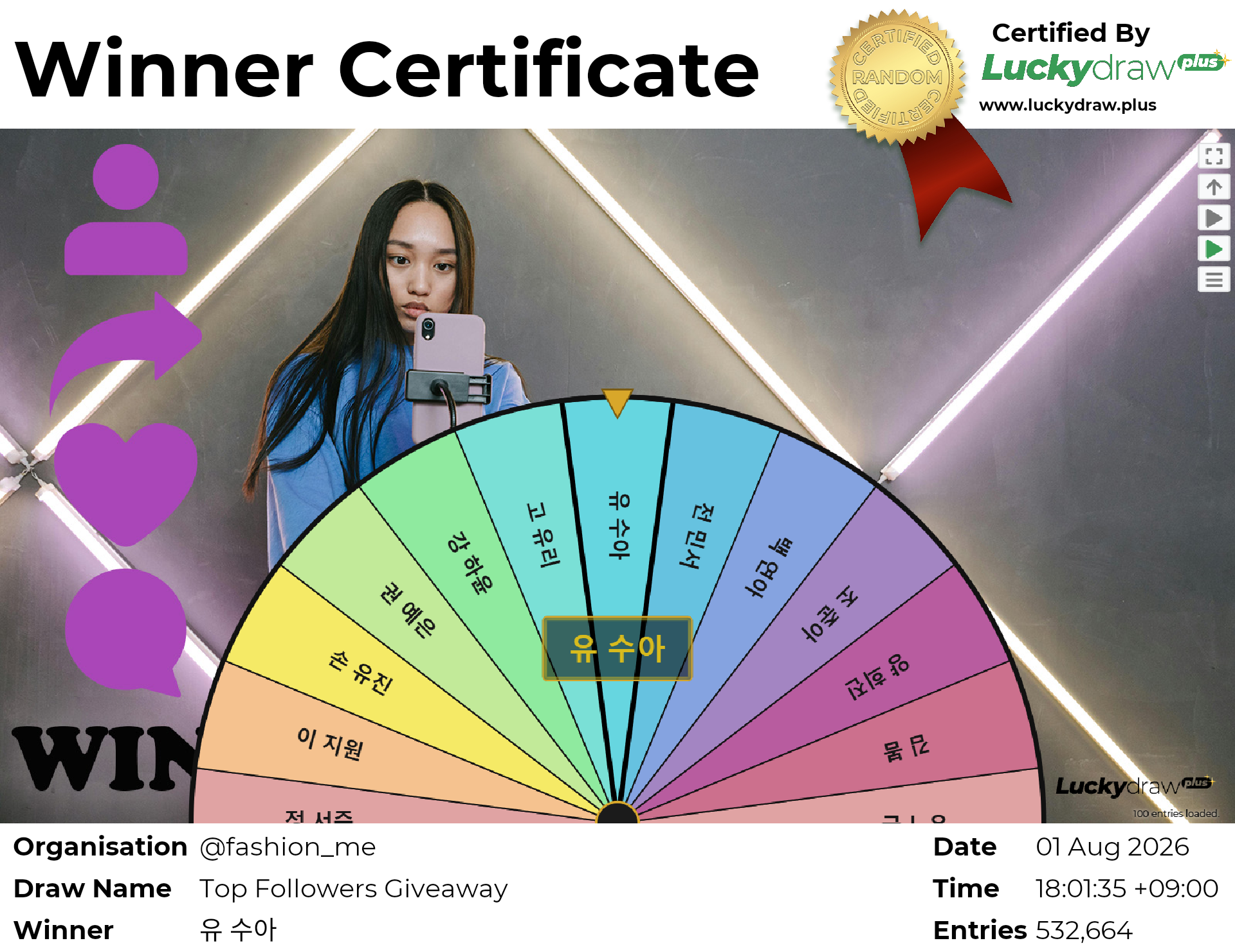
Here are two examples of the wheel of fortune draw style, set to different draw speeds.
In this draw style, many possible entries scroll on the screen before your winner is picked, but you can only see twelve of them at a time on the screen.
No matter how many entries you have in your draw, the wheel segments will always be the same size and be readable. New entries are continually fed into the wheel from one side as it spins.
This draw style covers a large portion at the bottom of your background area and artwork, but leaves the top half clear.
The winner certificate for this draw style shows the winning entry as well as any other entries that were on the screen at the time of the winner being picked.
Sound effect theme
Each Lucky Draw Plus sound effect theme has:
a scroll sound that will loop while your entries are scrolling, and
a matching winner sound that will play when the winner is picked
You specify your sound duration - if you set it to 10 seconds, the sound will start in the last 10 seconds of your draw before the winner is drawn.
Some scroll sounds are uniform throughout any duration.
For example the Classic drumroll theme scroll sound is the same whether you set it to 3 seconds or 90 seconds.
Other scroll sounds vary over time.
For example, the Arcade game theme scroll sound is a 26 second loop.
If you set your sound duration to 10 seconds, you will get the first 10 seconds of the loop and then the winner sound.
If you set your sound duration to 52 seconds, the scroll sound will loop twice before playing the winner sound.
You can choose any sound duration and it will still work well.
Example of the Classic drumroll sound effect theme (10 sec draw duration, 5 sec sound duration):
Example of the Arcade game sound effect theme (26 sec draw duration, 26 sec sound duration):
Example of the Drums & gong sound effect theme (30 sec draw duration, 30 sec sound duration):
In-person, virtual or hybrid?
What draw format are you planning? Lucky Draw Plus has been used in so many ways.
The strength of Lucky Draw Plus is that people can watch you doing the draw, so they know it is fair and transparent, and your branding and customisations will make it look great and build excitement.
Here are some ideas to leverage these strengths.
In-person event
Present your draw live to an audience at an in-person event
Use a large screen or projector, and a sound system, so the audience can see and hear the draw
Call the winners up to the stage and present any prizes immediately
Record the event (video, photos) and post to your social media afterwards, along with your winner certificates
Virtual event
Present your draw live to your audience using screensharing or streaming software.
GoogleMeet, Microsoft Teams or Zoom allow meetings and screensharing.
Here are some options for software that allows you to livestream to various platforms:
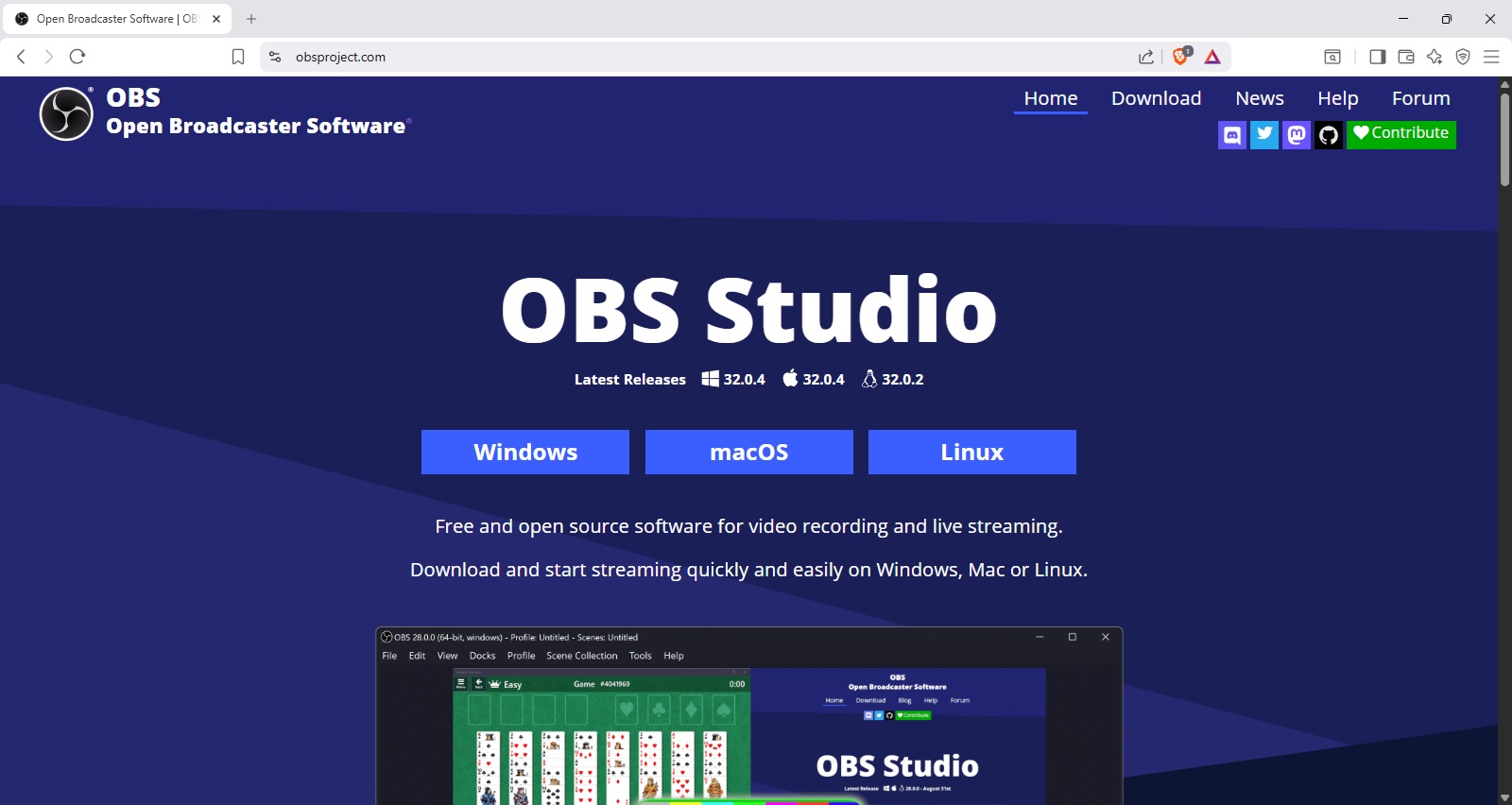
OBS Studio
Downloadable software
Completely free and open source
Video recording and live streaming to multiple platforms
StreamYard
Web-based software
Free tier has watermark
Video recording and live streaming to multiple platforms
Restream
Web-based software
Free tier has watermark
Live streaming to multiple platforms
Hybrid event
Join multiple live and virtual audiences
Use meeting software like MS Teams to join multiple venues such as your company offices or your stores or branches
Have audiences at each venue watch on a large screen
Live stream to social media for a vitual audience
Pre-recorded draw
You might not want to do your draw live.
You can use Lucky Draw Plus to pick a winner from your entries, without presenting to an audience.
Publish your winners afterwards without sharing the actual draw with them.
You can also pre-record your draw, and share the video later.
One-on-one draw
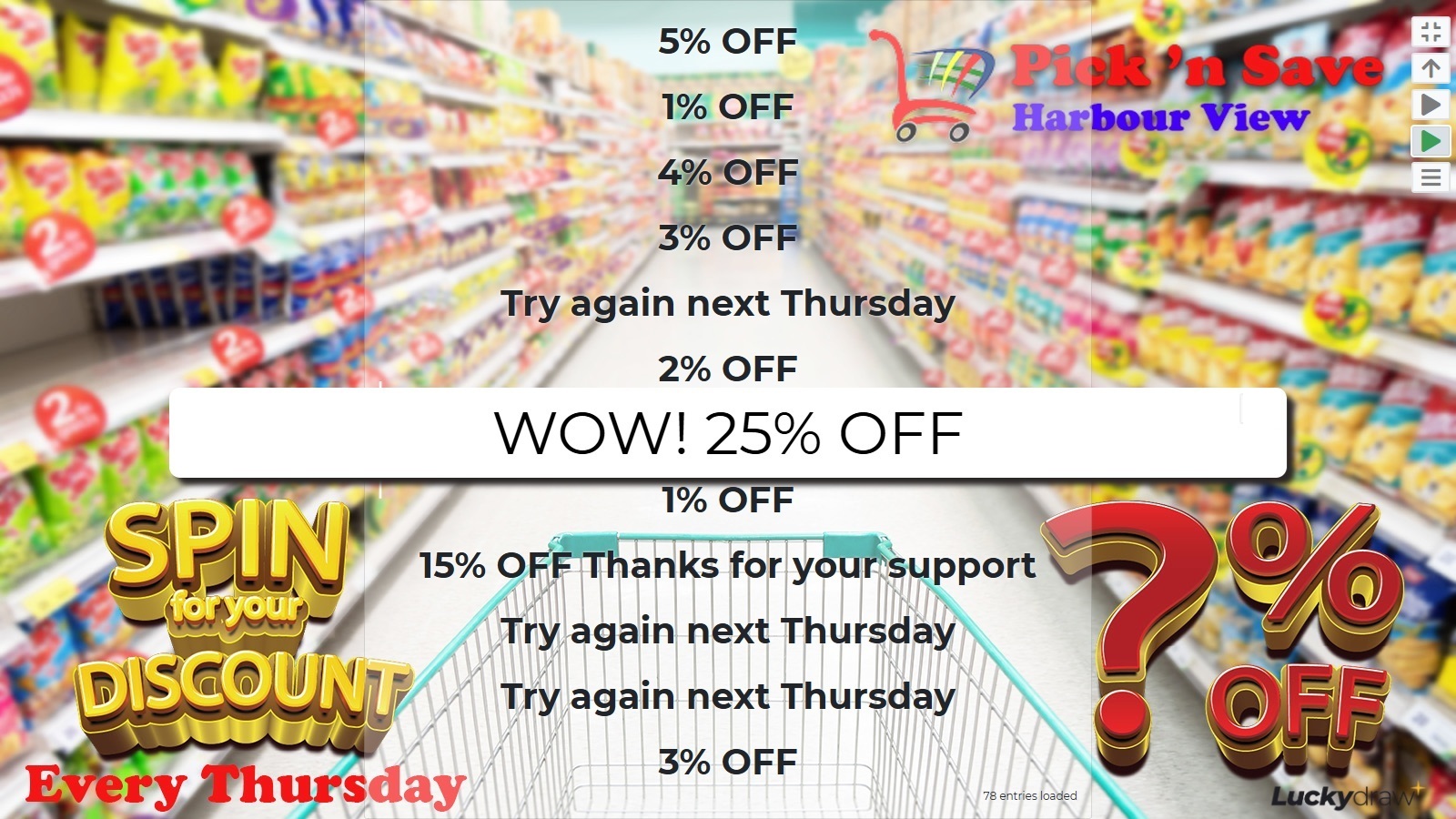
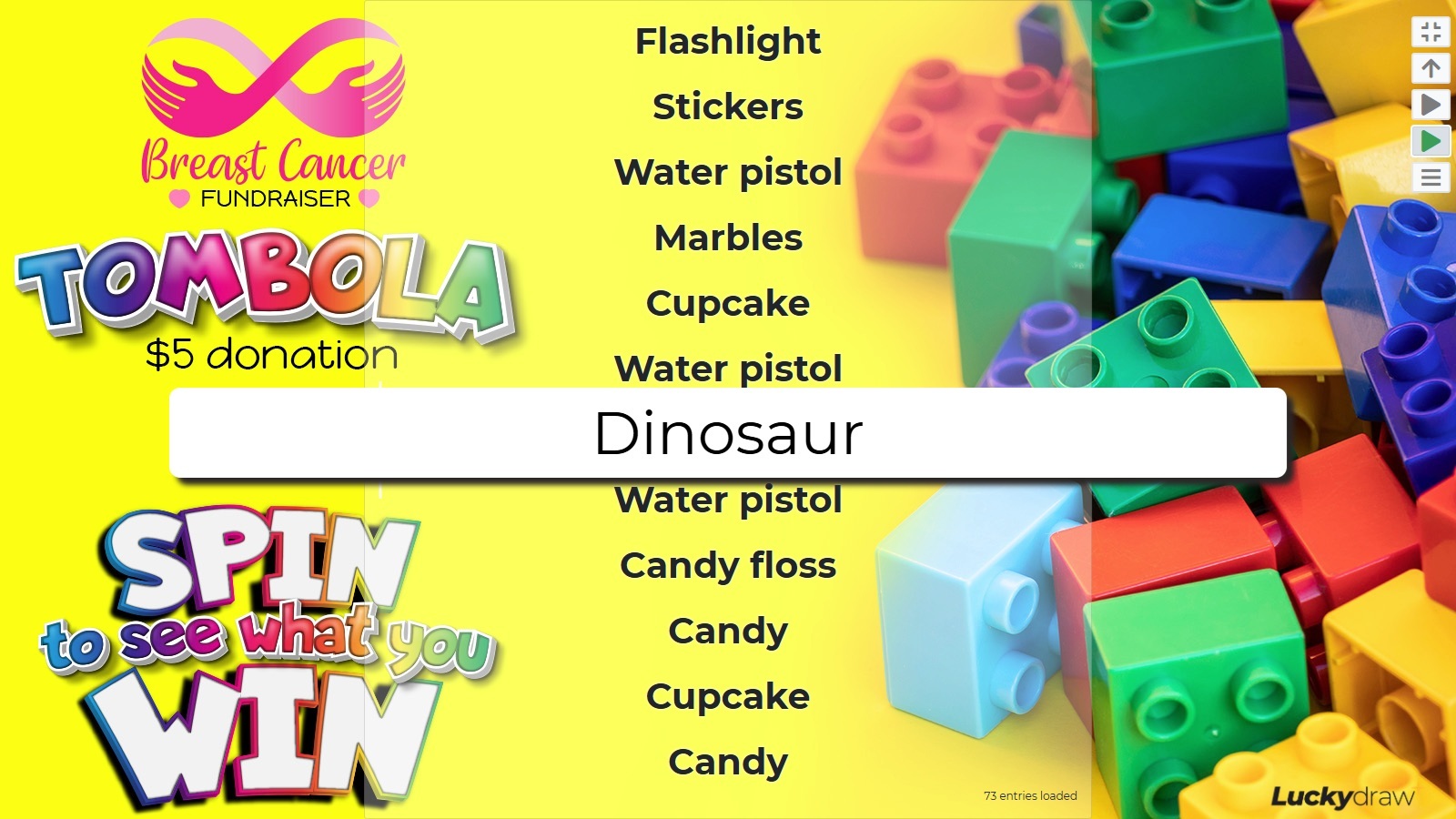
Let your participants run their own draw! For example:
Your customers pick their own discount at the checkout on a promotion day
Your participants pick their own prize at a fundraising event or tombola
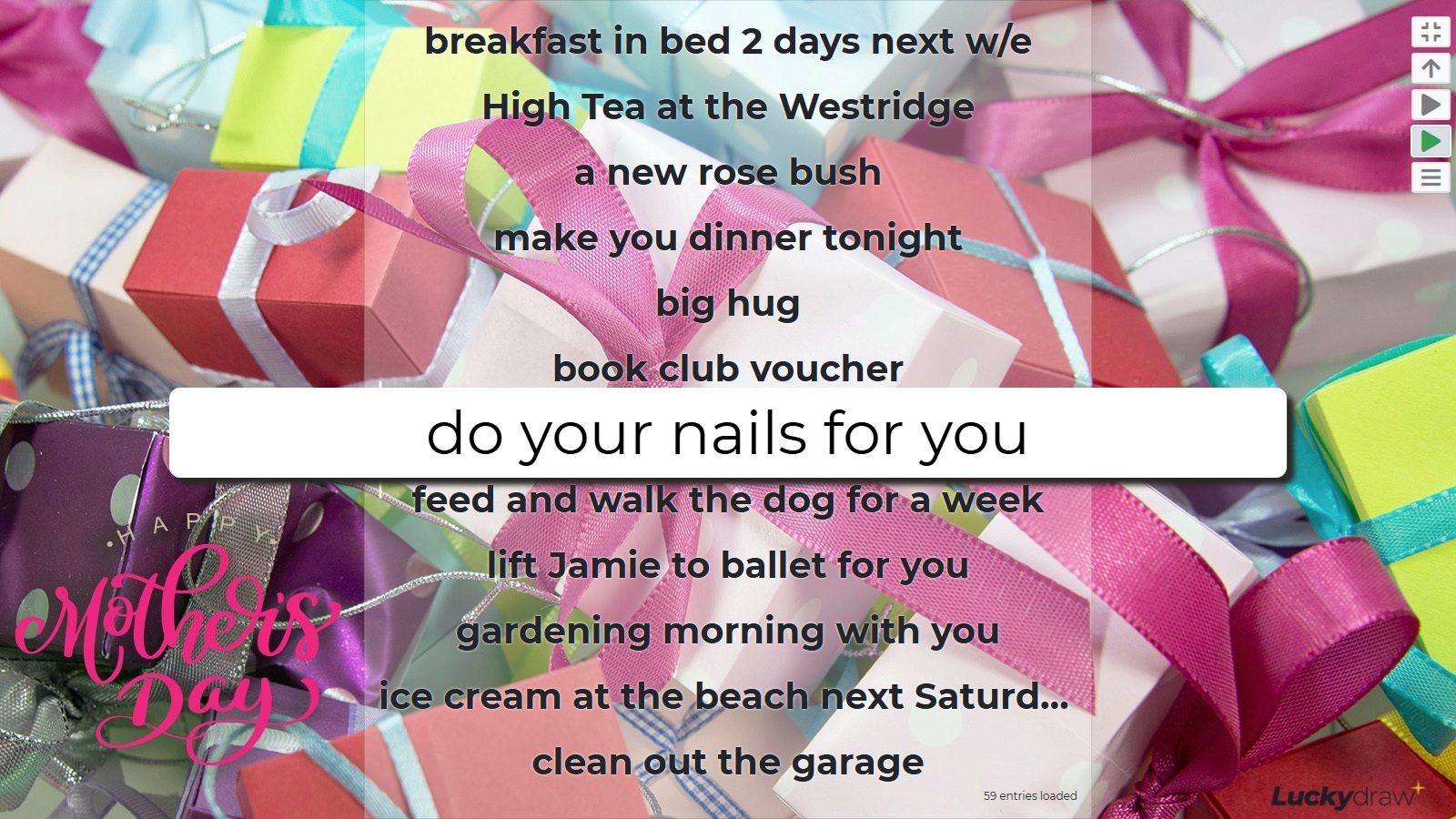
Your loved one picks their own prize on a special day like Mothers’ Day, Valentine’s Day or a birthday
Your team picks their own present in a Secret Santa variation
Use any device - laptop, tablet or mobile
Set up your draw and load your entries (the prizes), then let your participants hit the draw button themselves.
|
|
|